Git for DevOps Notes |【DevOps Skill Tree】
🌐 中文版:繁體中文
Basic
Q: How do you confirm a directory is a git repository?
Check whether there’s a .git directory.
Q: Explain
git directory,working directory, andstaging area
Git directory:
Where the project history is stored. It contains all commit history, branches, labels, etc., stored in the .git folder in the project directory.
The git directory is the main data store responsible for version management; you can view info with the git log command.
Working directory
The project directory you’re currently operating on. In the working directory, git extracts a specific version (usually the latest) from the git directory and checks out the files, so you can edit and modify them directly.
Changes to the working directory aren’t automatically detected by git; you need to manually add and commit to update.
Staging Area
A temporary space where you can add working-directory changes, waiting for further commit. When you run git add, the file moves from the working directory to the staging area. Finally, when you run git commit, Git commits the staging area’s contents into the git directory (.git), forming a new commit.
Q: What’s the difference between
git pullandgit fetch?
In short, git pull = git fetch + git merge.
git fetch simply downloads the latest changes from the remote repository to local and updates the local remote-branch record (origin/main), but doesn’t merge these changes into the current working branch, so after git fetch you need to manually use git merge or git rebase.
git pull is the combined command of git fetch and git merge.
If both the remote and local have modifications during git pull, you can hit a merge conflict.
Q: How do you determine whether a file is tracked? If not, track it
- Check whether the file is tracked
Use git status to check the current file status. If a file appears under Untracked files, it’s not tracked; if it’s under Changes not staged for commit, it’s tracked but the modification isn’t committed.
Taking this blog as an example:
1 | On branch en |
- Add the untracked file to tracking
1 | git add <file> |
Q: Explain the purpose of gitignore
It ensures certain files aren’t tracked by Git. When you add or modify .gitignore to ignore certain files or folders but find they’re already tracked, you can first use git rm --cached to remove them from tracking, and then Git will ignore them per .gitignore.
Example
1 | git rm --cached -r node_modules/ |
Q: Before committing, what methods can you use to know what changes were made?
1 | git diff |
To see the difference between the latest commit and the staging area, add the cached parameter:
1 | git diff --cached |
To see the difference between the working directory and the latest commit:
1 | git diff HEAD |
Scenario questions
Q: You have a file in the remote repository, but you don’t want Git to track it. What do you do so Git no longer tracks it going forward?
Add the file to .gitignore so it won’t be added to the staging area.
Q: In your organization, a dev team uses a monolithic remote repo that’s huge, with thousands of files. The team finds normal git operations, like git status, have become very slow. What causes this, and how do you help them?
Problem analysis:
- A large number of files and a complex directory structure increase the burden when operations like
git diffandgit statusdo comparisons - A large amount of history reduces read performance
- If the files themselves are large, modifying them also becomes slow
Solutions:
- Restructure: use git submodule or git subtree to split the monolith into multiple smaller repos, moving different parts into their own independent repos.
- For cloning, if developers only need the latest version without the full history, use the
--depthparameter for a shallow clone - If developers only need certain folders or files in the project, use Sparse Checkout to check out the needed parts
1 | git sparse-checkout init --cone |
- Use Git LFS to manage large files
1 | git lfs install |
Branches
A branch is a parallel line of development for code in git, letting developers make changes without affecting the main line.
What is a branch strategy (flow)? Give some examples of branch strategies
Git Flow
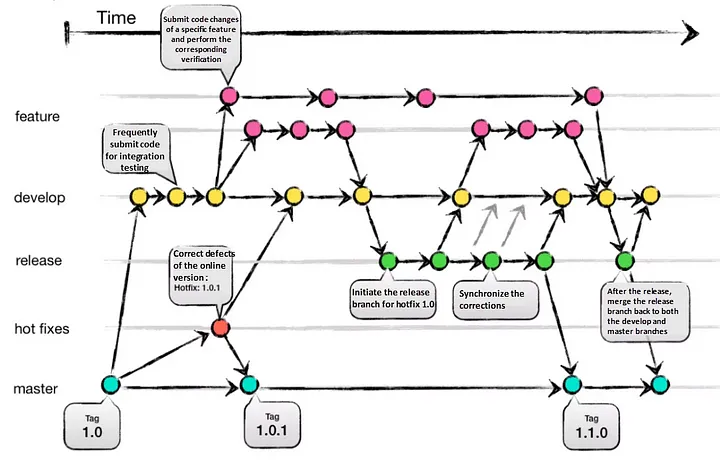
Image Source: https://medium.com/@sreekanth.thummala
Suited to projects with long release cycles that need stable versions.
- main branch: the main branch, storing stable, released versions
- develop branch: the development branch, where all new features are merged
- feature branch: for developing new features; each new feature should be created from develop, and merged back into develop after development
- release branch: when develop reaches a releasable stage, a release branch is created from develop for final testing and fixes
- hotfix branch: for urgently fixing issues in a released version; created from main, and merged back into both main and develop after the fix
Downside: frequently creating and merging branches can increase git-history complexity
GitHub Flow
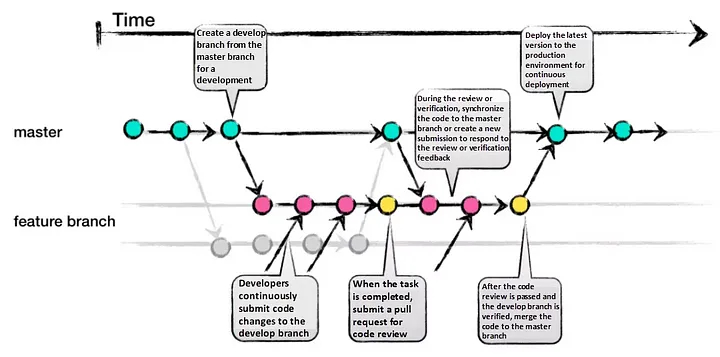
GitHub Flow is more lightweight, suited to projects with rapid iteration and continuous deployment. It has only two main branches and usually suits small teams.
- main branch: the main branch, containing stable, always-deployable code
- feature branches: developers create a new branch from main to develop a feature or fix a bug. After the feature is done and tested, a Pull Request (PR) is opened and merged back into main
Downside: not suited to long-lived projects
GitLab Flow
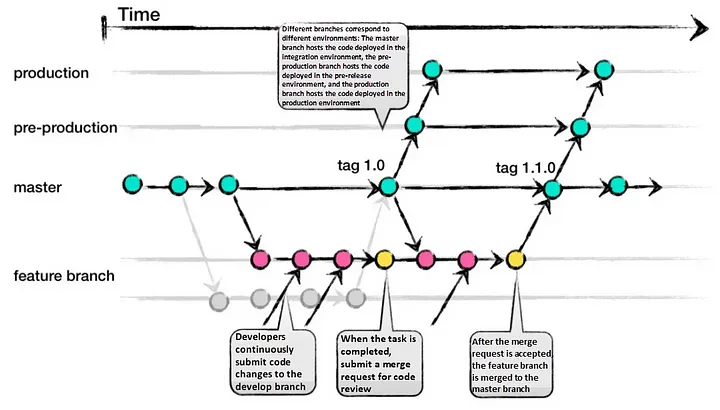
Combines features of Git Flow and GitHub Flow, suited to projects of intermediate complexity, allowing testing and deployment in different environments. Suited to projects with multiple test environments that need stable releases.
- main branch: the main branch, storing stable versions
- feature branch: for developing features and fixing bugs; created from main and merged back into main when done
- environment branches: e.g. pre-production, staging. Correspond to different deployment environments for testing and validation
- release branch: for release management of specific versions
Downside: complexity still rises when managing multiple versions
Trunk Based Development
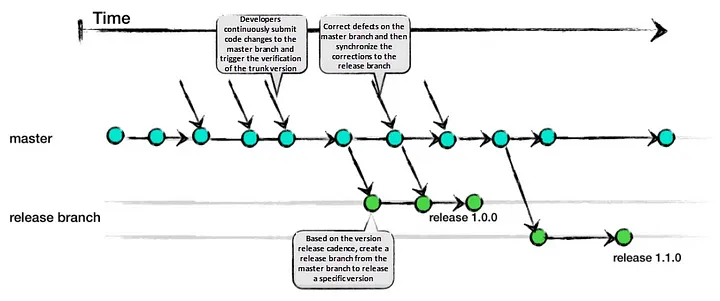
This flow is more extreme, emphasizing rapid development and continuous integration.
- main branch: the only main branch, so all development activity merges directly into main
- short-lived feature branches: feature branches exist very briefly, usually completed within a few days and merged back into main, or development happens directly on main
Downside: highly dependent on automated testing and CI/CD systems. High requirements on team skill and collaboration
You now have two branches, main and dev. How do you ensure they’re in sync?
1 | git checkout main |
When you run the git branch command, how does it work, and what actually happens?
Behind the scenes Git does the following. 1. It creates a new branch pointer: git creates a new file in the .git/refs/heads folder, with the filename being the branch name you set. Then it points to the current commit: the new file’s content is the SHA-1 hash pointing to the current commit, meaning the new branch starts from the current commit.
When you run
git branch, how does Git know the latest commit’s SHA-1?
It finds the corresponding branch name in .git/refs/heads and outputs the corresponding SHA-1 value.
1 | ~/leozzmc.github.io/.git/refs/heads |
When you check out another branch, Git also updates .git/HEAD to refs/heads/<Branch Name>.
Merge
You have two branches, main and dev. How do you merge dev into main?
1 | git checkout main |
How do you resolve merge conflicts?
First confirm which files have conflicts. You can check with git status; these files are unmerged. Then open the conflicting file, and git should mark the conflicting regions, like:
1 | <<<<<<< HEAD |
Then you may need to communicate with other developers or the team to decide which parts to keep. After editing and saving the file, mark the conflict resolved with git add <filename>. Then you can commit.
What merge strategies are you familiar with?
Git has several common merge strategies, such as:
Fast-Forward
If the branch being merged and main have no new commits, you can use a fast-forward merge. Git fast-forwards main’s pointer directly to the branch’s latest commit, without creating a new merge commit. This suits linear development and keeps git history clean.
1 | git merge <branch_name> --ff |
Recursive
This is Git’s default merge strategy. When merging branches with a common ancestor, it computes the differences between the two branches from the common base commit, then automatically generates a merge commit.
1 | git merge <branch-name> |
Squash
A squash commit compresses all commits into a single commit and merges it into the target branch, so only one commit record appears on the main branch.
This suits packaging scattered commits into a clean commit after feature development.
1 | git merge --squash <branch-name> |
Octopus
Suited to merging multiple branches at once, usually merging multiple feature branches into main. Git merges changes from multiple branches into a single commit.
1 | git merge <branch1> <branch2> <branch3> |
Ours Merge
A special merge strategy. Use Ours Merge when merge conflicts can’t be resolved or you don’t want to keep the other branch’s changes.
Even with conflicts, Git keeps the current branch’s content and discards the merged branch’s changes. This is usually for temporary emergency merges or irreconcilable conflicts.
1 | git merge -s ours <branch_name> |
What’s the difference between
git resetandgit revert?
git revert creates a new commit to undo a previous commit.
Say you have commit A, commit B, commit C, and you want to undo the changes in B. You can use git revert B to create a new commit D whose content is the opposite of B, so the final commit history is A->B->C->D.
git reset resets the current branch’s pointer (HEAD) to a specified commit, and you can choose whether to keep working-directory changes. This means git reset can change a branch’s commit history.
1 | git reset --soft <commit-hash> # only moves HEAD |
Rebase
In what situations do you use
git rebase?
When a team is developing a feature on a feature branch created from main, and development is done, and the team wants to merge the feature into main without keeping any commits from the feature branch, you can use git rebase.
(But a better approach is git merge --squash, first compressing all commits on the feature branch into one commit.)
How do you revert a specific file to a previous commit?
1 | git checkout HEAD~1 -- /path/to/the/file |
Or
1 | git restore --source-<commit-hash> -- <filename> |
git restore is a newer command, similar to checkout, restoring a file to a specified commit’s content.
How do you squash the last two commits?
If these two commits haven’t been pushed, you can reset back the previous two commits and commit again.
1 | git reset --soft HEAD~2 |
But if the two commits are already pushed to the repo, use:
1 |
|
This opens an editor showing the commit history, something like:
1 | pick <commit-hash-1> Commit message for the second-to-last commit |
Just change the second line’s pick to squash, which compresses the last commit into the second-to-last one.
1 | pick <commit-hash-1> Commit message for the second-to-last commit |
After saving and exiting, and editing a new commit message, you’ll see the two commits merged into one.
How do you delete a remote branch?
1 | git push origin --delete <branch> |
After deleting a remote branch, other collaborators can no longer pull that branch from the remote repository!
What is gitattributes?
.gitattributes is a Git config file used to set file attributes and how files are handled, letting you process files during Git operations (e.g. merge, commit).
Main uses include:
- Managing line endings: one of the most common uses. Different OSes use different line-ending characters (Windows: CRLF, Linux: LF), which can cause unnecessary change conflicts. You can set
.gitattributesto unify how line endings are handled.
1 | * text=auto |
The command above lets Git set line endings automatically based on the system, converting them to LF (Unix/Linux) on commit.
How do you discard local changes before committing?
1 | git checkout -- <filename> |
And how do you discard a local commit?
1 | git reset HEAD~1 |
This removes the most recent local commit; if you also need to discard local changes, add --hard.
1 | git reset --hard HEAD~1 |
Git Diff
What does git diff do?
It shows the changes between the working directory and the staging area, displaying all modified files not yet added to the staging area.
To see changes between the staging area and the latest commit:
1 | git diff --cached |
To see changes between the working directory and the latest commit:
1 | git diff HEAD |
You can also view the difference for any file, between two commits, or between two branches:
1 | git diff <commit1> <commit2> |
Which is faster,
git diff-index HEADorgit diff HEAD?
git diff-index HEAD > git diff HEAD
git diff-index HEAD directly compares the index (staging area) with a specific commit (HEAD), so it doesn’t need to scan the entire working directory, making it faster.
git diff HEAD, however, compares the entire working directory with a specific commit, so it scans the whole working directory and computes file differences, which slows down when there are many files.
Git Internal
Explain how
git statusworks
git status does a series of checks and comparisons:
- First it checks the difference between the working directory and the staging area, to see which files are modified but not staged
Git computes a SHA-1 hash for each file and checks whether that hash exists in the staging area; if the record doesn’t match, it’s considered not staged.
- Then it compares the staging area with the latest commit (HEAD) to determine which files are staged but not yet committed
Git checks whether the hash in the staging area matches the hash committed in HEAD.
- Check untracked files
Git scans all files in the working directory not in the staging area and marks them as untracked files, while also checking the .gitignore settings to filter out files that shouldn’t be tracked.
- Update working state
When running git status on a large repository, Git uses incremental scanning and caching to speed it up:
- Git sometimes enables
core.untrackedCacheto record the state of untracked files, avoiding a full rescan each time - If
core.preloadIndexis enabled, Git preloads the index, reducing disk I/O and thus speeding up file-status checks
Both settings can be enabled via git config.
Ref: https://deepinout.com/git/git-questions/218_git_why_is_git_corepreloadindex_default_value_false.html
- Output the result



If you find my articles helpful, please support Kevin!
 Use boba to safe Kevin!