
Unboxing + Basic Setup | Getting Into the Meshtastic Open-Source Project | Meshtastic Series
🌐 中文版:繁體中文
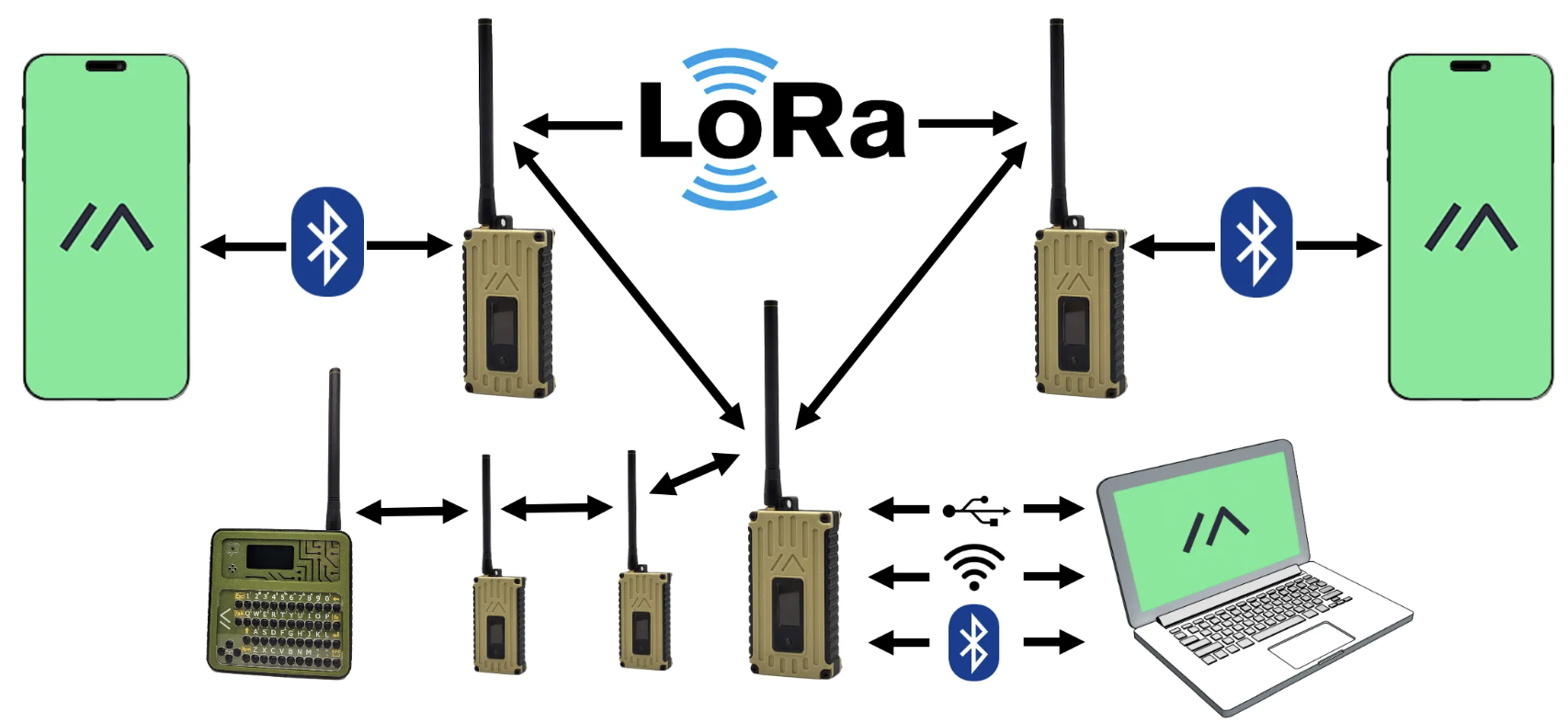
🔋 Basic intro: https://hackmd.io/@BASHCAT/S1m_x-AOA/%2FUAmGpkIzQy-Fc5xKmcyBtQ
🔋 Official Web Page: https://meshtastic.org/docs/about/
🔋 Useful Videos:
🔋 FB - Taiwan Mesh Network https://www.facebook.com/groups/meshtastictw/about
🔋 Reddit thread https://www.reddit.com/r/meshtastic/
What is Meshtastic?
An open-source project based on LoRa wireless communication technology. Using LoRa-related devices, it does low-power, long-range wireless signal transmission over the LoRa protocol, without relying on existing mobile-communication infrastructure. It suits things like an emergency-backup communication system, or mountain rescue communication.
With Meshtastic nodes, a message is sent out by a device, and as long as it reaches another node, the message can be forwarded on to other nodes.
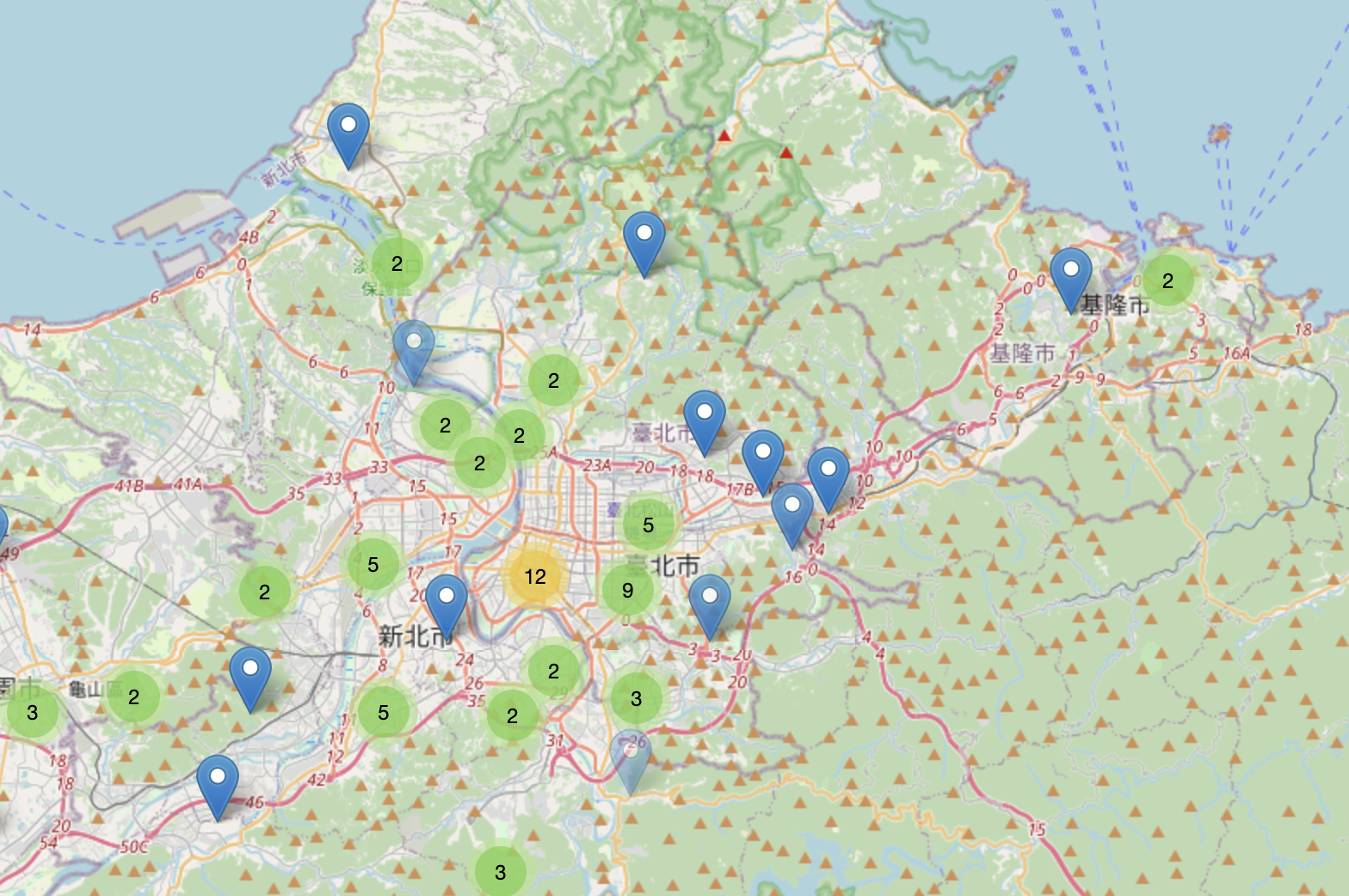
Also, as of this writing (2025/07/13) many nodes in Taiwan have already been set up privately. It’s low-cost and the barrier isn’t high, and unlike a handheld radio you don’t even need a license.
Buying the device
I observed that, whether on the Taiwan mesh network or on Reddit, most people start with the Heltec v3. But power consumption seems to be a commonly-criticized point, so I ended up buying what “seems to be” the more power-efficient Heltec T1114v2 as my starter board (still not sure this choice was right). I bought it directly from Heltec’s official store; here’s the store link. Some people buy from Taobao instead, so it’s up to you.
https://www.reddit.com/r/meshtastic/comments/1ewbtgy/heltec_mesh_node_t114_first_look/
Unboxing the Heltec T114
I bought the board + antenna + adapter cable all at once (though later reading around, most people swap in a better antenna and SMA adapter cable), plus a GPS module (though I hear they’re really not that expensive on Taobao?).
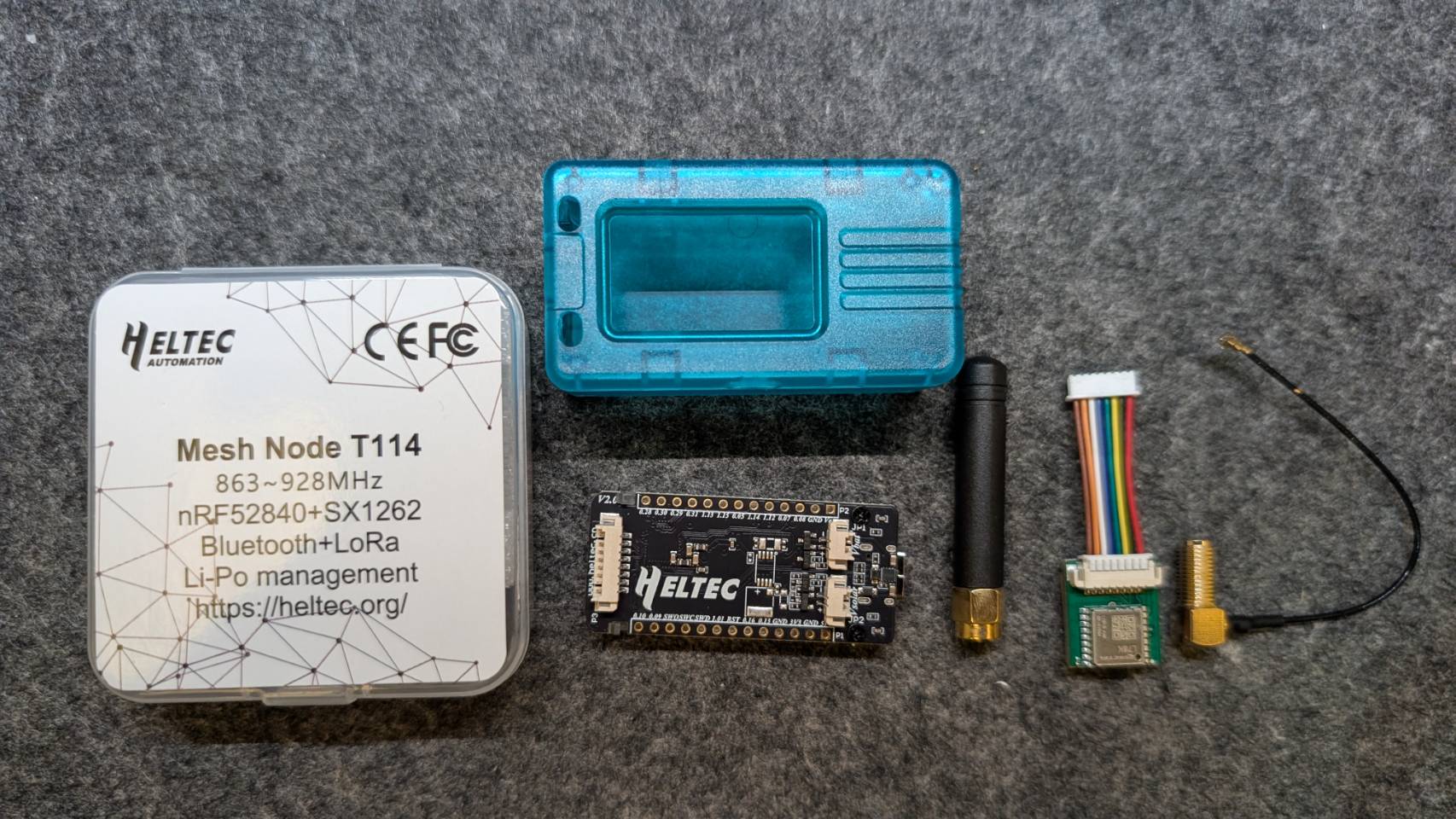
After admiring it, before flashing the firmware, get into the good habit of always plugging the antenna into the board first. RF devices can damage components if powered on or operating without an antenna. After plugging the adapter cable and the included antenna into the Heltec T1114, you can plug in power and flash the firmware.
Flashing the firmware
Choose a USB Type-C cable with data-transfer capability, not a charge-only cable.
Each board’s firmware differs; here you can use the Meshtastic Web Flasher to get different firmware versions based on the board model.
Web Flasher: https://flasher.meshtastic.org/
After plugging in the T114 and entering the Flasher page, you first need to choose your board; I chose Heltec Mesh Node T114.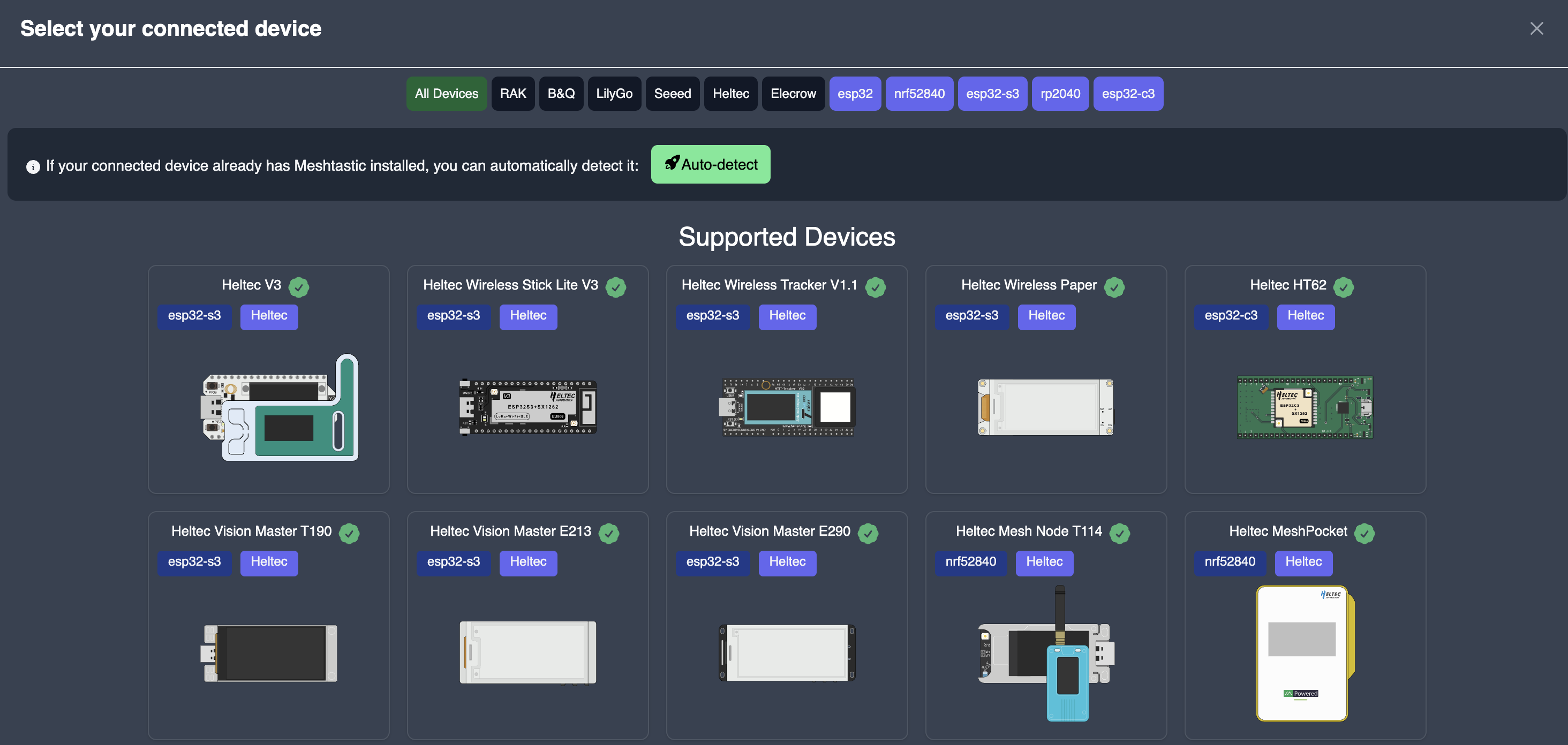
For firmware, I recommend the latest release in the stable (Beta) channel; Alpha firmware is mostly still in development and testing. Then you can click Flash.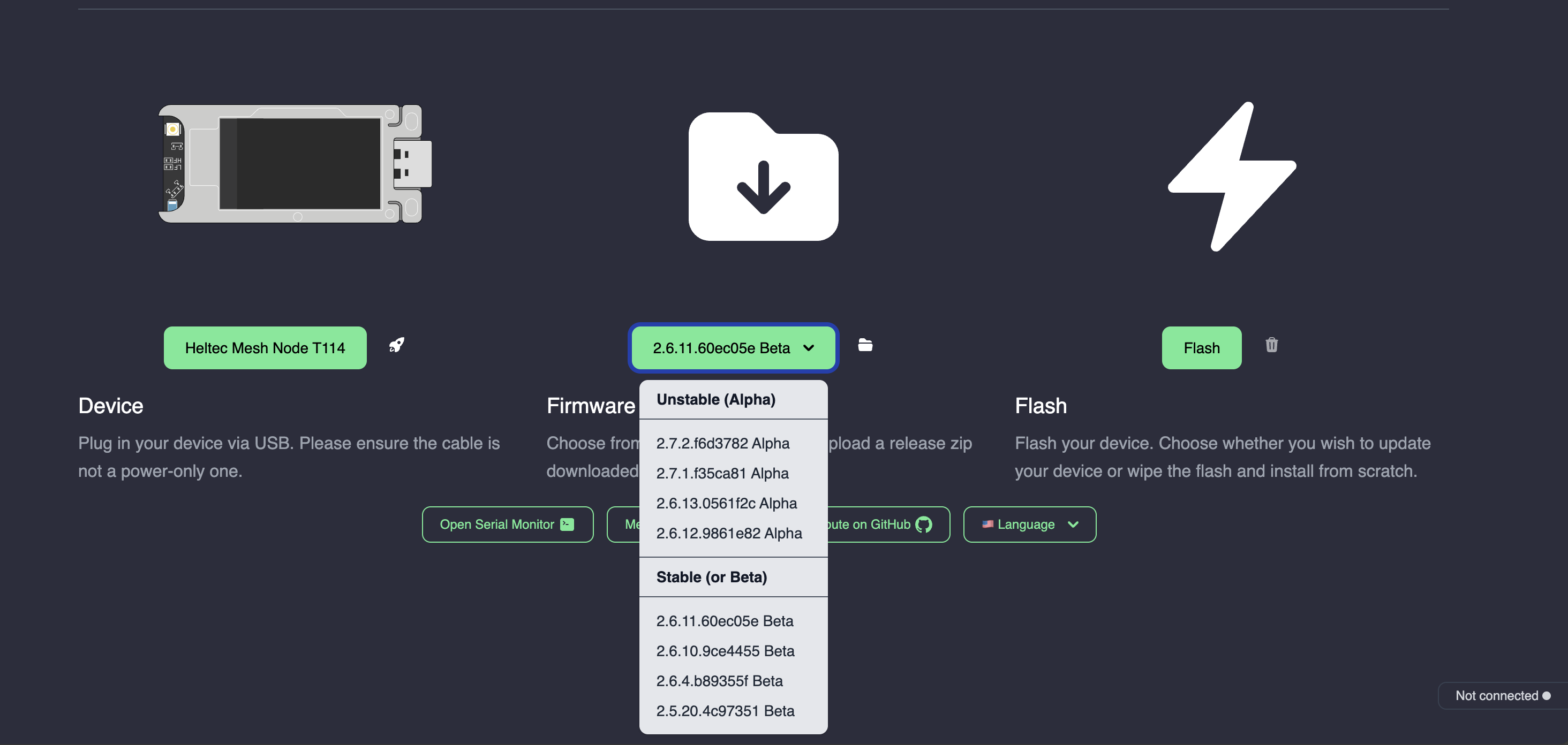
A screen appears asking you to click Enter DFU mode, which puts your Heltec T114 into flashing mode; you can also manually double-press the T114’s RST button. A new drive will also appear on your local computer.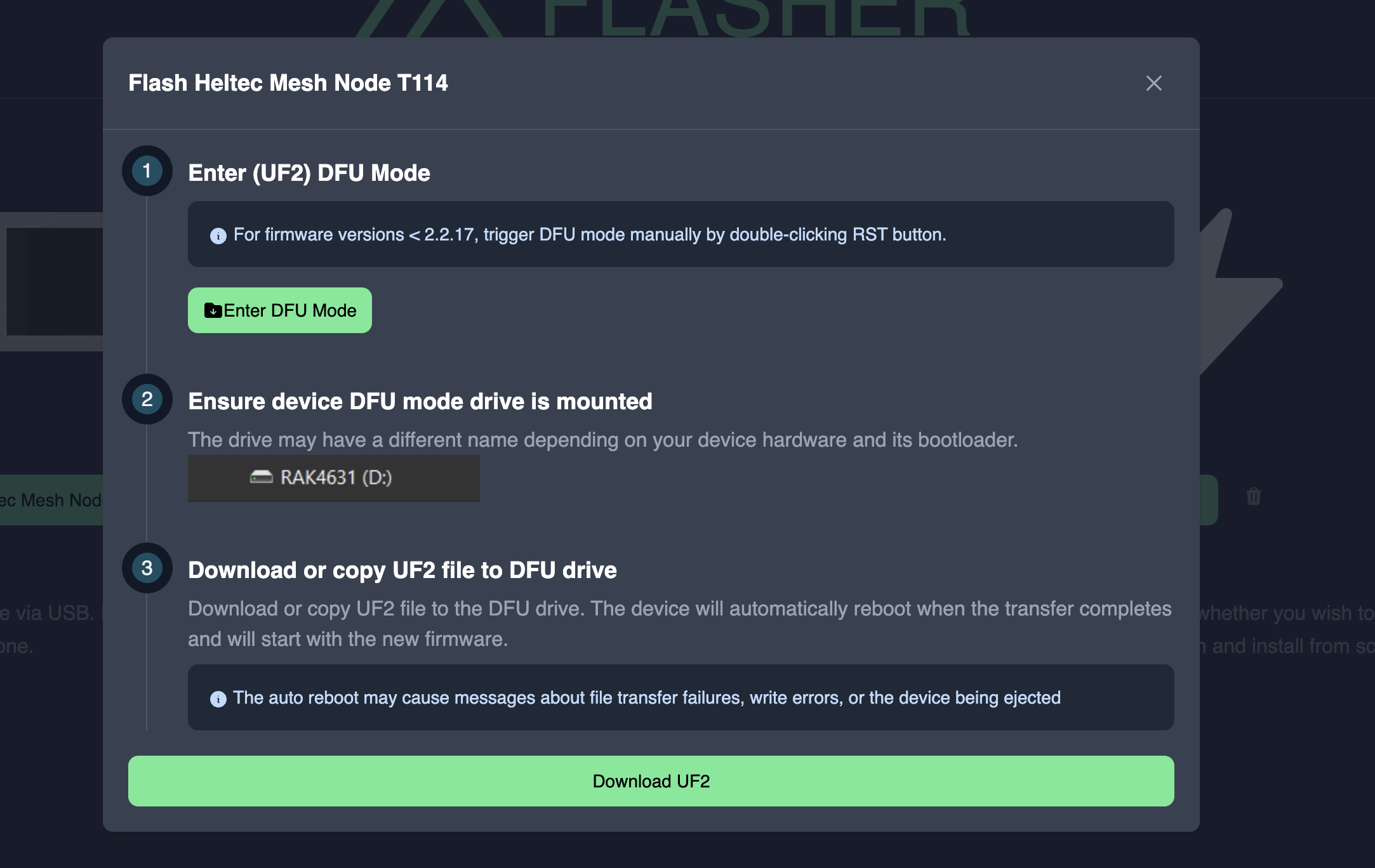
A T114 in DFU mode looks like the image below.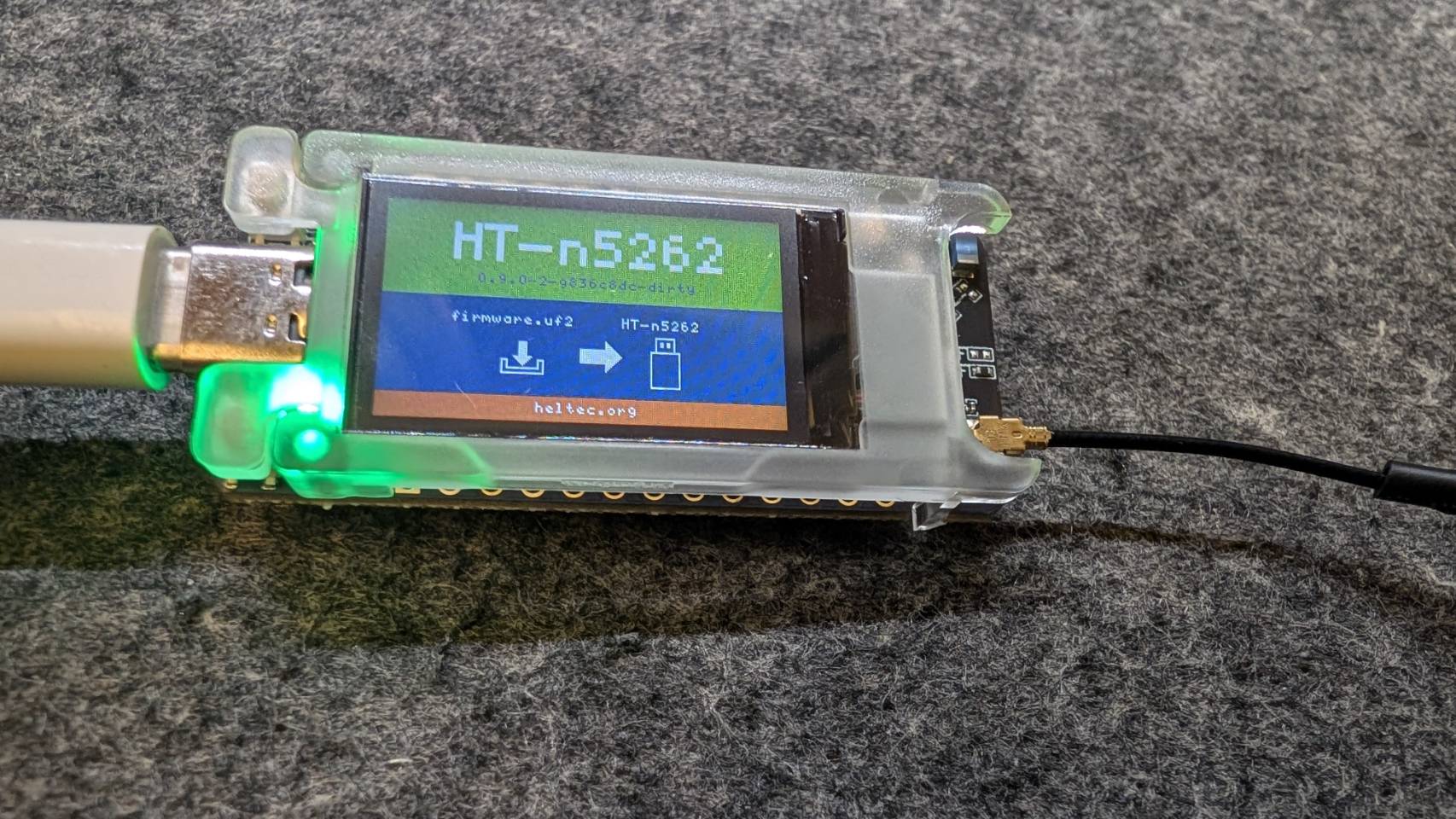
Now click Download UF2 in the Web Flasher, and the firmware file downloads to your local Downloads directory. Then simply copy the firmware file directly into the Heltec drive directory, either by dragging it or with the Linux cp command. But on every platform I tried, near the end of copying the drive ejects, and Windows/Linux may show an error message. Don’t rush to troubleshoot yet; first confirm whether the firmware was flashed successfully!
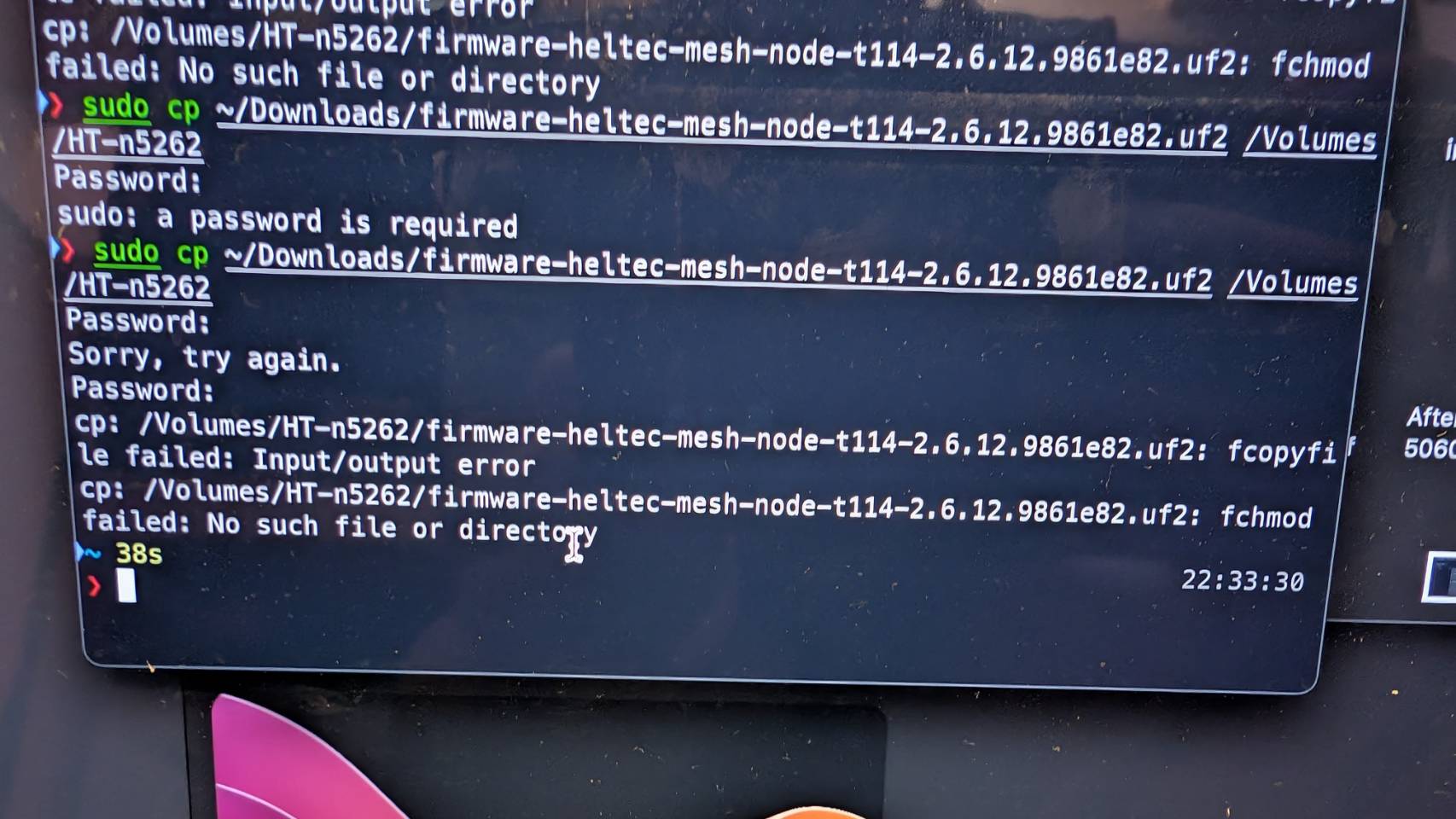
At this point, connecting to the Heltec T114 with the Meshtastic app succeeded, so the firmware was actually flashed successfully; the end-of-flash handling just may not be done well.
Basic setup
Here I downloaded the Android version of the Meshtastic App, and the app setup afterward basically follows these two resources:
https://hackmd.io/@BASHCAT/S1m_x-AOA/%2F5Vy7EE6dQL2v_XHPkbSKtw
https://youtu.be/6hW40yaj3x4?si=-UTeOGxNK6JHDrnQ
On the first Bluetooth connection, you need to enter the PIN shown on the Heltec T114’s panel on your phone to pair. After pairing succeeds, you can configure the board remotely via the app.
New folks probably don’t need to tune much. First set your Region by country; here I set it to “TW.” Taiwan’s usable frequency can be set at the very bottom under frequency assignment, choosing the region’s 923.875Mhz.
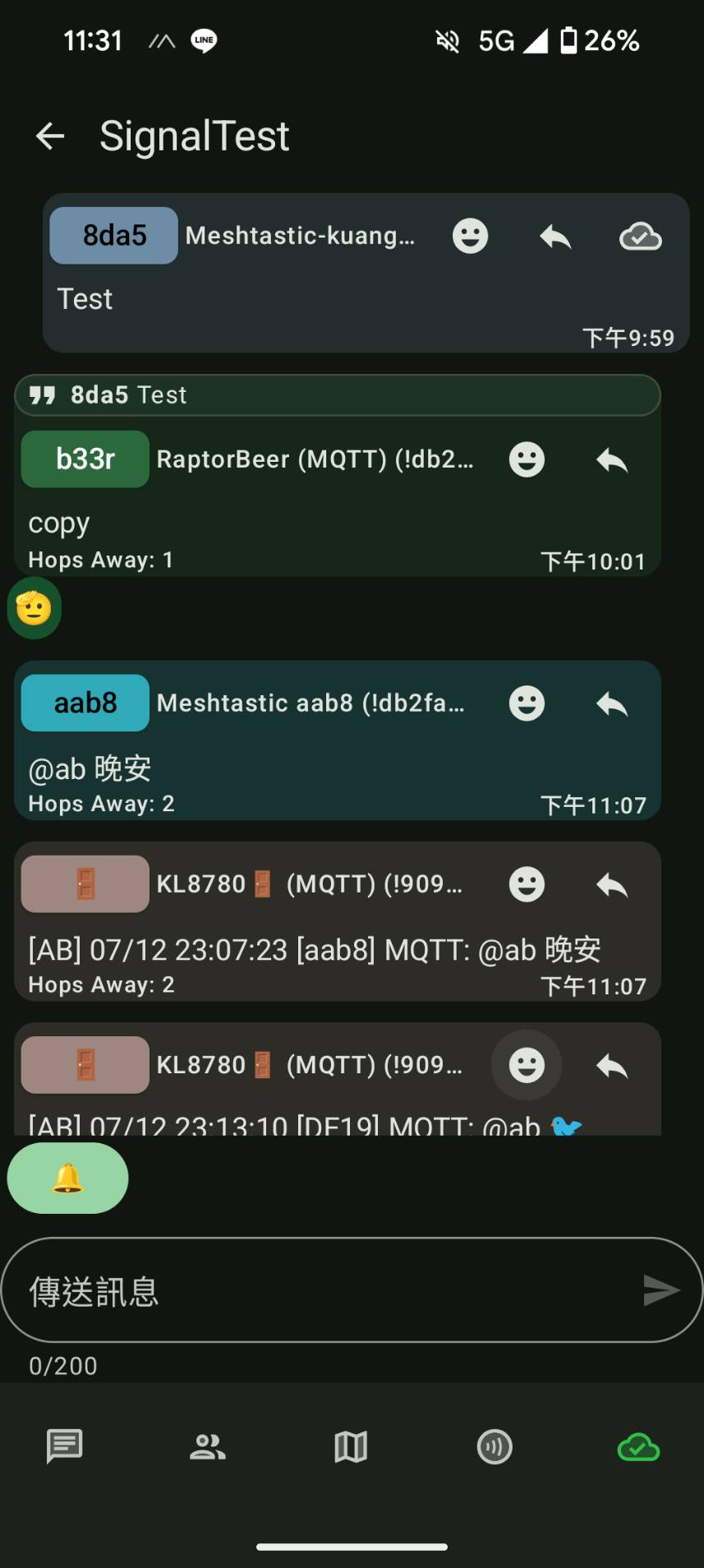
Then you can start scanning the Taiwan mesh network community’s QR code to join a channel, and test sending/receiving in the community’s SignalTest channel. But before that, if you can’t receive or send any messages, first check the antenna and adapter cable. I recommend not using the included adapter cable and antenna; go buy a better adapter cable and antenna yourself. Reading around, the community almost universally recommends the TX915 antenna; you can also refer to the official antenna support list.
https://meshtastic.org/zh-TW/docs/hardware/antennas/
Also, if you test other antennas, you can contribute to this GitHub repo: https://github.com/meshtastic/antenna-reports
For the adapter cable, you can buy from Jin-Hua Electronics: IPEX-SMA female-to-female connector cable
The next post will cover app setup in detail!!
Once set up, you can send messages on a channel like this.
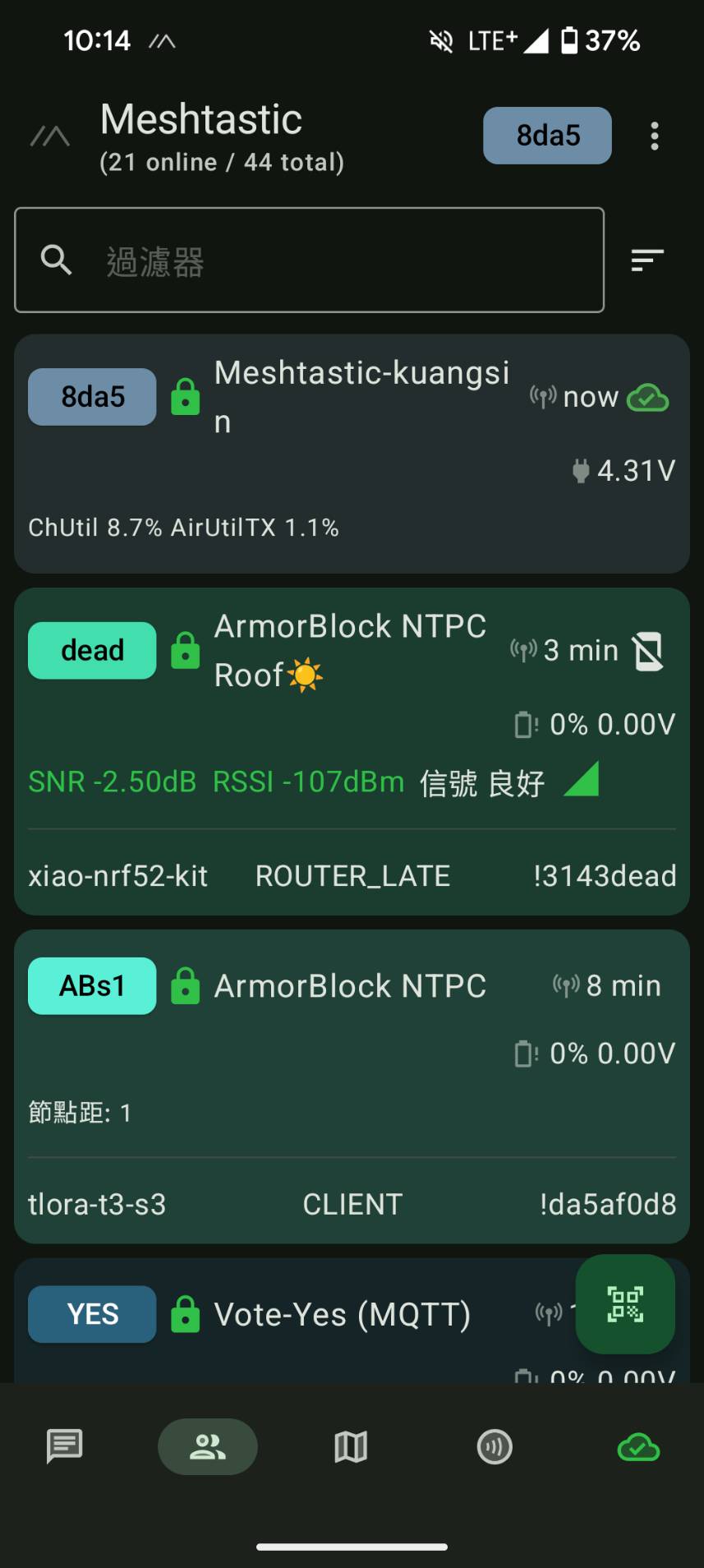
Meshtastic App screenshots
If you find my articles helpful, please support Kevin!
 Use boba to safe Kevin!