Lambda Layers: Concept and Hands-On
🌐 中文版:繁體中文
Preface
When configuring Lambda, the vast majority of people have hit ImportModuleError. So you can follow the scenario below, spin up the same Lambda environment, and work through it step by step.
Scenario
- Region:
IAD(us-east-1) - Runtime:
Python3.11 - Lambda Name: “ITHomeLambdaFunction”
- Lambda code
1
2
3
4
5
6
7
8
9
10
11
import json requests
def lambda_handler(event, context):
# TODO implement
x = requests.get('https://www.ntust.edu.tw/')
print(x.text)
return {
'statusCode': 200,
'body': json.dumps('Hello from Lambda!')
}
[Error]: Runtime.ImportModuleError
If you deploy the scenario above and run a test, you may get an error like this:
1 | { |
The cause is that from AWS Lambda Python 3.8 runtime onward, the requests module is no longer natively supported, so you need to add a layer yourself.
What is a Lambda layer?
In Lambda, a layer is a zip archive for storing dependencies or modules. Different Lambda functions can also share data through a layer.
Once you add a layer to your Lambda function, Lambda places the layer’s contents into the /opt directory in the Lambda execution environment.
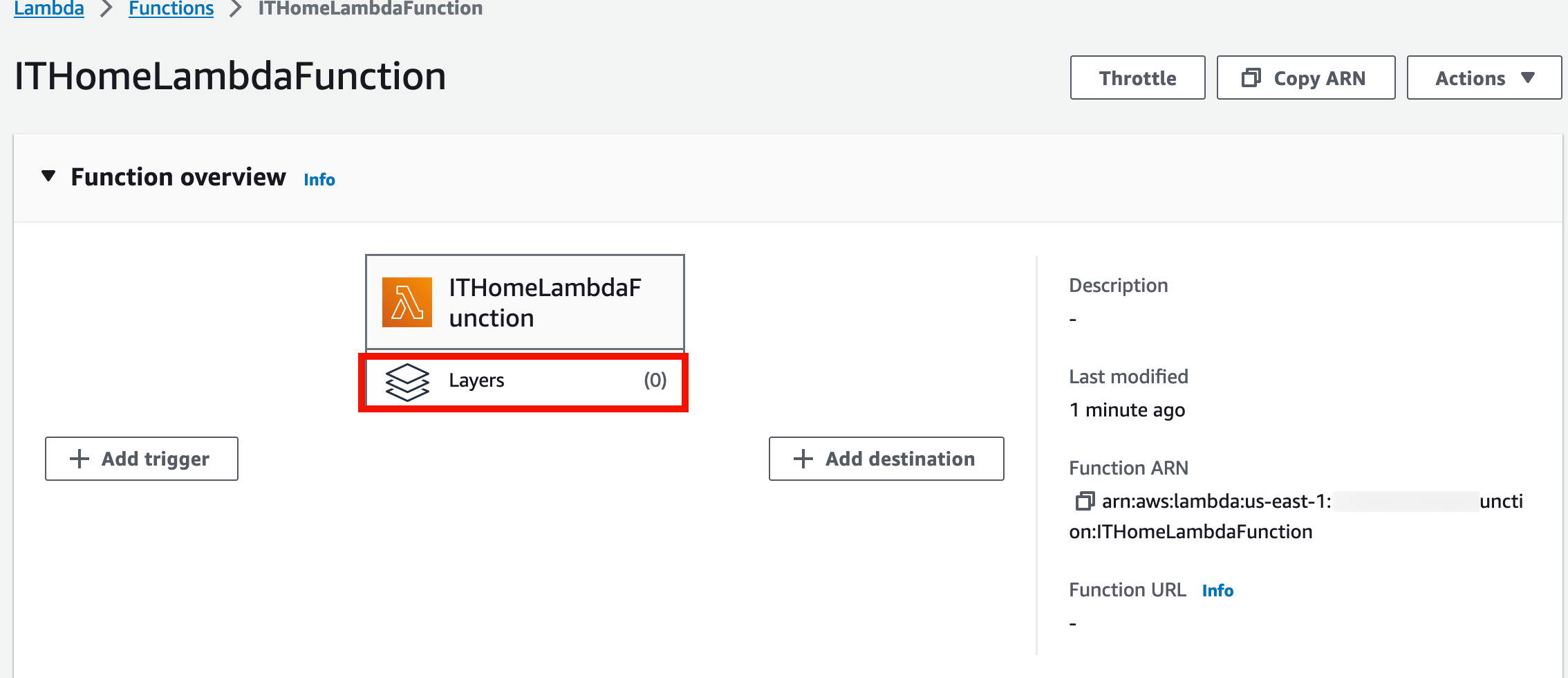
Note: each function can include at most 5 layers.
Packaging a module into a layer
Depending on the runtime you use, modules in each layer need to follow a different file structure when zipping [1].
For Python, the file structure can be:
/opt/python/opt/python/lib/python3.x/site-packages
And all runtimes support these two additional directories:
/bin (PATH)/lib (LD_LIBRARY_PATH)
Now let’s package requests into an archive.
- Package the layer contents locally with the command below (if your package installer is pip3, replace the command’s prefix with pip3):
1 | pip install requests --target=./python |
This creates a python/ directory locally and downloads the needed modules into it. Note that the directory name here must match the language used by the runtime.
Package the directory:
1
zip -r layer.zip python/
to package all files under the python directory into a single zip.
In the Lambda console, there’s a layer item in the left navigation; clicking it jumps to the layers page, where you can choose to add a new layer.
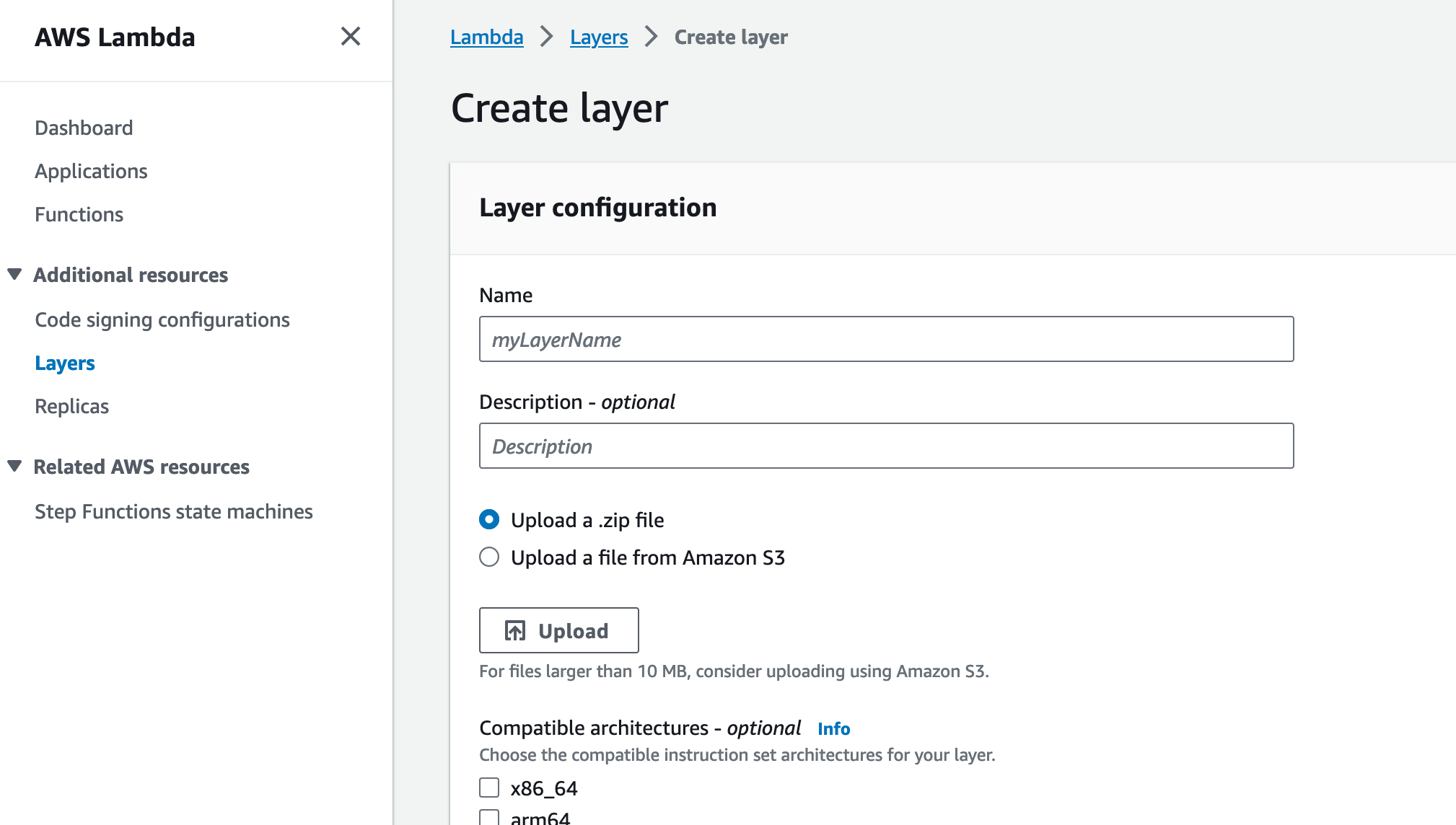
Name the layer, upload the layer.zip you just built, then choose the runtime and architecture to create the layer.
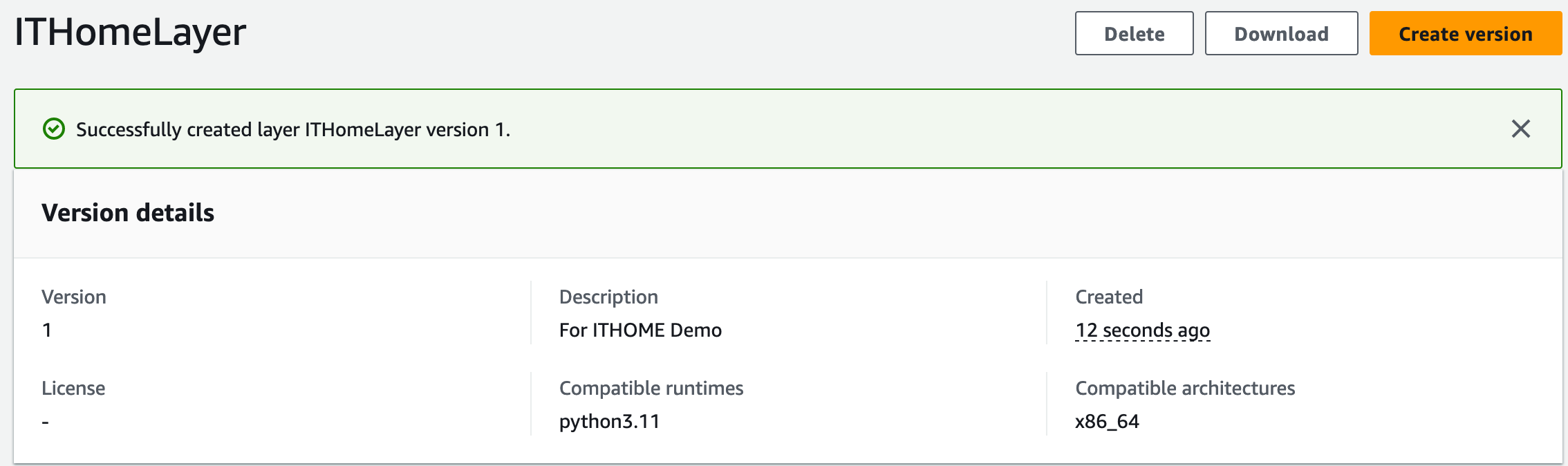
Once done, go back to the Lambda main page to add the layer.

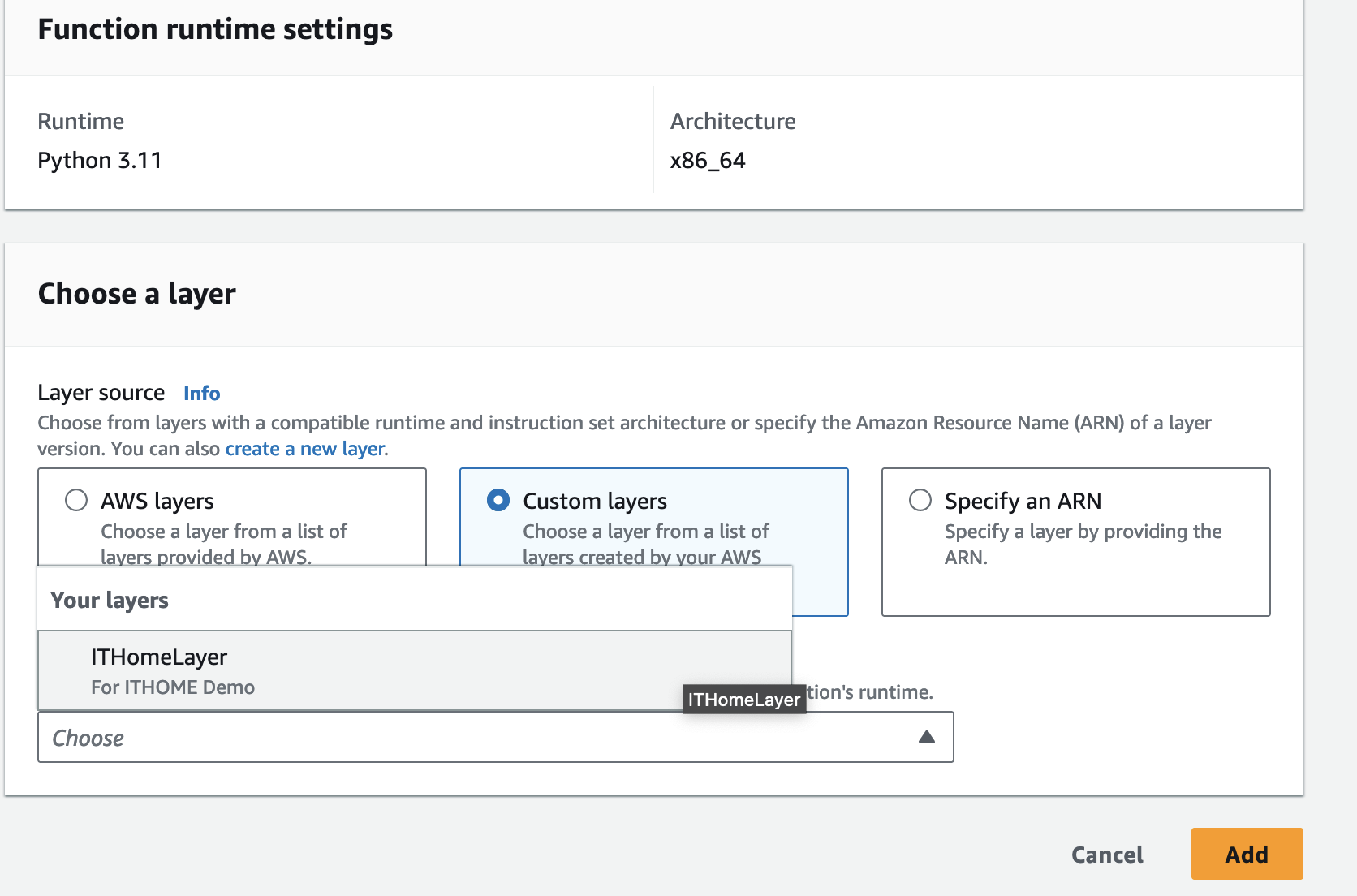
On the add-layer page, choose Custom Layer and you’ll see the layer you just created.
Testing
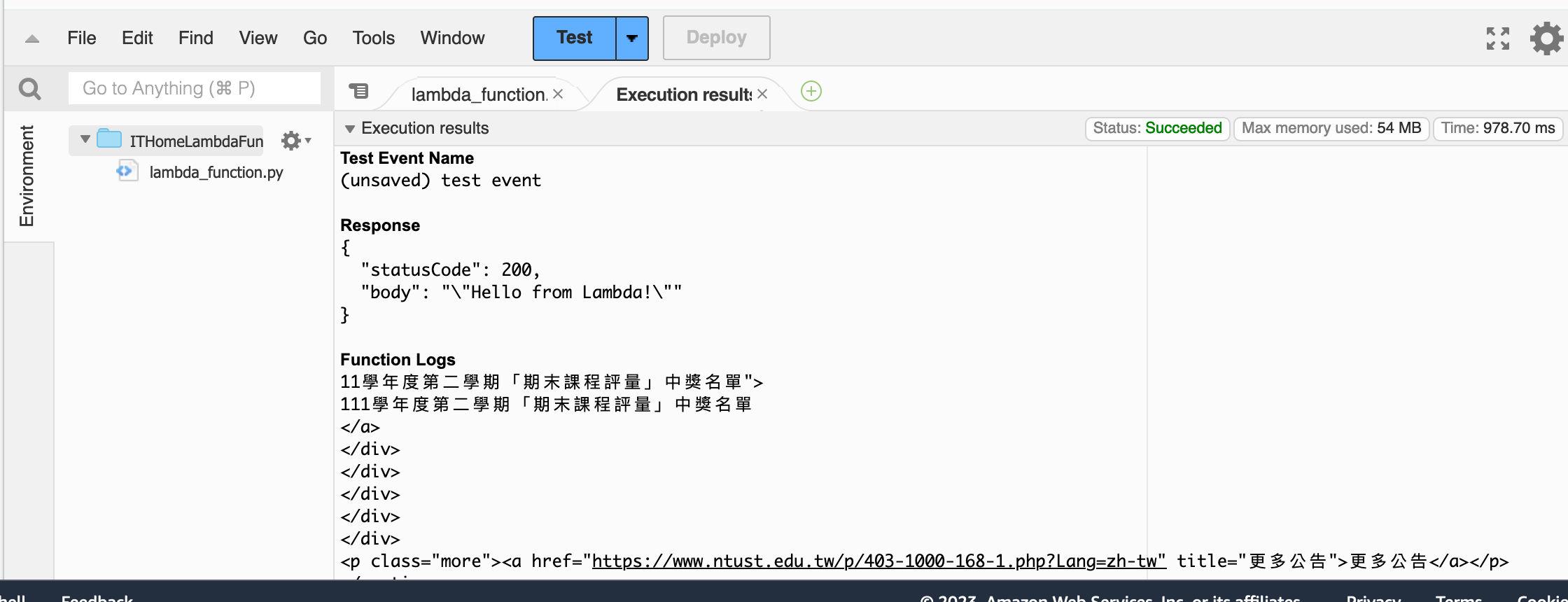
Now run the test from the console again and it won’t error.
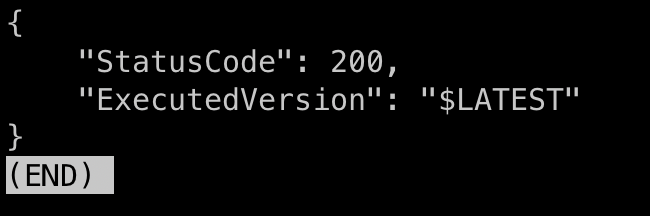
Or invoke via the AWS CLI:
1 | aws lambda invoke \ |
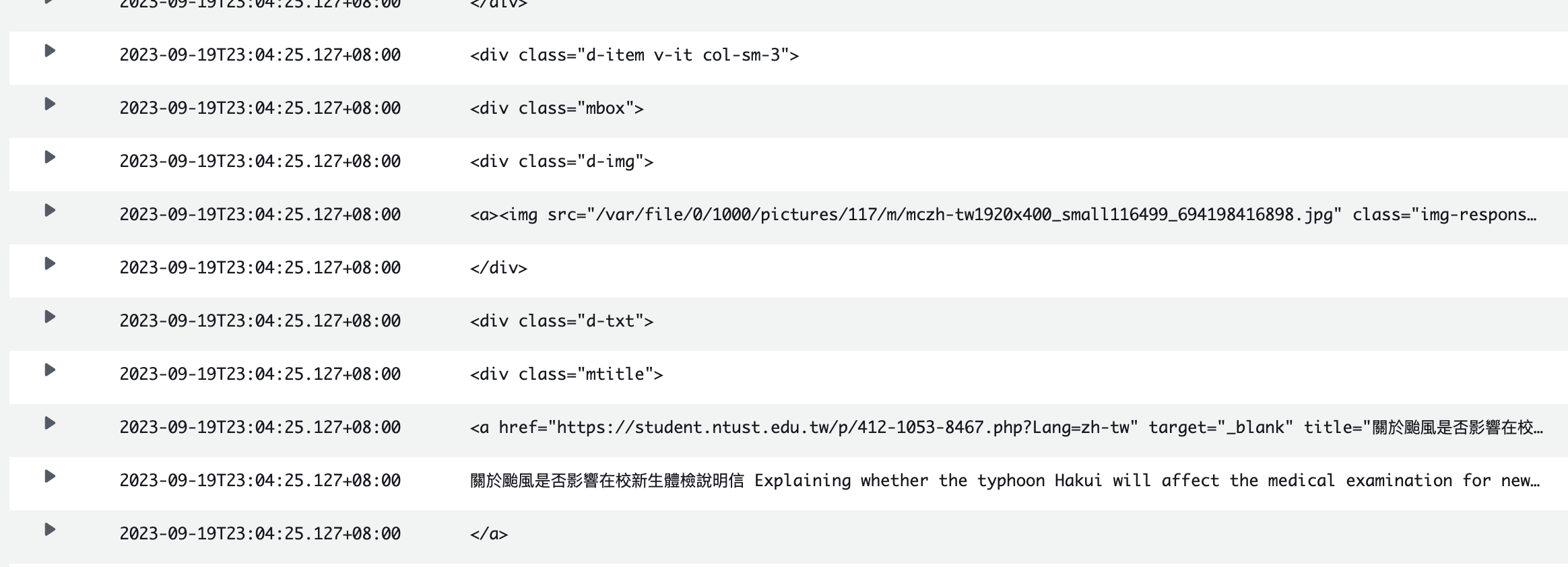
Checking CloudWatch, the data comes through too.
Though splitting the returned content into separate log entries is a bit weird, lol.
References






If you find my articles helpful, please support Kevin!
 Use boba to safe Kevin!