
Hands-On Proxmox VE VM Live Migration | PVE Series 1
🌐 中文版:繁體中文
Introducing Proxmox VE
Proxmox VE (PVE) is an open-source virtualization environment that can support both LXC (Linux Container) based containers and kernel-based VMs, i.e. KVM, the virtualization technology that uses the Linux kernel as a hypervisor.
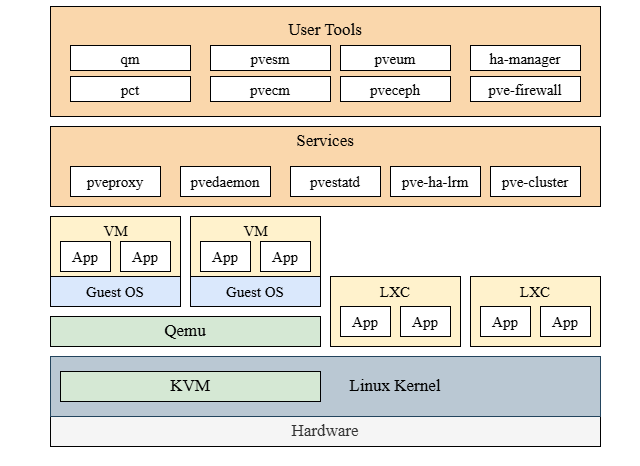
Proxmox also handles the guest’s hardware requests through QEMU, which sits between host and guest, translating them to the real hardware. Running together with KVM brings a boost in instruction-processing performance, so virtualization can run at near-local speed.
Physical node setup
Flashing the Proxmox VE image
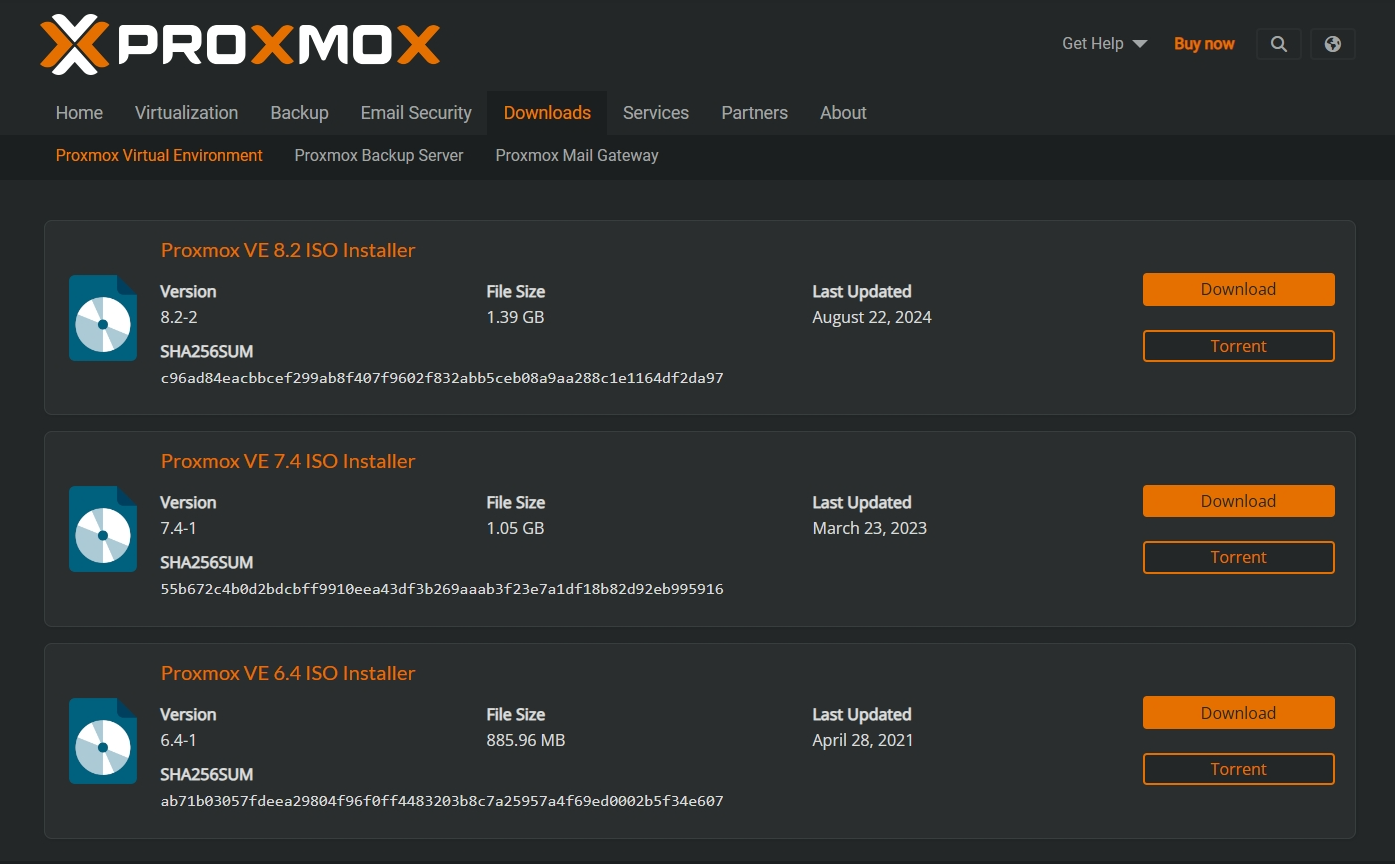
Prepare a USB and put the Proxmox VE ISO image on it. I chose the Proxmox VE 7.4 ISO Installer.
PVE image official download
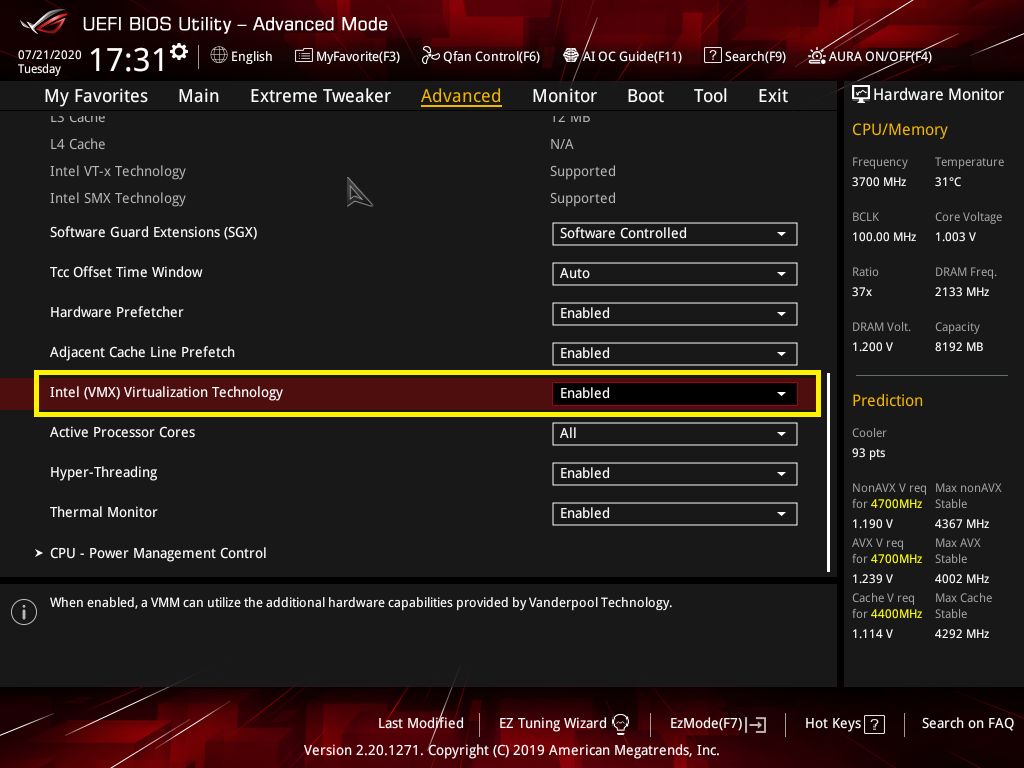
Then prepare the nodes and adjust the boot order on each host; enter the BIOS and set USB as the first priority. While you’re there, check whether KVM is enabled in the BIOS; you must enable it first. In my environment, it’s under Intel Virtualization Technology in the BIOS’s Advanced settings; enable it.
After booting normally, the installation wizard appears; just follow it through. Once installed, log into the node you set up via the web, and you can start building the cluster.
Building the cluster
Confirm node info
There are two nodes now; before building the cluster, confirm /etc/hosts:
1 | Node 1 |
Starting
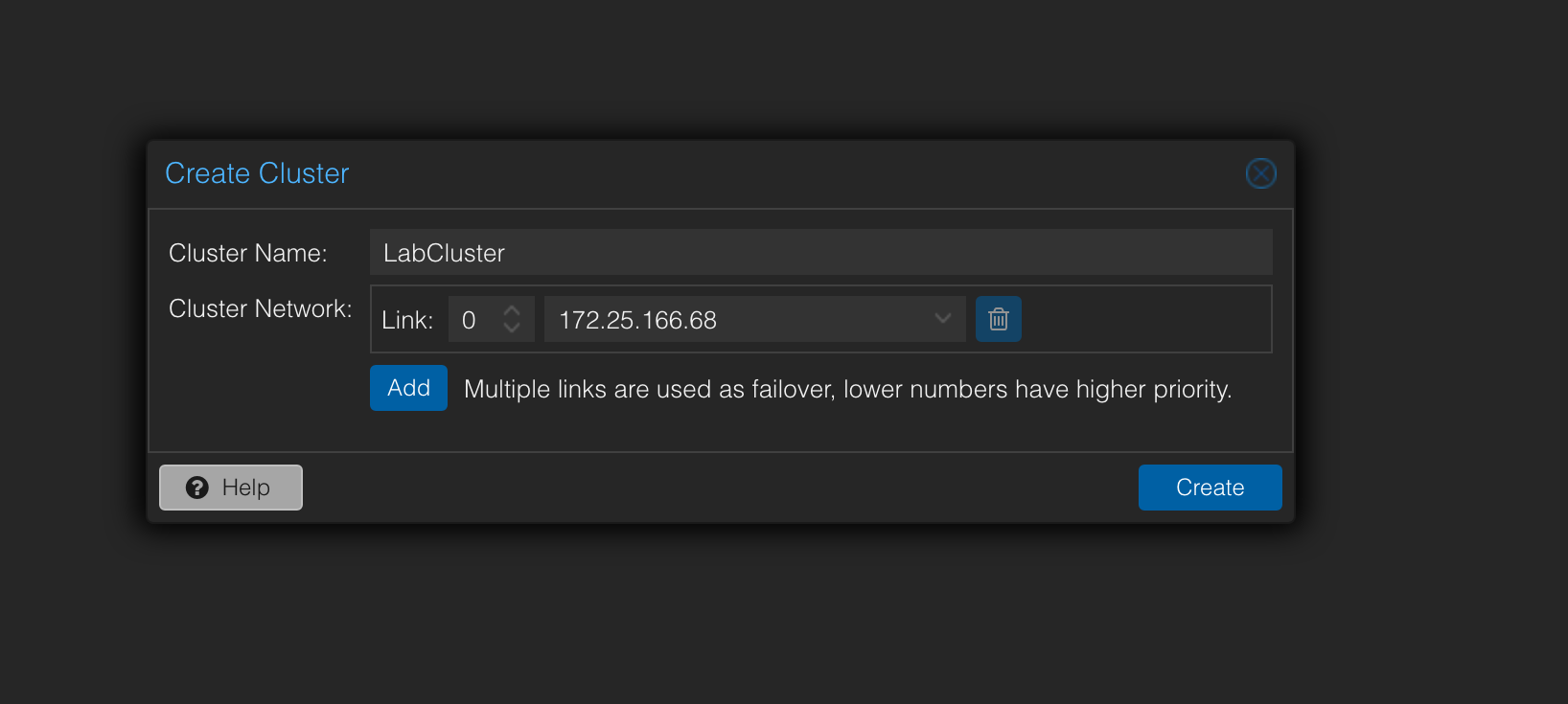
First go to node 1’s Datacenter, find Cluster, and choose Create Cluster.
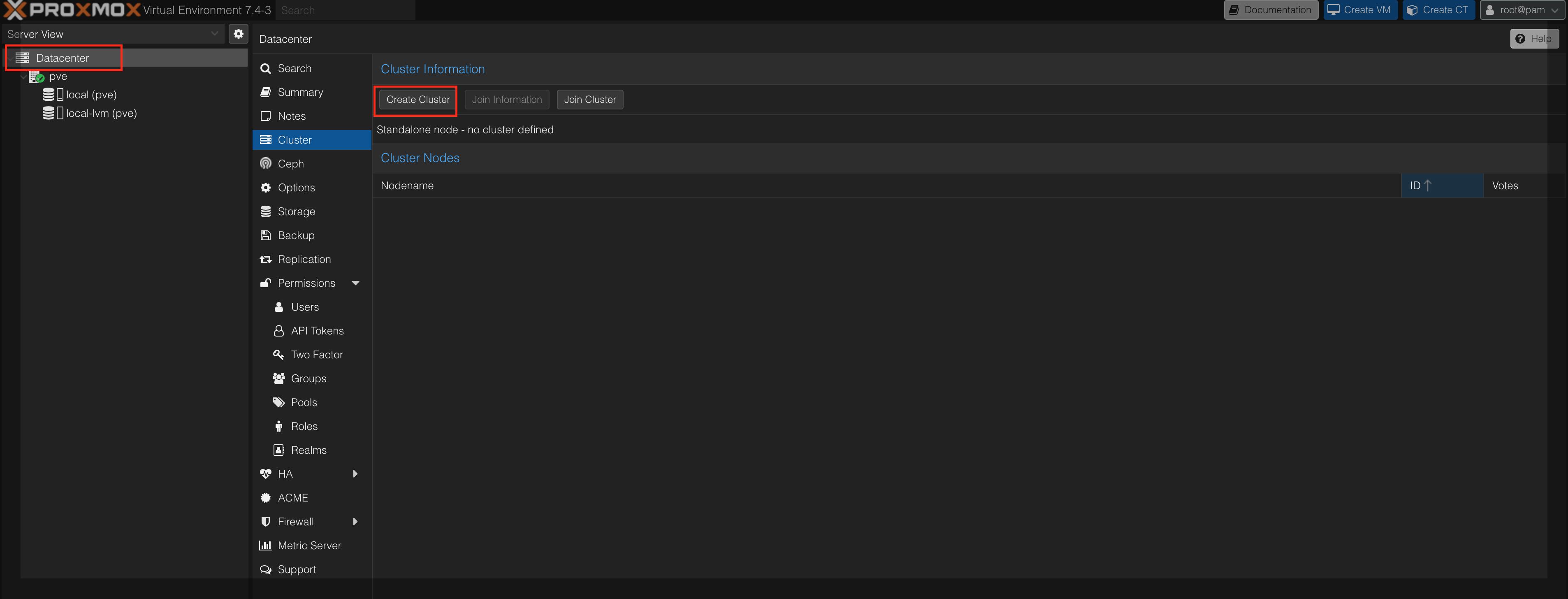
Name the cluster (here it’s LabCluster), choose your cluster network, then click Create.
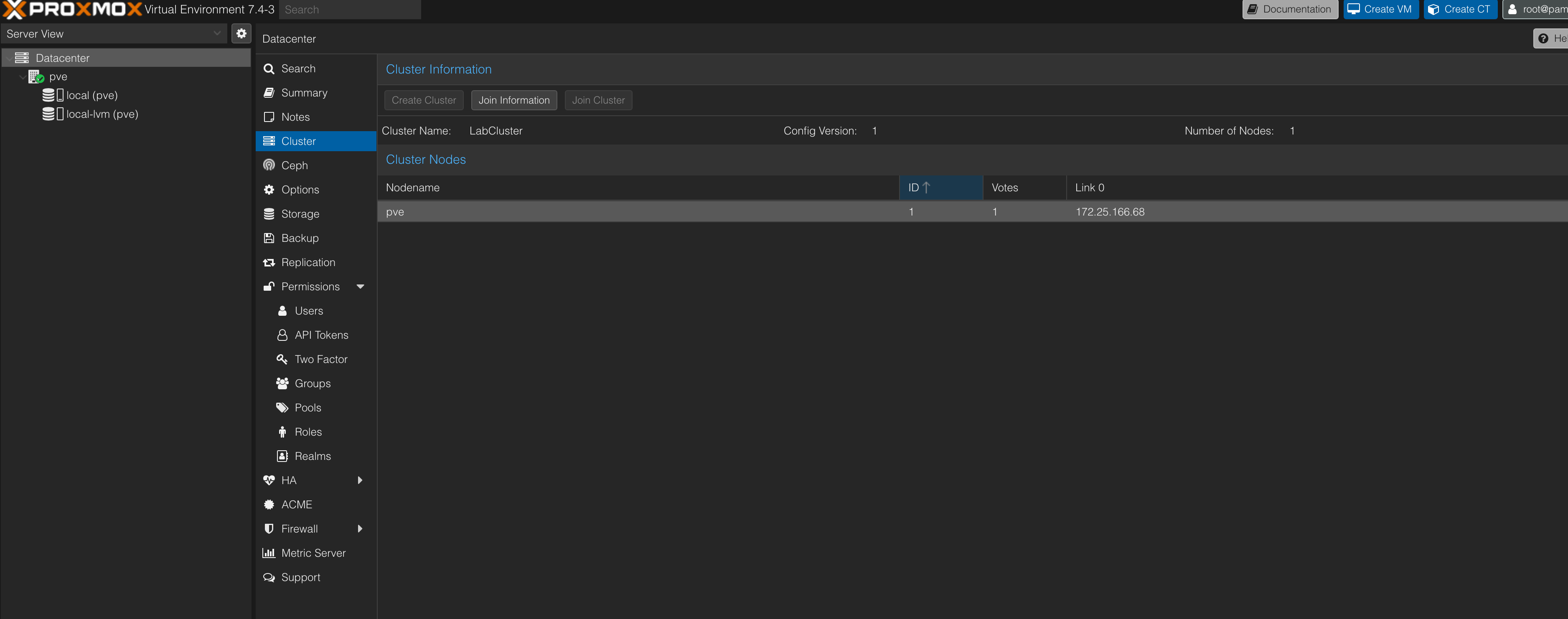
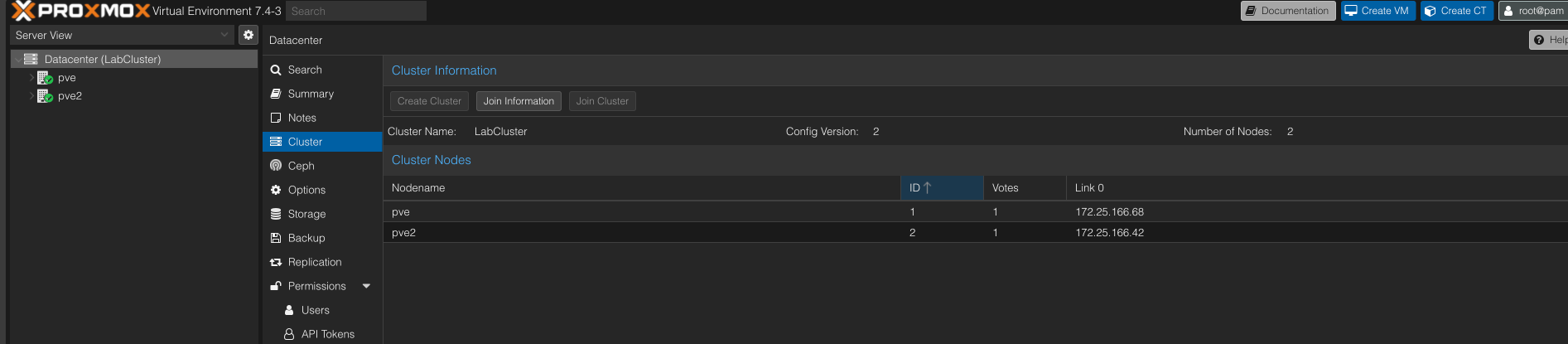
After creation, the screen looks like this; you can see node 1 pve added to the cluster.
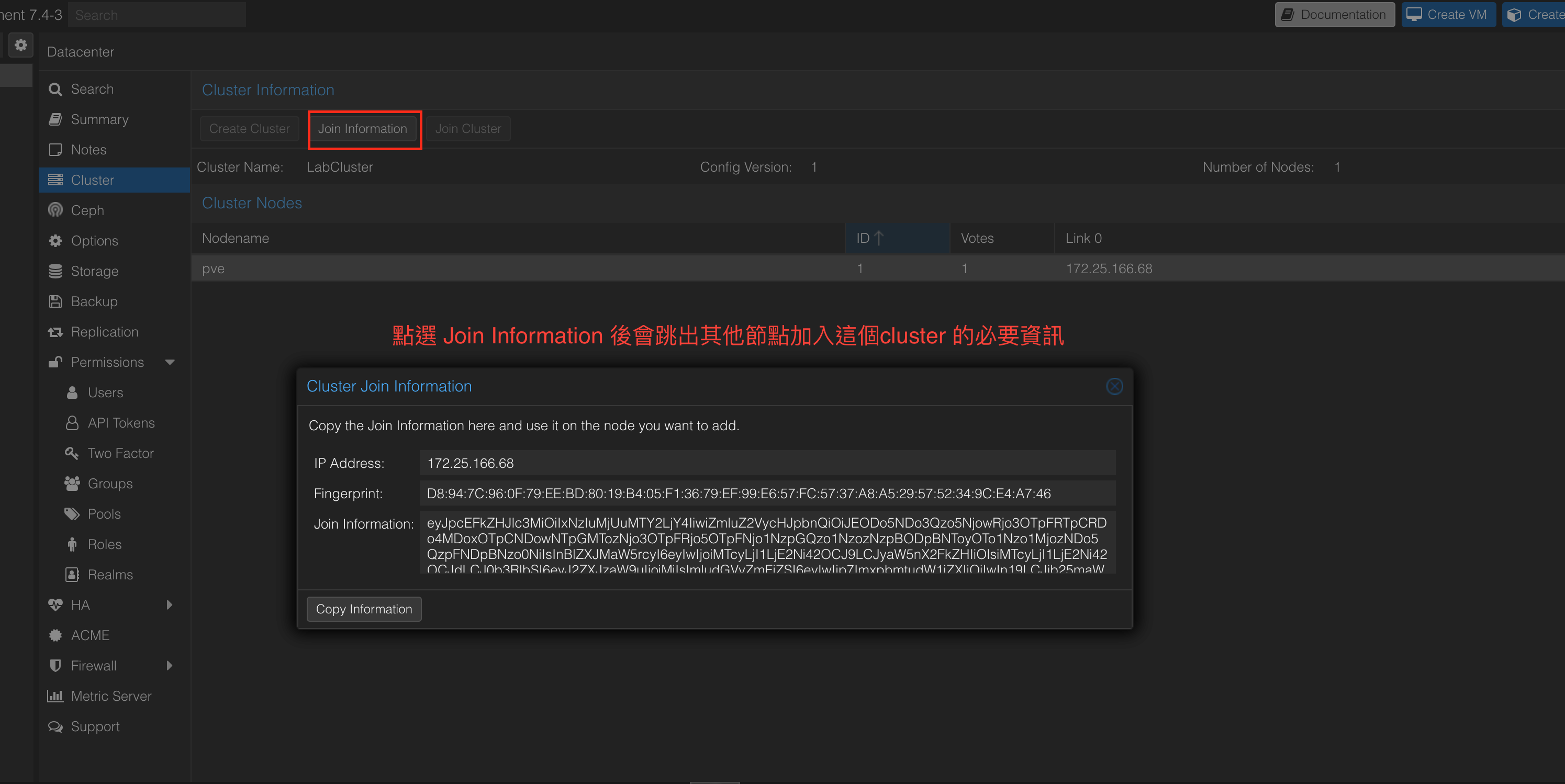
Next we need to join the other nodes to this cluster. Find Join Information under Cluster and copy the info it shows.
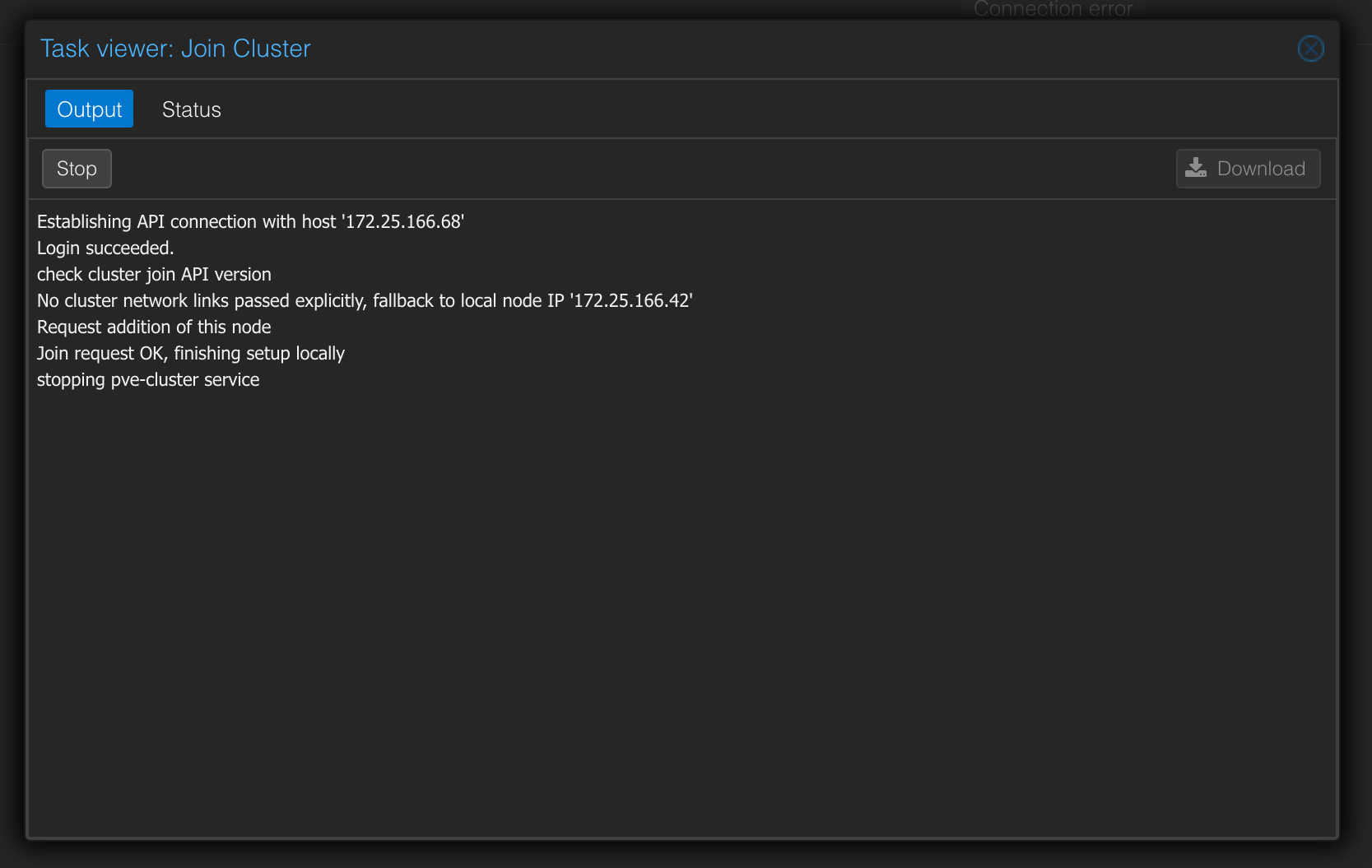
Then go to the second node pve2 (a separate host in my case) to join the cluster. Find Join Information under Cluster and paste in the join info you just copied. Once joined, both nodes can see each other.
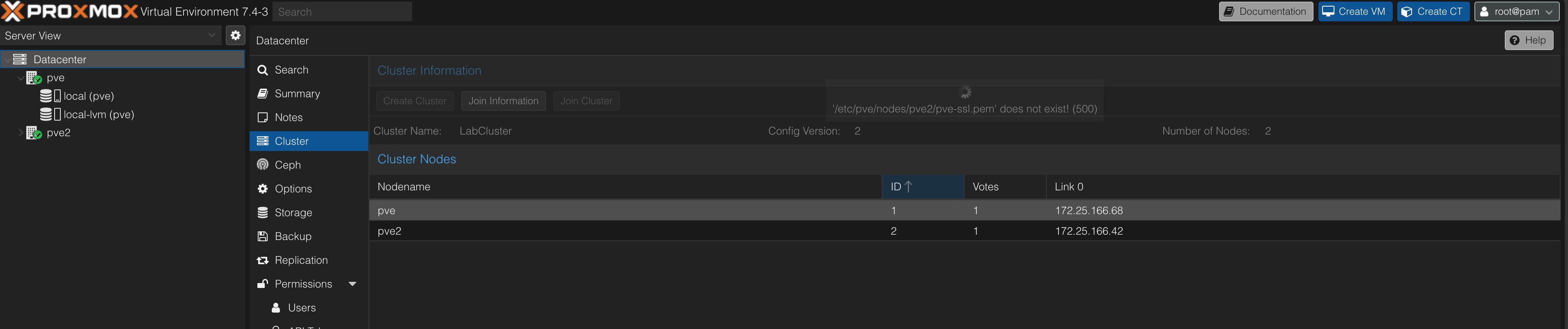
If you now hastily create a VM and think you can migrate it, you’d be wrong. Your backup node will error because it can’t find the VM’s config file, like this:

Right, migration still needs two conditions:
- The VM config file must be shared between nodes, or more completely, the VM disk must be shared
- Also, the ISO image used to create the VM must be shared
To achieve both, you need a shared-storage solution.
Migration flow
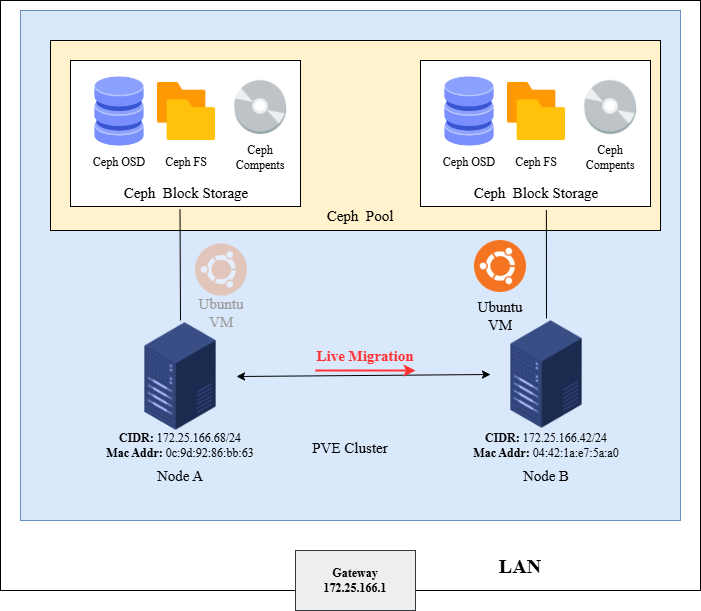
Let me add some context on our migration flow. In this post we’ll migrate manually through the PVE interface: two PVE nodes, a pre-built shared-storage architecture, a VM created on that architecture, then migrating that VM from one node to another.
So next we’ll build the storage architecture with Ceph.
Introducing Ceph
The Ceph Storage Cluster, also called
RADOS(Reliable, Autonomic Distributed Object Store), provides a reliable, self-managing distributed object store. Developed in C++, this cluster is the software storage system at the bottom of the Ceph architecture, where all the environment’s data lives. It has self-healing and self-management capabilities, and is composed of automatically-operating OSD storage nodes and lightweight monitor programs.
Ceph components
- Ceph OSDs
- Ceph’s daemon (
ceph-osd) - Stores data, handles data replication, recovery, etc.
- Provides monitoring info to the Ceph Monitor by checking ceph-osd heartbeats
- For high availability (HA) and redundancy: at least 3 Ceph OSDs are needed
- Ceph’s daemon (
- Monitors
ceph-mon- Maintains maps showing cluster state, including the monitor map and OSD map
- Responsible for managing authentication between daemons and clients
- For high availability (HA) and redundancy: at least 3 Ceph Monitors are needed
- Managers
ceph-mgr- Tracks runtime metrics and the Ceph cluster’s current state, e.g. storage utilization, current system load
- For high availability (HA) and redundancy: at least 2 Ceph Managers are needed
- MDSs:
- The Ceph Metadata Server (Ceph MDS) stores metadata for the Ceph filesystem
- That is, a Ceph block device or Ceph object storage doesn’t use MDS
- If you want to create a Ceph Filesystem (CephFS), you also need to create an MDS beforehand
- Ceph MDS lets POSIX filesystem users run commands like
lsorfindwithout burdening the Ceph storage cluster
- The Ceph Metadata Server (Ceph MDS) stores metadata for the Ceph filesystem
Ceph is a distributed storage system, supported at the bottom by a cluster of multiple servers (the PVE cluster we just set up). If you need to expand storage or scale the system, just add more servers to the cluster, which makes scaling very simple. In this architecture, Ceph is highly reliable, with the system automatically healing and managing itself. When data is written, it’s automatically replicated to multiple nodes, so even if a node fails, the whole system keeps working and the data isn’t corrupted. This design lets Ceph provide a stable and secure storage solution.
Installing Ceph
First install Ceph on every node; there are two nodes here, so both need it.
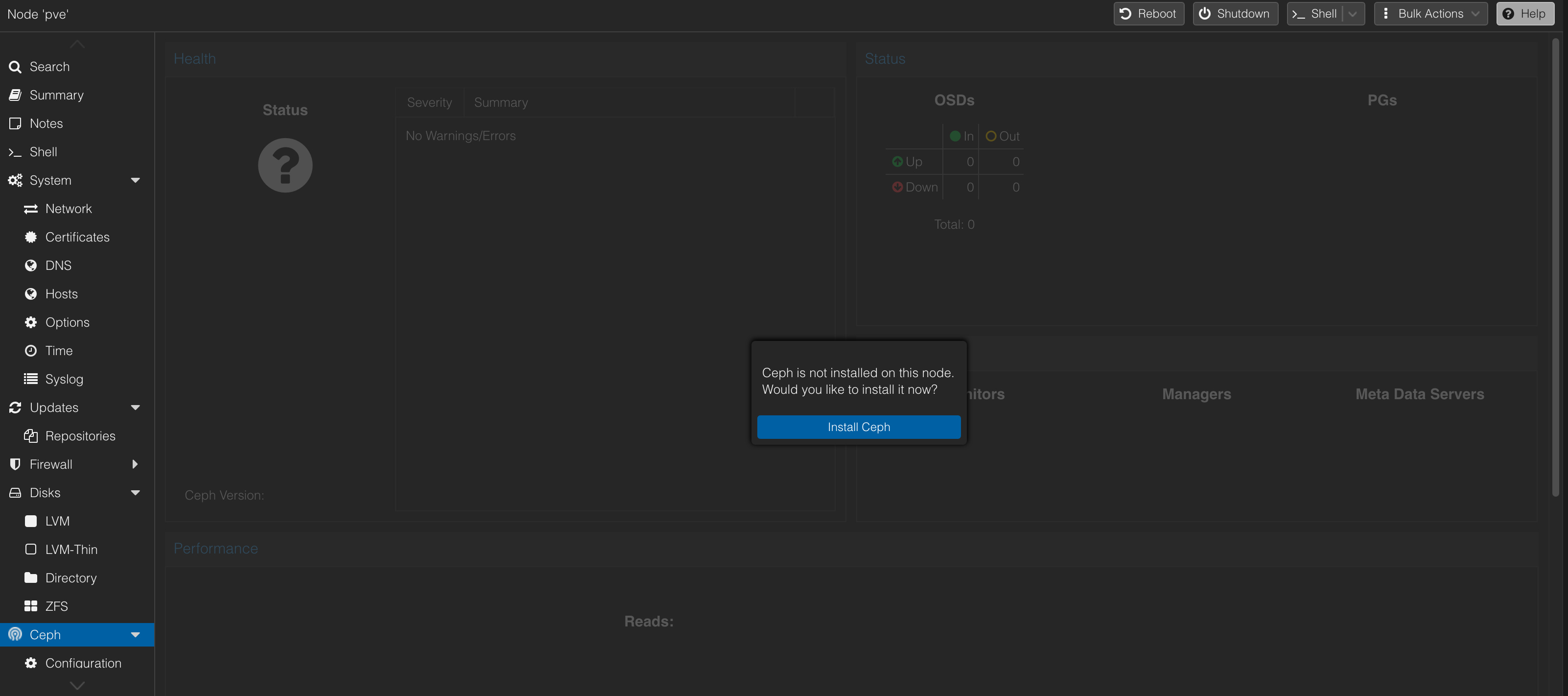
Click Start quincy installation (I didn’t specify a version, just used the one offered).
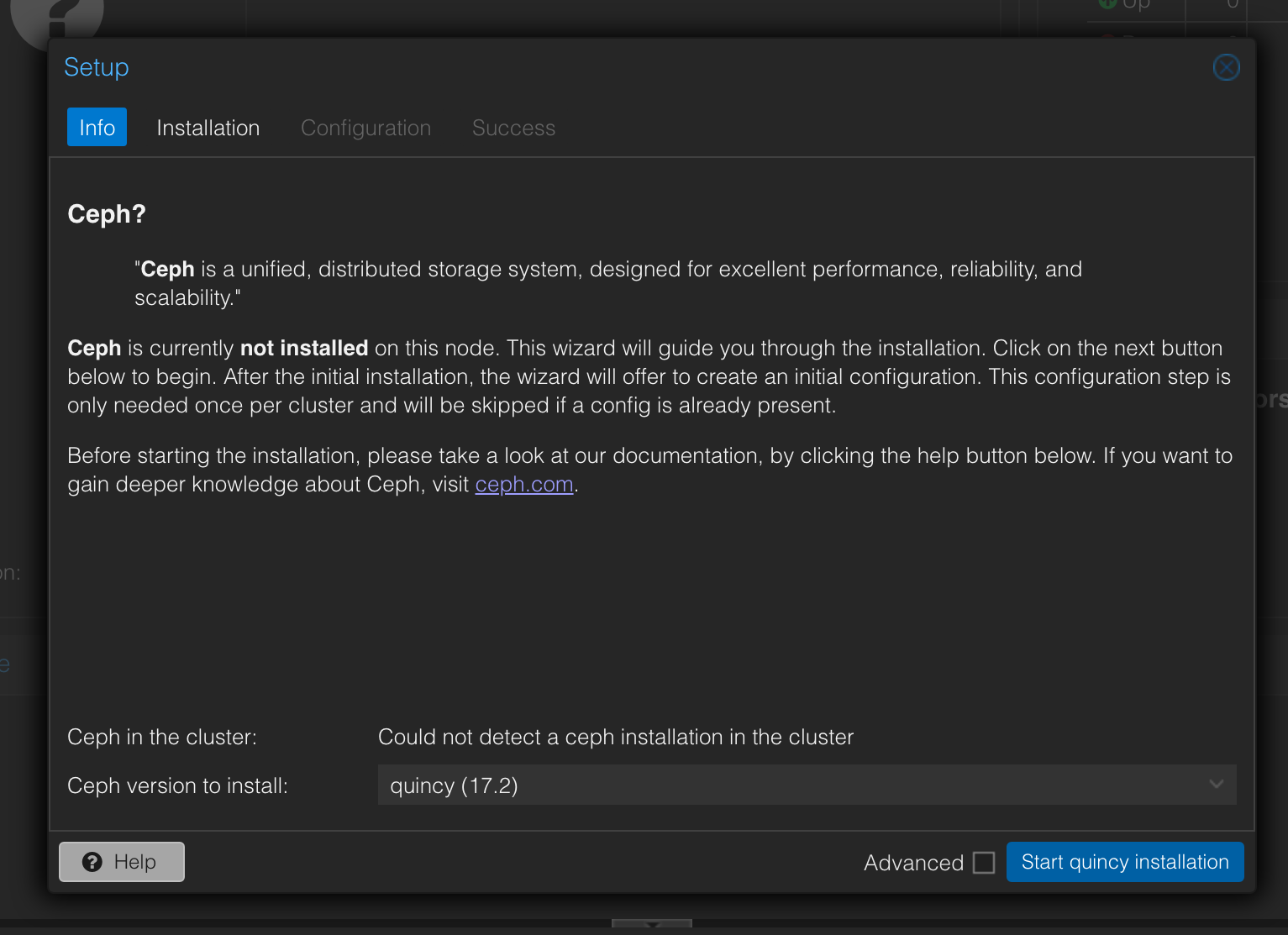
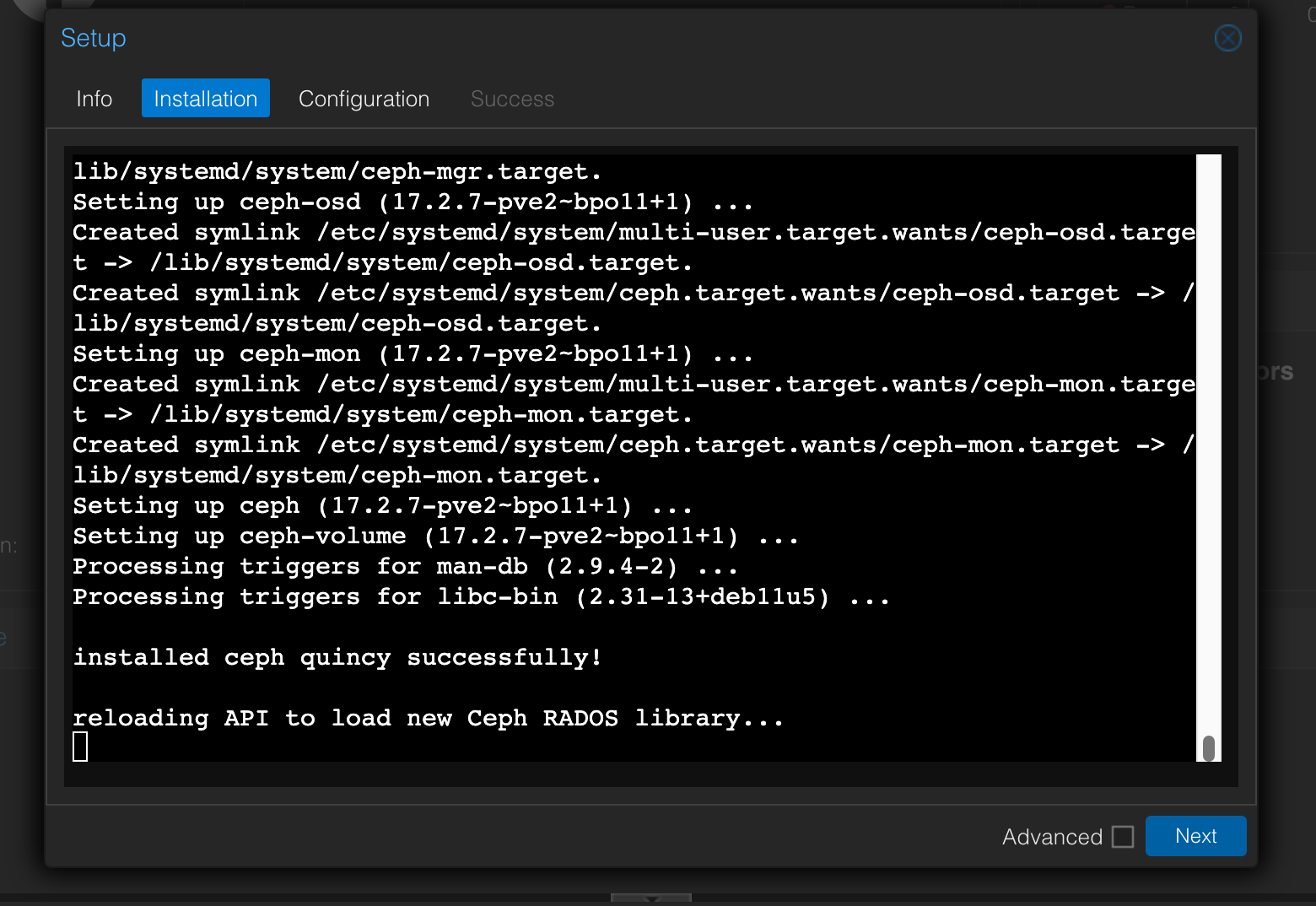
During download, it asks whether to continue; type Y.
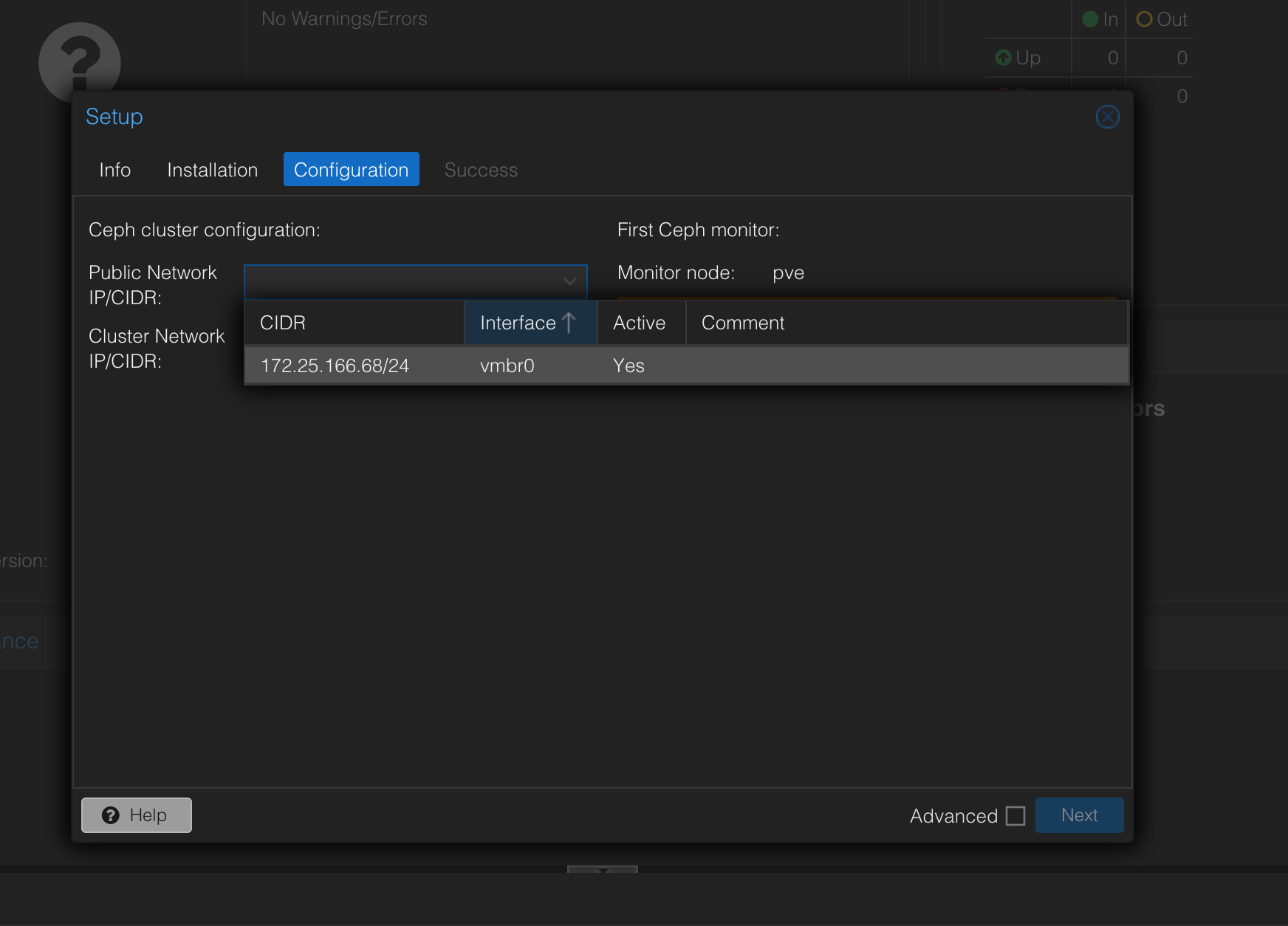
After it finishes, it asks you to specify a network interface.
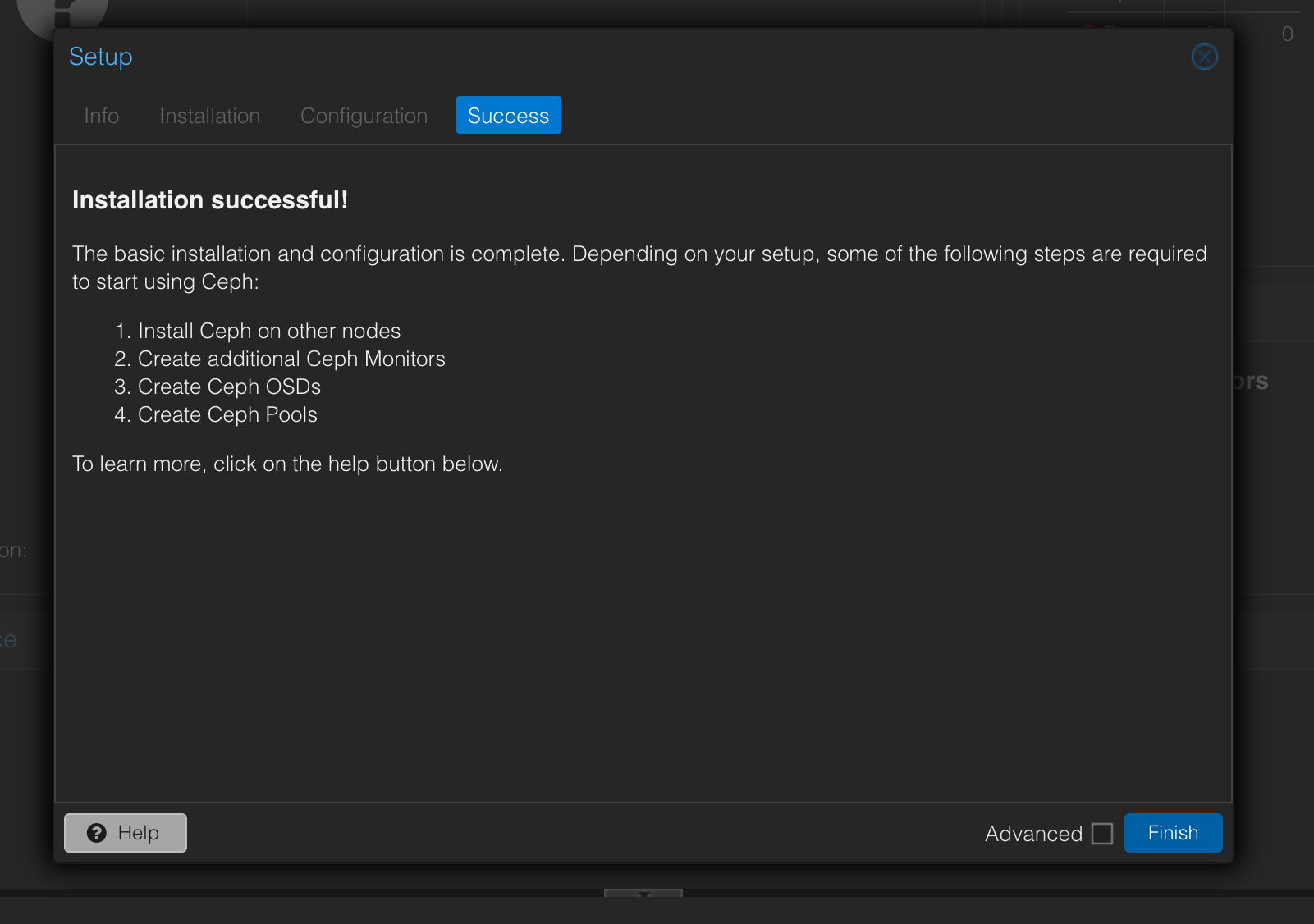
After a successful install, it prompts the next steps, which we’ll follow:
- Install Ceph on every node
- Add additional Ceph Monitors
- Create a Ceph OSD on each node
- Create a Ceph Pool
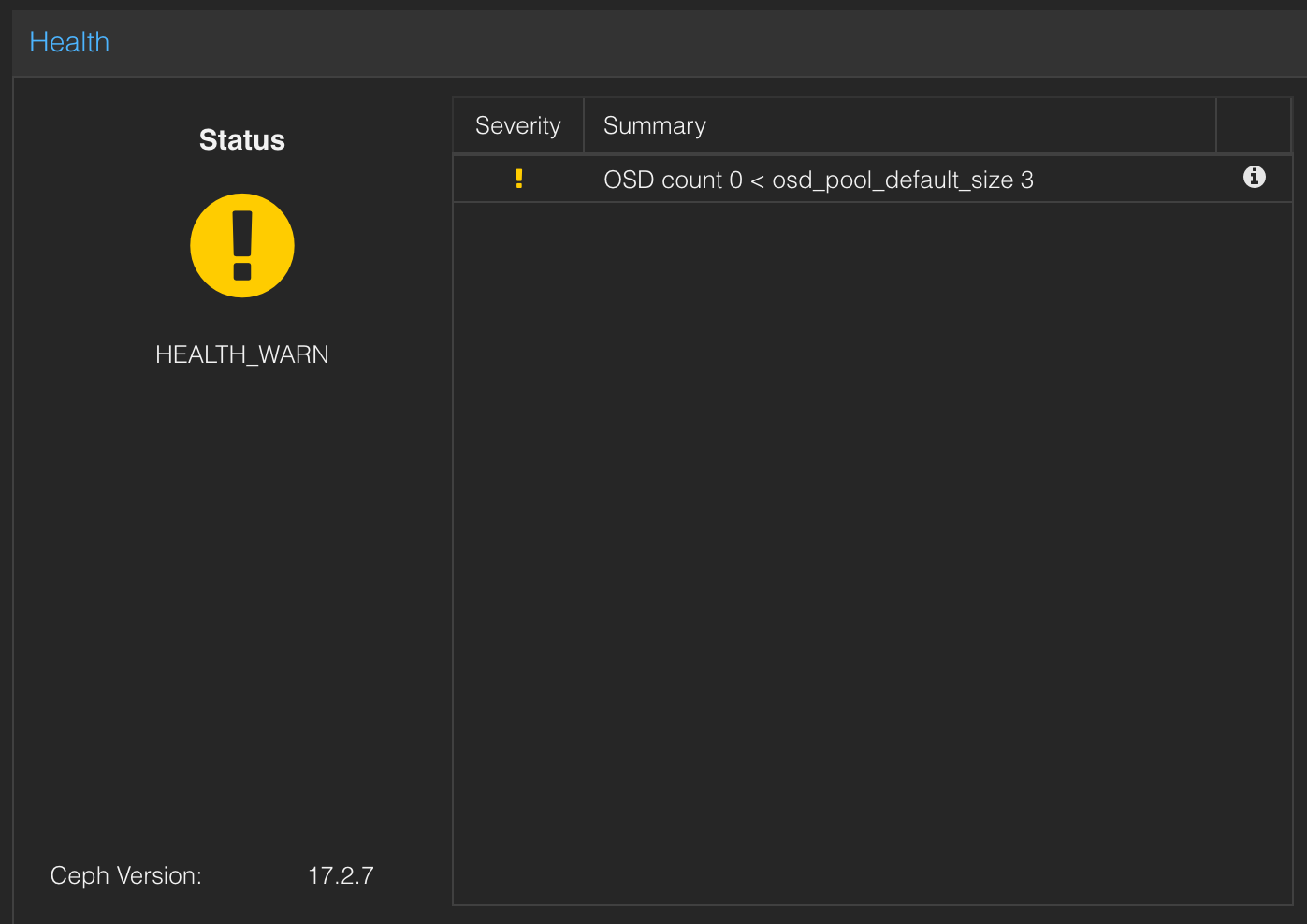
Repeat the install flow above on the other nodes. Once every node is installed, checking Health should show a warning
OSD count 0 < osd_pool_default_size 3, which is normal because no OSD has been created yet.
Creating a Ceph OSD
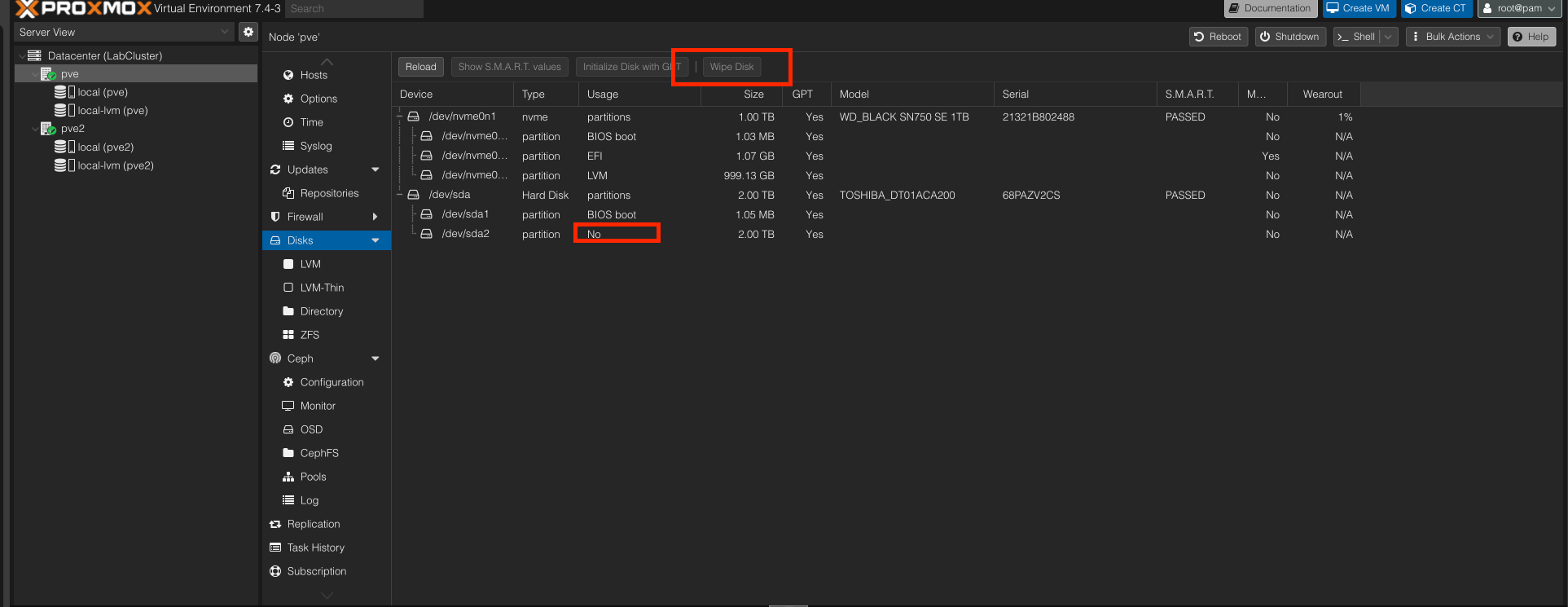
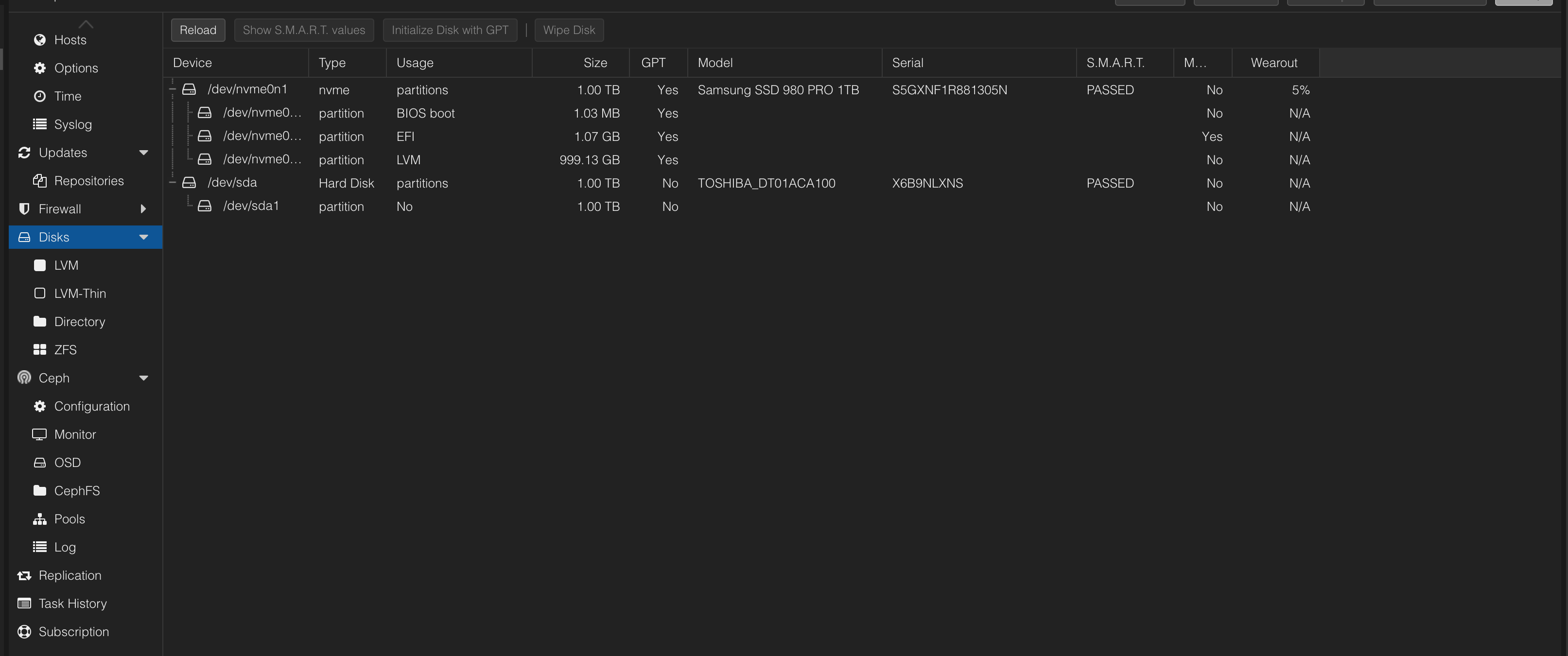
To create a Ceph OSD, you first need idle disk space. So first find a disk on each node to configure. Enter Disk on the pve node and format an idle disk; if you have no idle disk, you can use a USB external drive.
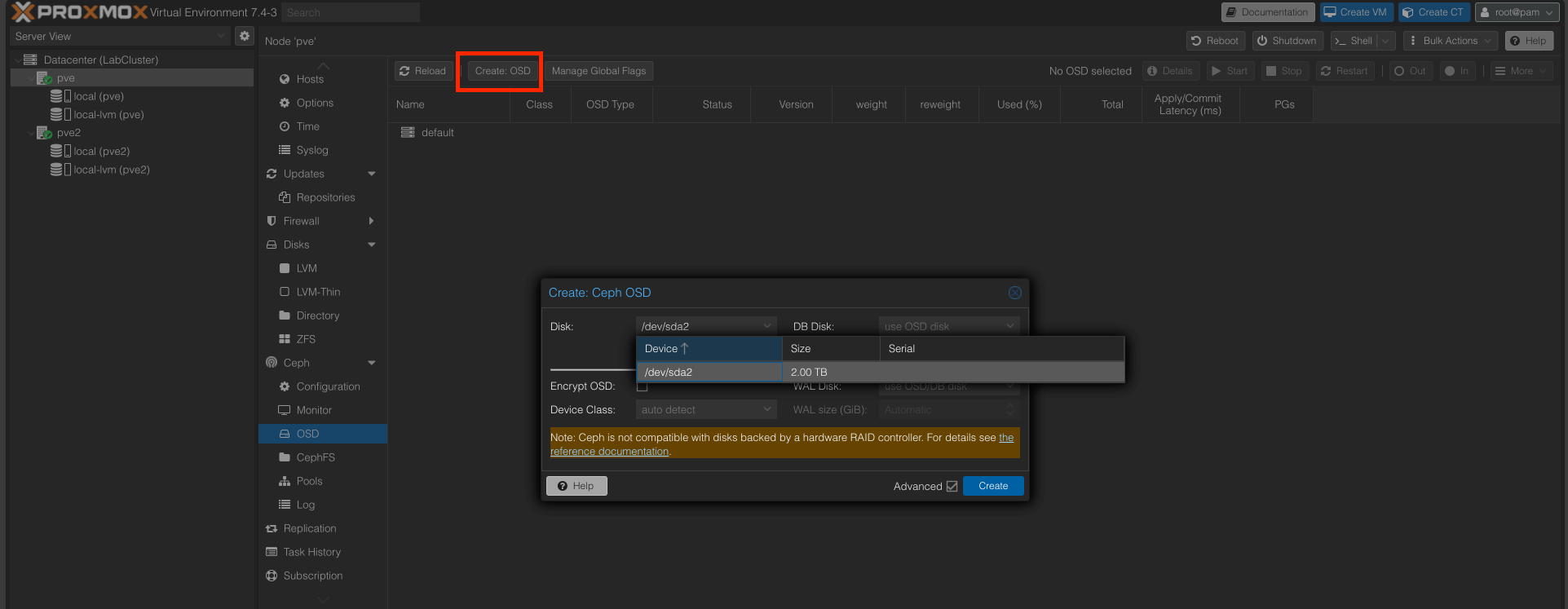
Then under PVE > Ceph > OSD, click Create: OSD, choose the disk you just formatted, and click Create.
Do the same steps on the other nodes to install OSDs.
Once installed, you can see the OSD type and status in the OSD view on both nodes.
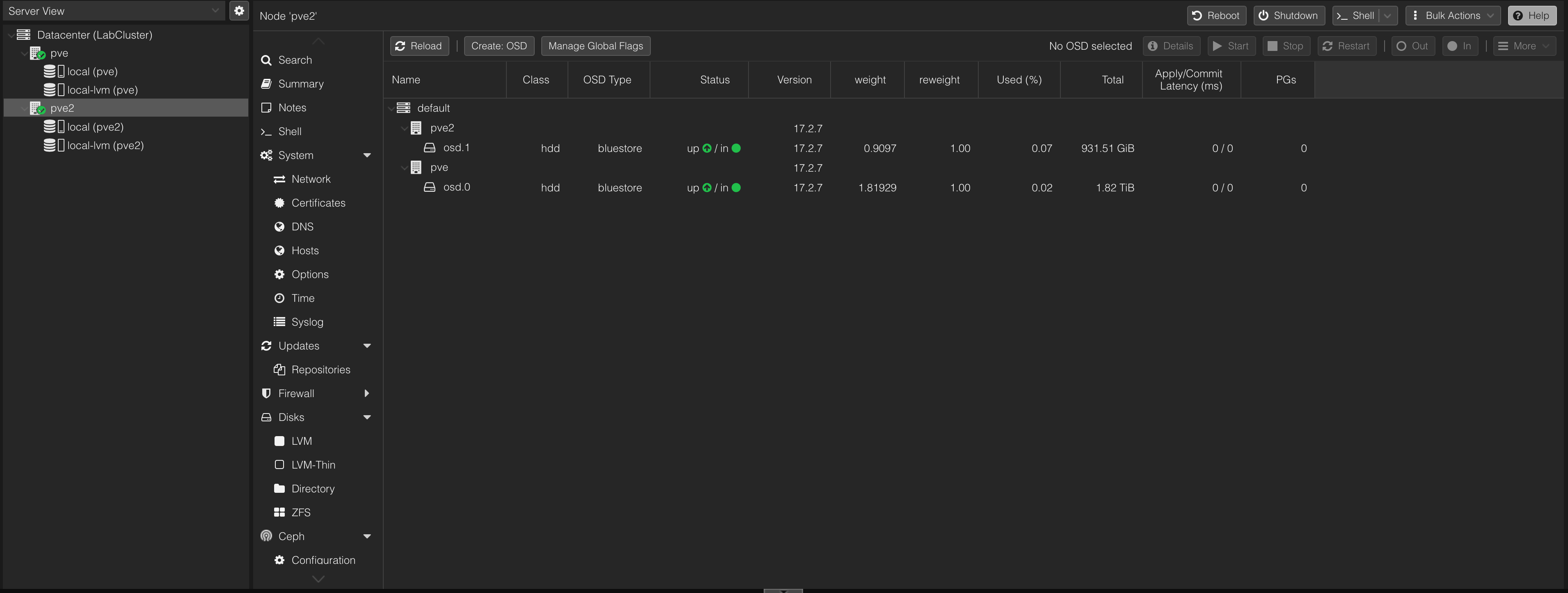
Also, for redundancy and high availability, you can create two additional Ceph Managers (active-standby).
Per the suggestions in this article:
- The
ceph-osdprocess consumes CPU during operation, so eachceph-osdprocess is usually bound to a CPU core. - The
ceph-monprocess isn’t very CPU-intensive, so you don’t need to reserve too much CPU for it. ceph-mdsis also very CPU-intensive, so it needs more CPU resources.ceph-monandceph-mdsneed 2G of memory, and eachceph-osdprocess needs 1G (2G is better).
Creating a Ceph Pool
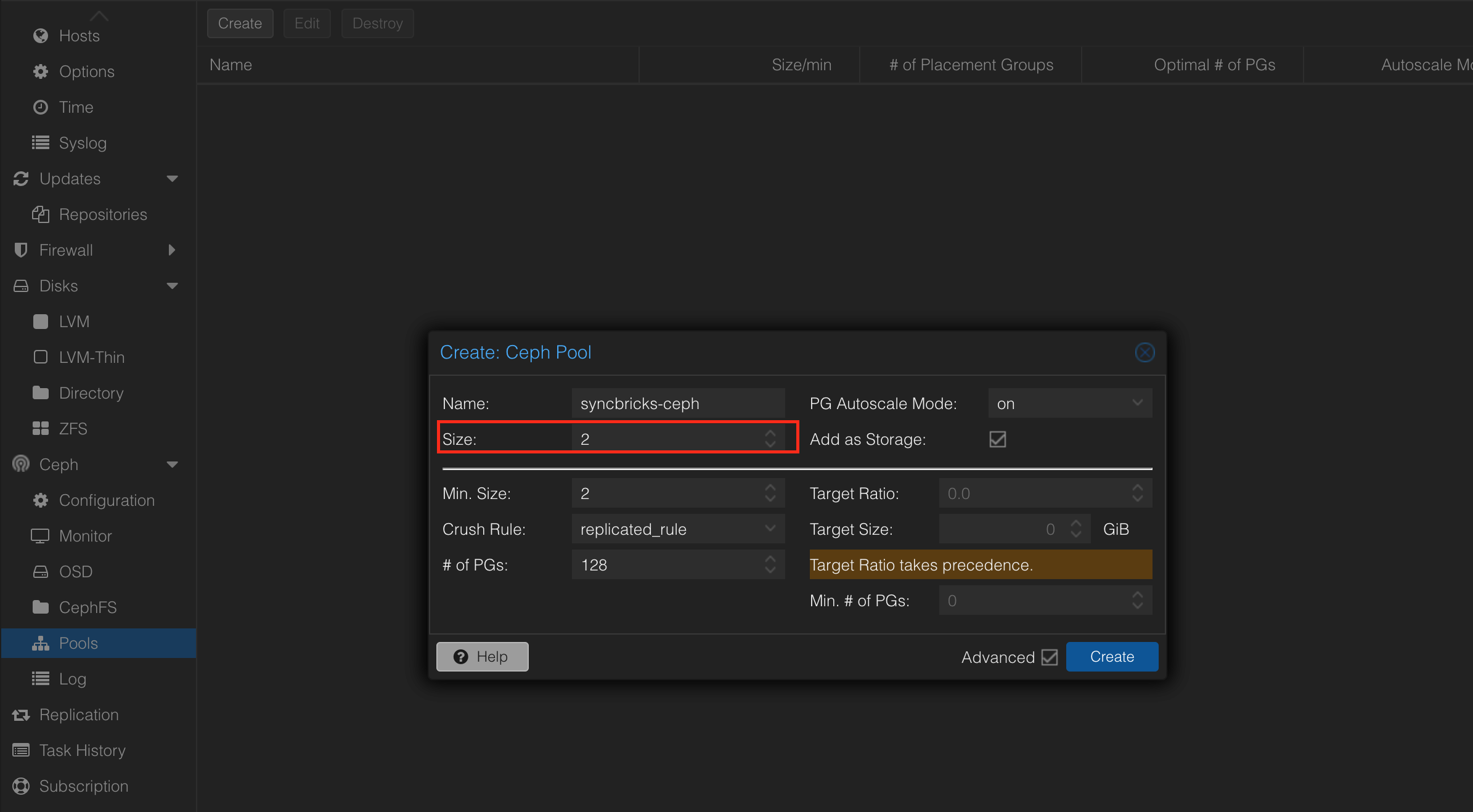
A Ceph Pool combines OSDs across nodes, and it’s where our VM disks will later be stored. On the pve node, go to Ceph > Pools and choose Create: Ceph Pool. Give the pool a name, here syncbricks-ceph. You also need to specify the pool size; normally Min.Size is at least 2 and Size defaults to 3, but since I only have two hosts, I set size to 2 for now, letting both OSDs join the Ceph Pool.
After creation it should show a warning, because PVE defaults to wanting 3 OSDs but there are only two.
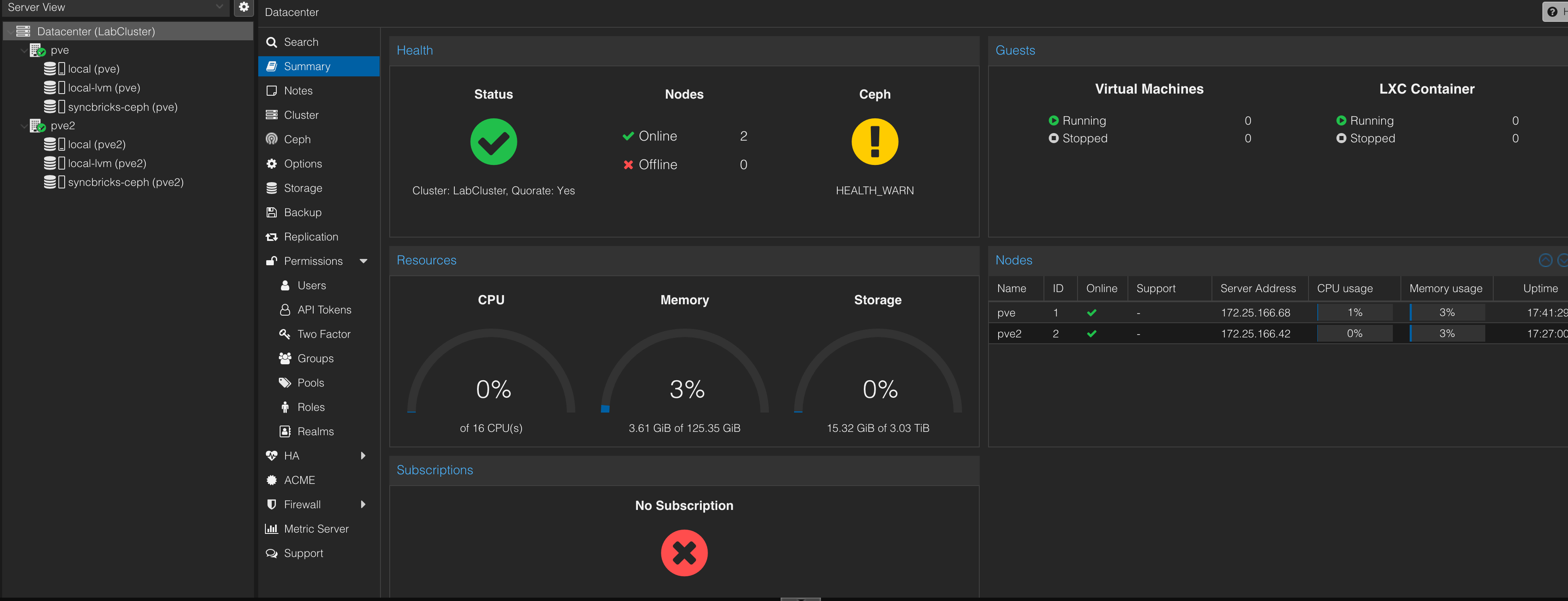
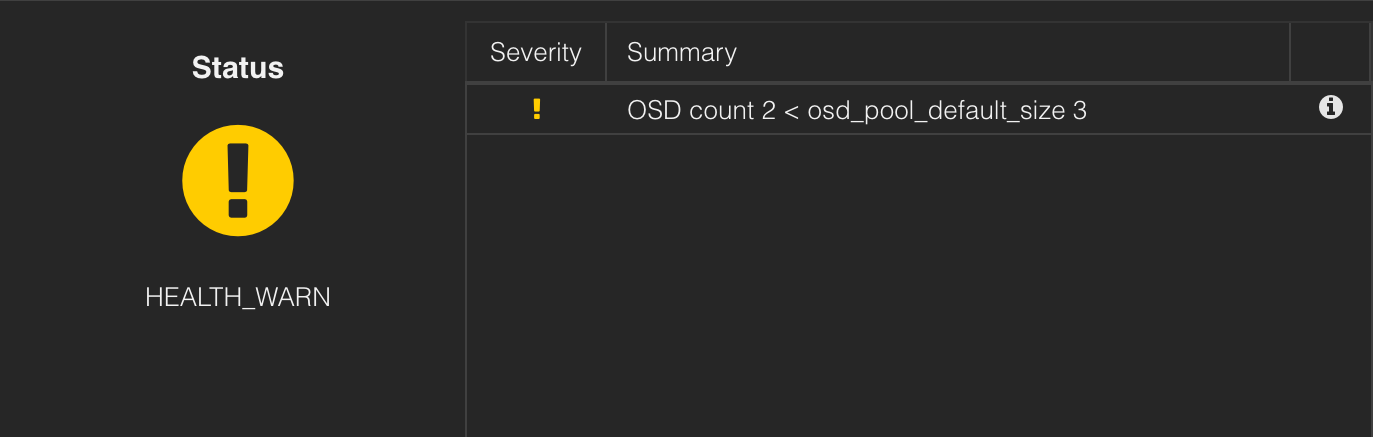
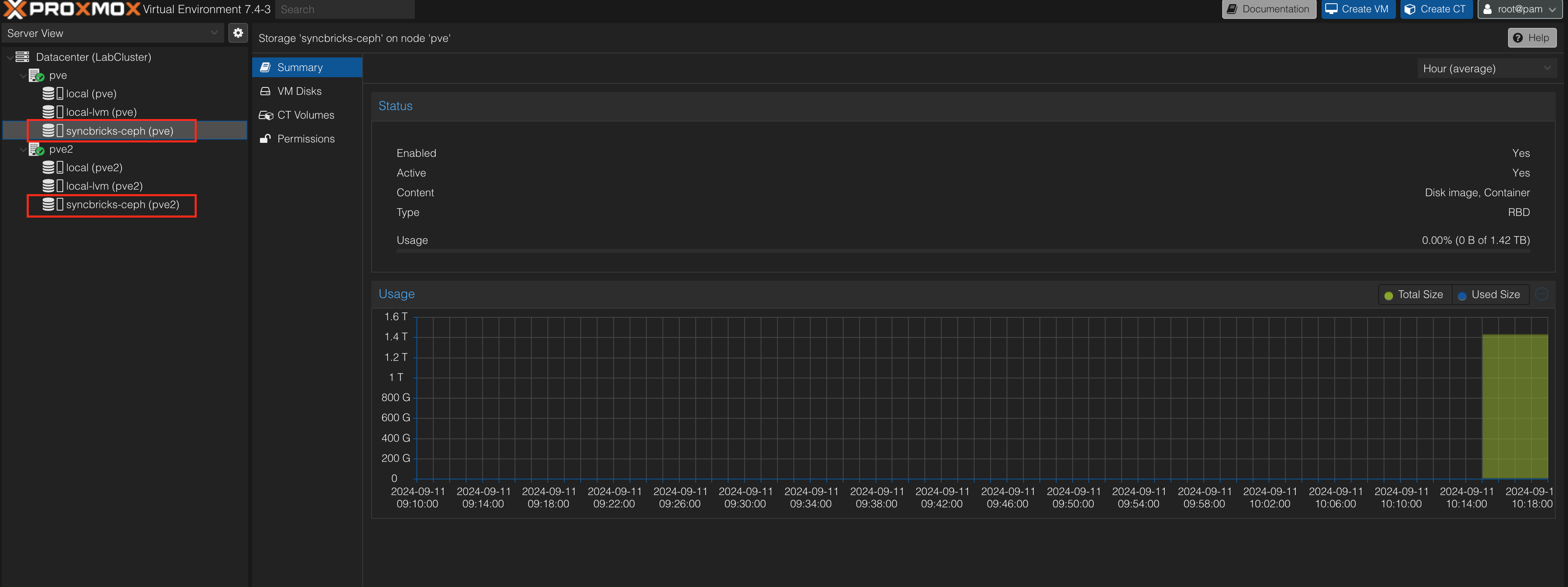
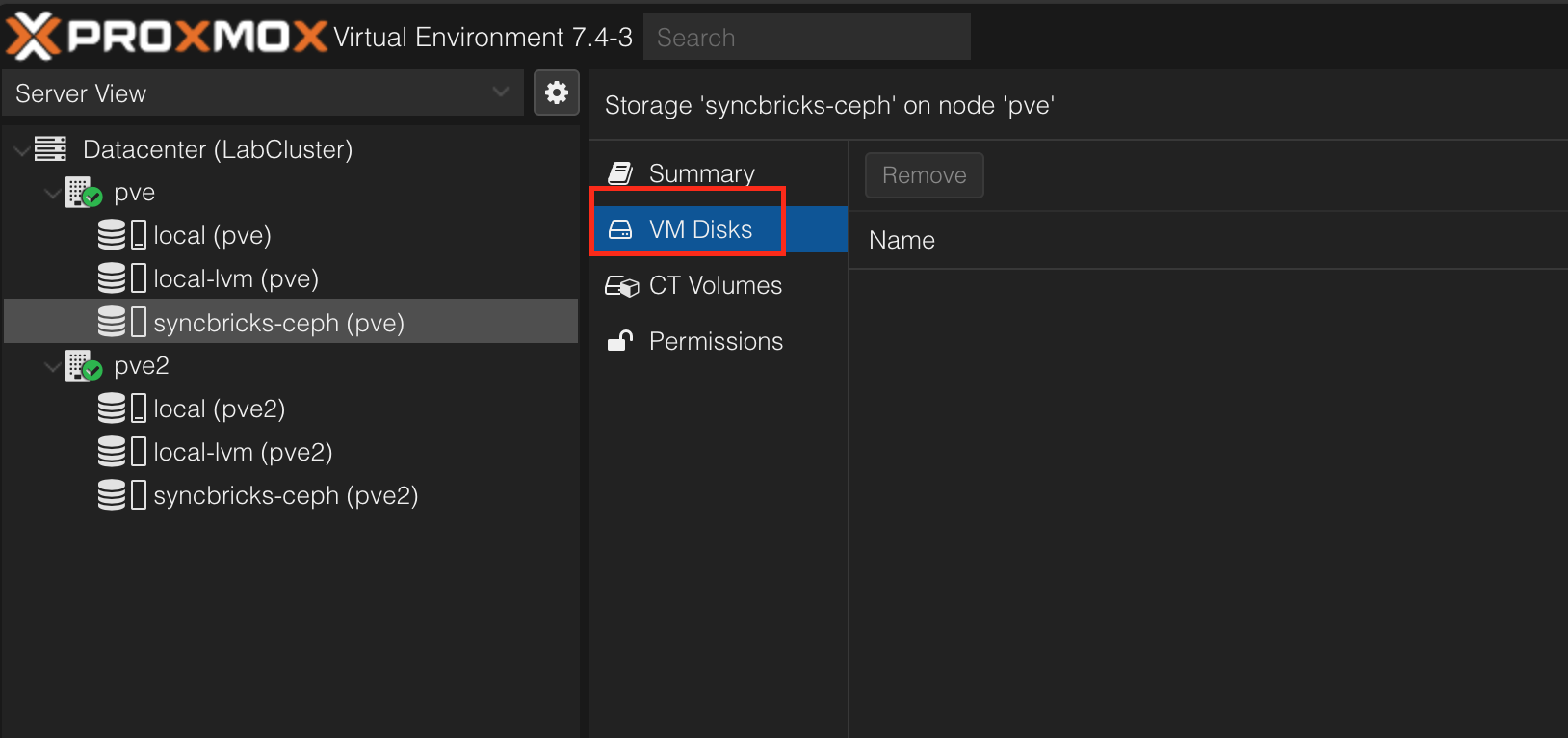
There are two OSDs currently online, so this is normal for now. Also, after the Ceph Pool is created, you’ll find syncbricks-ceph appear under both nodes. Now the two nodes can share the VM disk, enabling the later VM migration.
Creating a Ceph File System
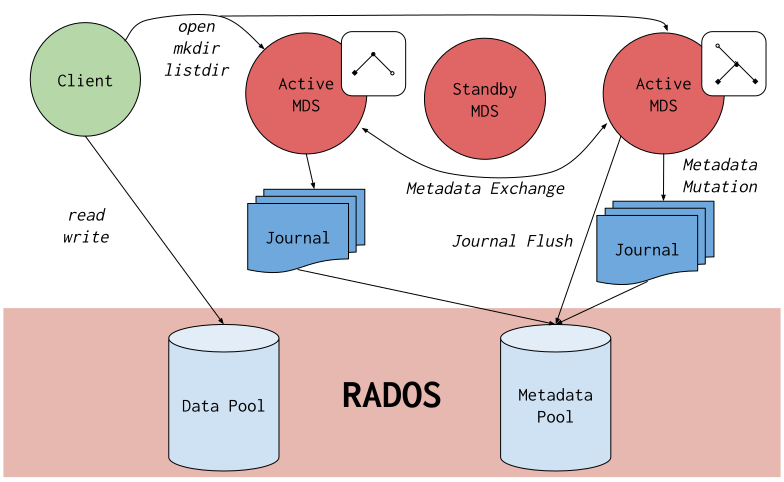
Ceph File System (CephFS) is a POSIX-compliant filesystem built on top of the Ceph distributed object store RADOS. CephFS aims to provide a highly-available, high-performance file-storage solution for various applications, usable as scratch space for high-performance computing (HPC) and shared storage for distributed workflows.
In CephFS’s architecture, file metadata is stored in a RADOS pool separate from file data, and served through an elastically-scalable MDS cluster, which supports higher-throughput workloads. Clients can directly access RADOS to read and write file data blocks, so workloads can scale linearly with the underlying RADOS object store, without any gateway or agent mediating data I/O.
Data access is coordinated by the MDS cluster, which manages a distributed metadata cache, with clients and MDSs jointly maintaining metadata state. The MDS consolidates metadata changes and efficiently writes them to the RADOS journal, storing no metadata locally. This design lets clients collaborate quickly and consistently under a POSIX filesystem.
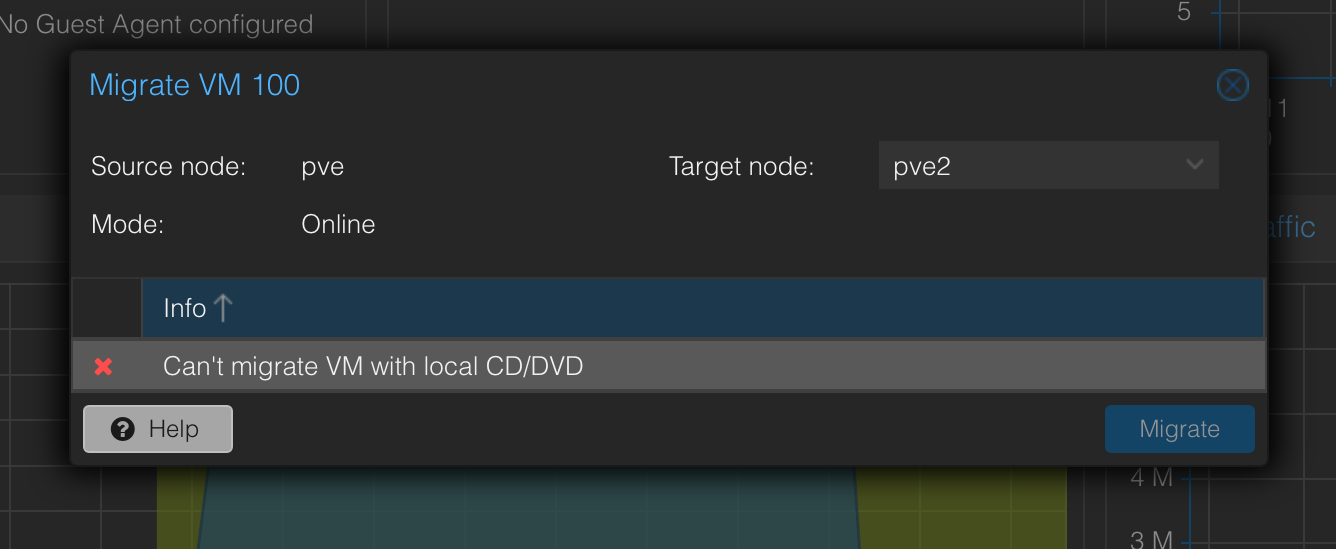
With the intro done, let’s continue. So far we’ve handled sharing the VM disk; next we’ll share the VM ISO image. If it isn’t shared, a later migration will throw the error Can't migrate VM with local CD/DVD, meaning it must be done the shared way.
Per this thread, sharing an ISO image requires at least these steps:
- Create Ceph File System:
- Ensure CephFS is created with at least two MDS on standby
- Add Ceph FS:
- Mount CephFS on the nodes so all nodes can share the same ISO image
Creating MDS
So we create an MDS on each of the two nodes.
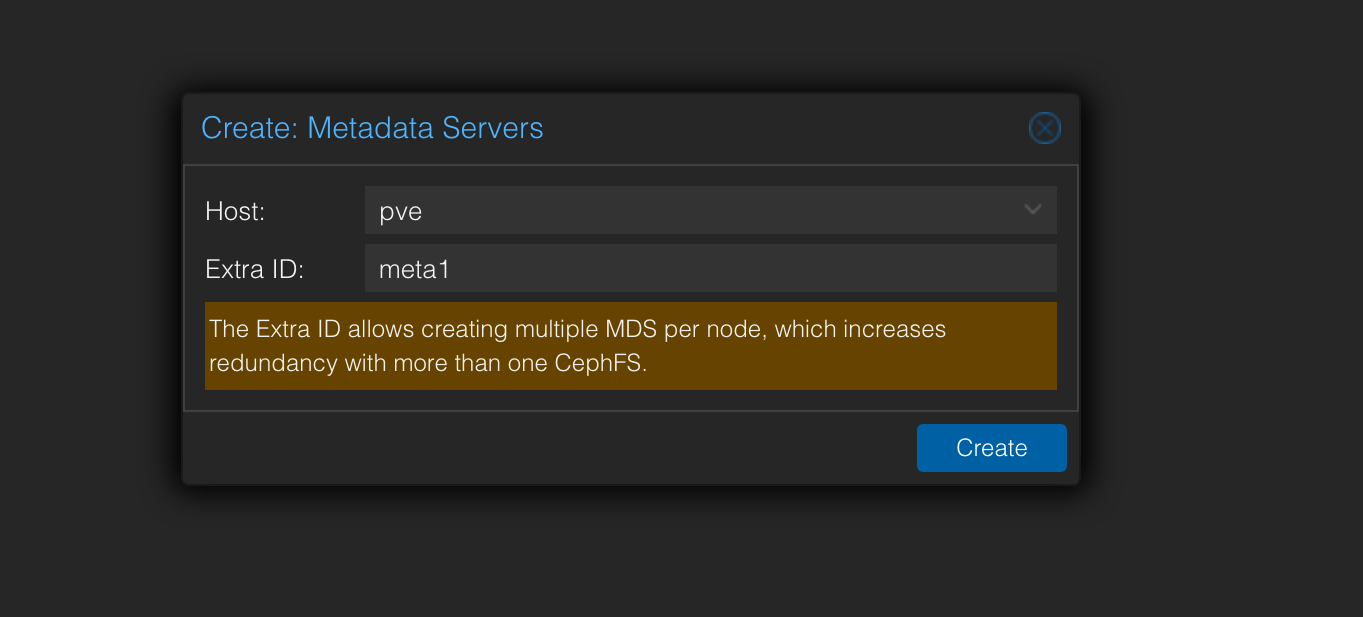
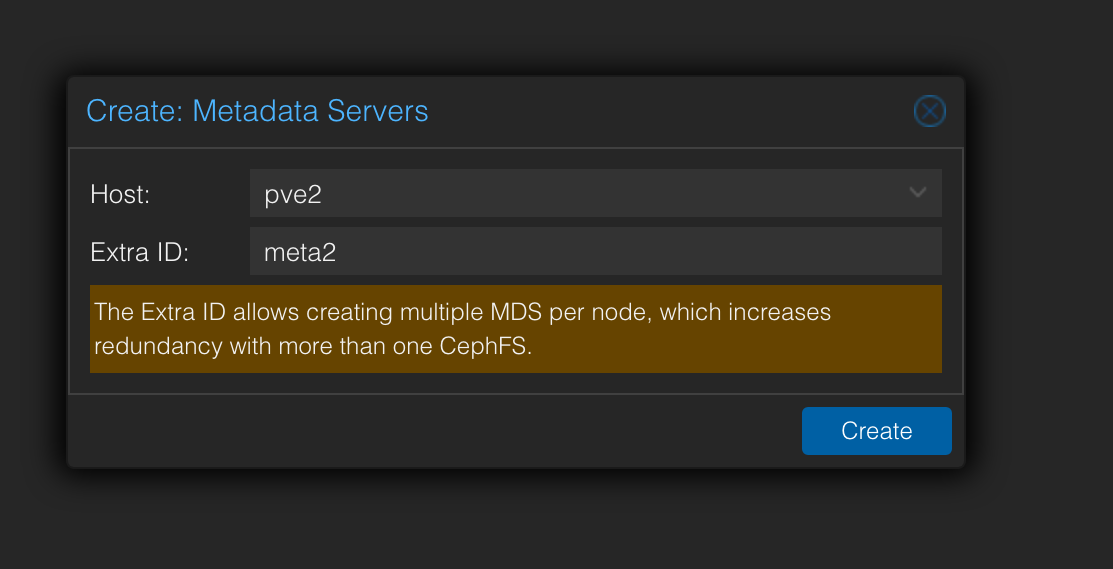
Then on node 1 do Create: Ceph FS, naming it cephfs.
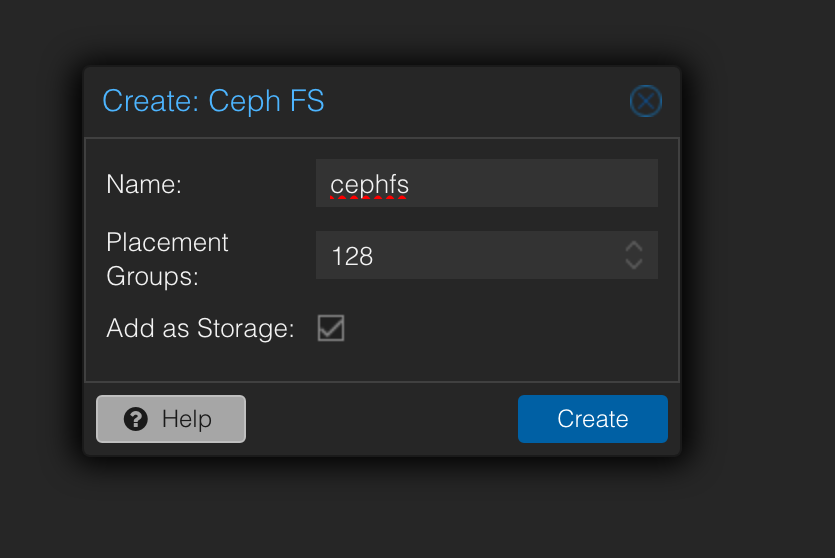
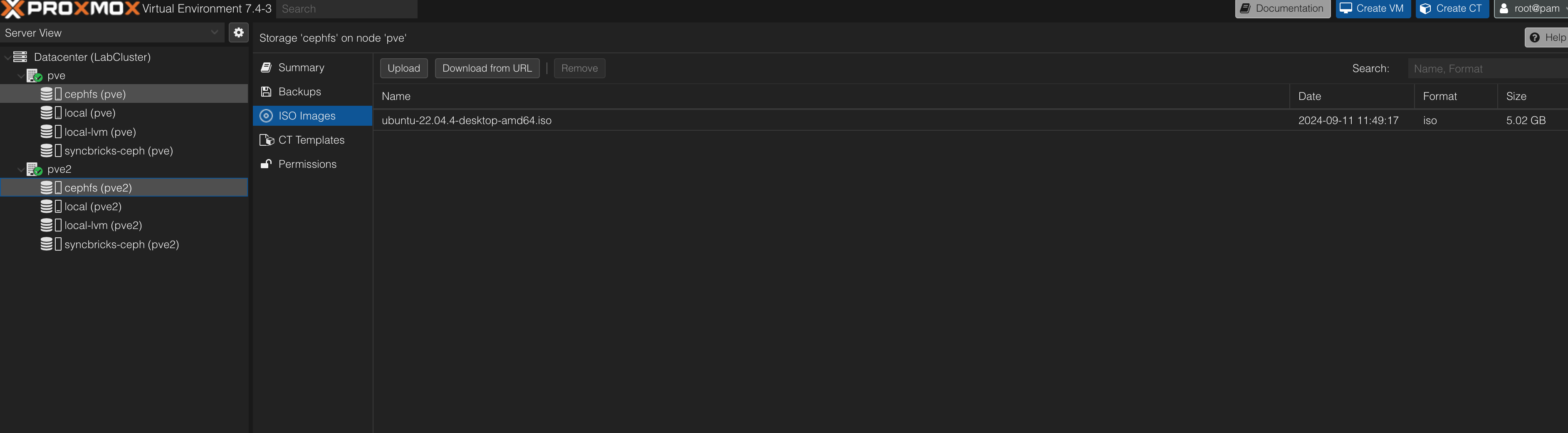
After creation, cephfs appears on both nodes, and you can upload an ISO image to the shared filesystem. Here I uploaded the Ubuntu 22.04 Desktop image.
Creating a VM to test
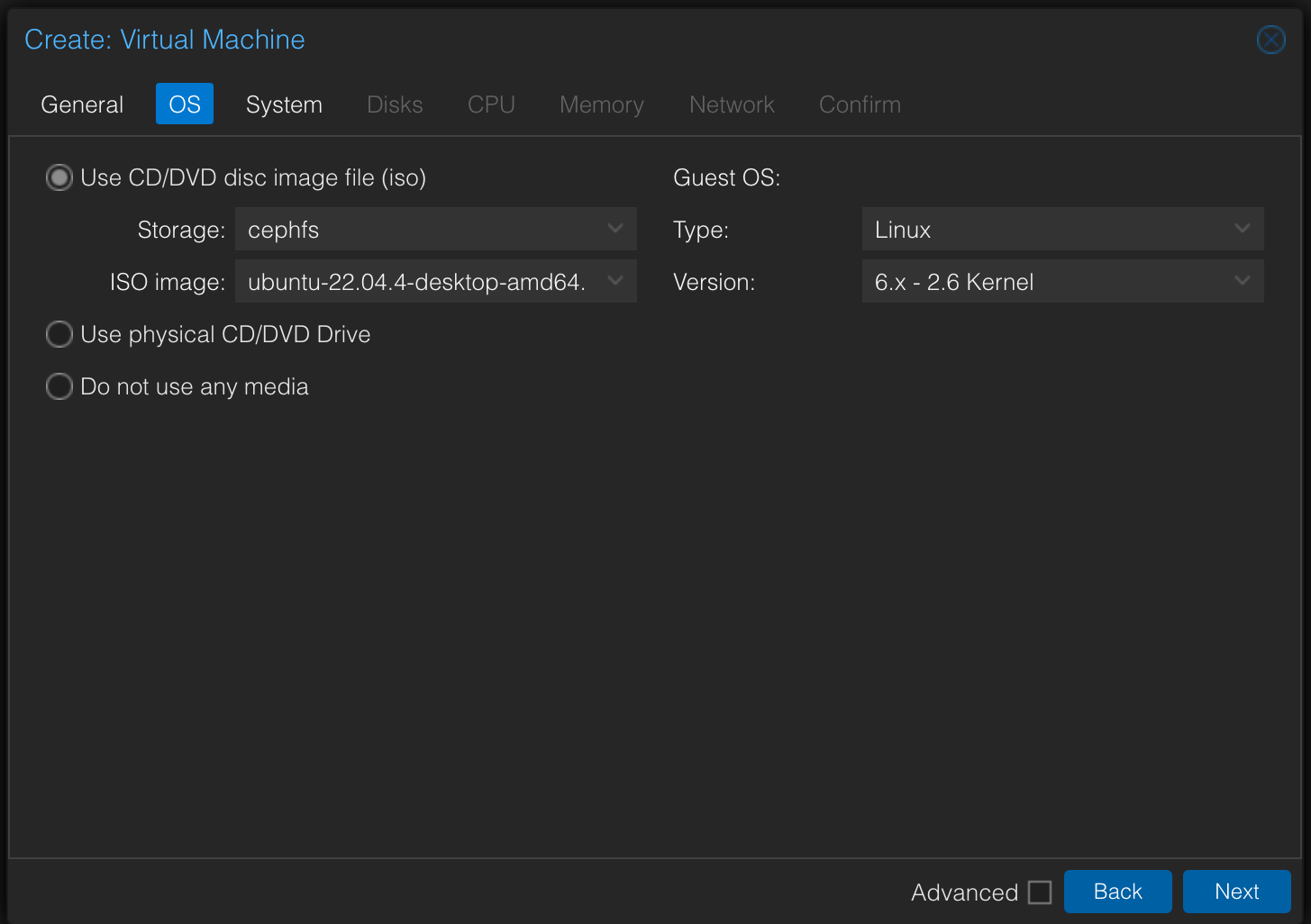
This time I create the Ubuntu VM on the pve node. During creation, when setting the OS, choose Use CD/DVD disc image file(iso), set Storage to the Ceph filesystem cephfs just created, then choose the image you want from the filesystem.
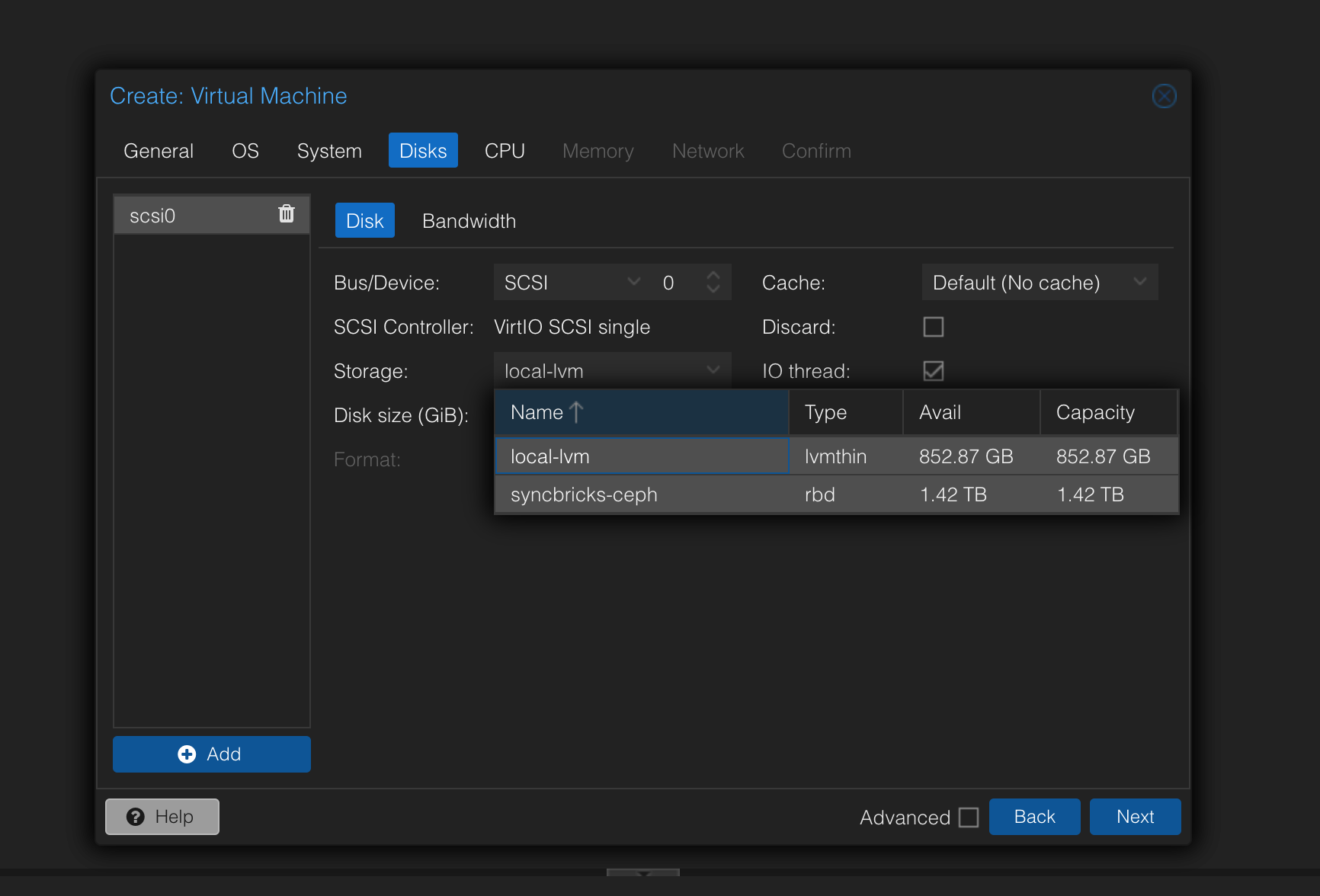
When the creation flow reaches the Disks part, remember to set Storage to the syncbricks-ceph just created.
Then create the VM.
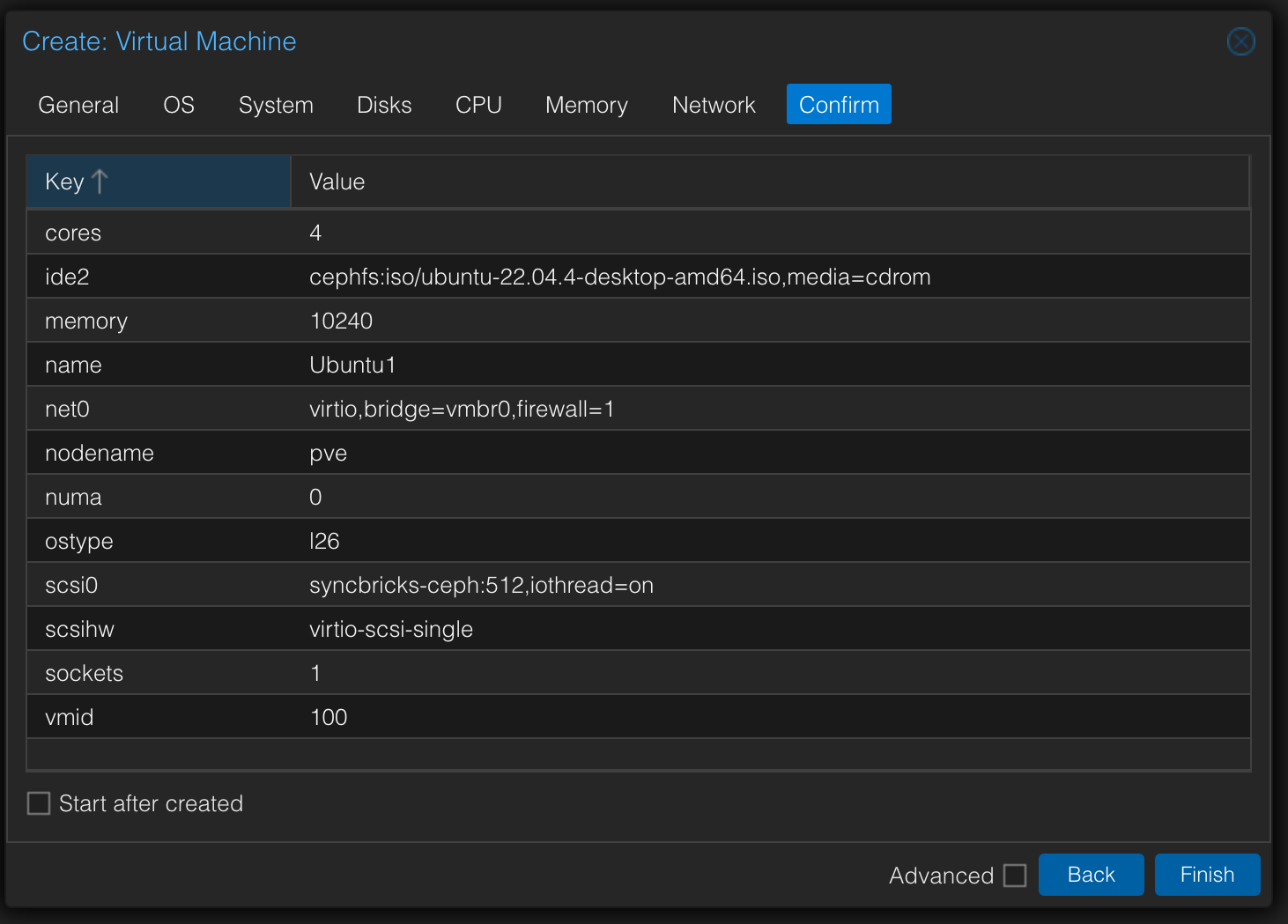
After it’s created, you need to enter the VM to install Ubuntu, which I won’t detail here.
Manually testing migration
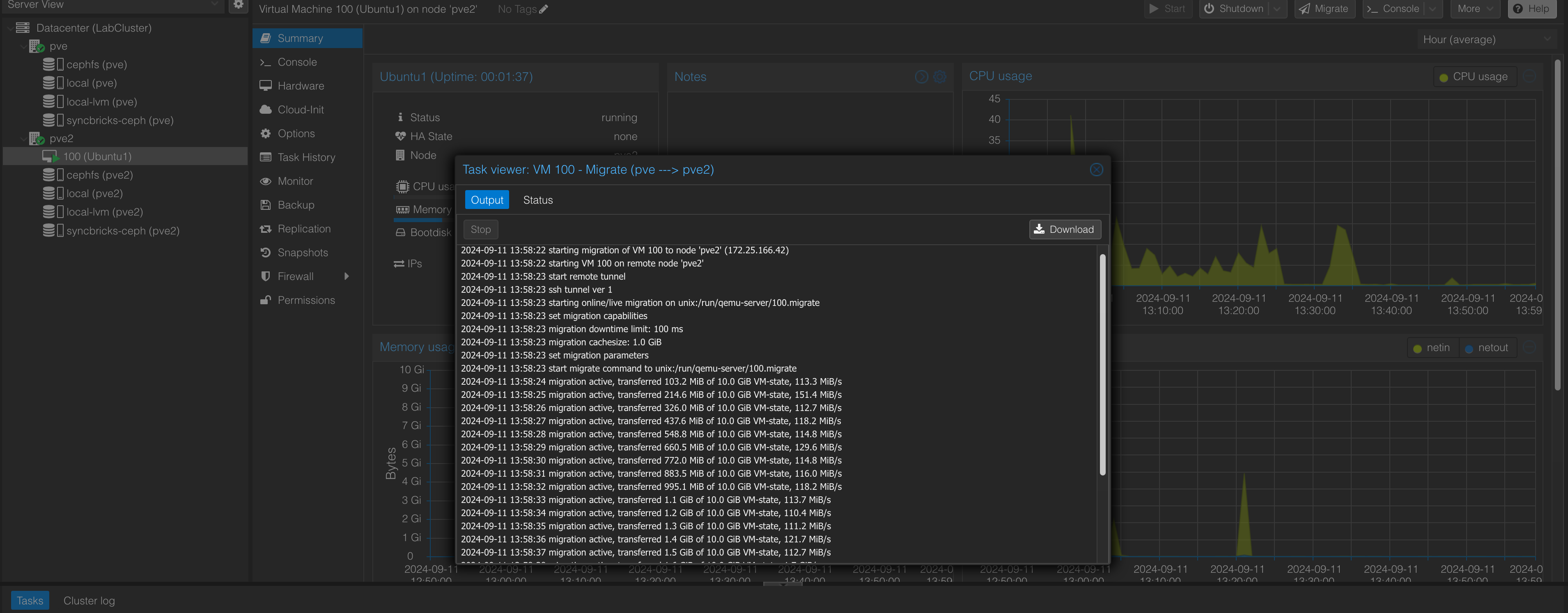
Once the VM is created, select it under pve, right-click, and a Migration option should appear, letting us migrate manually.
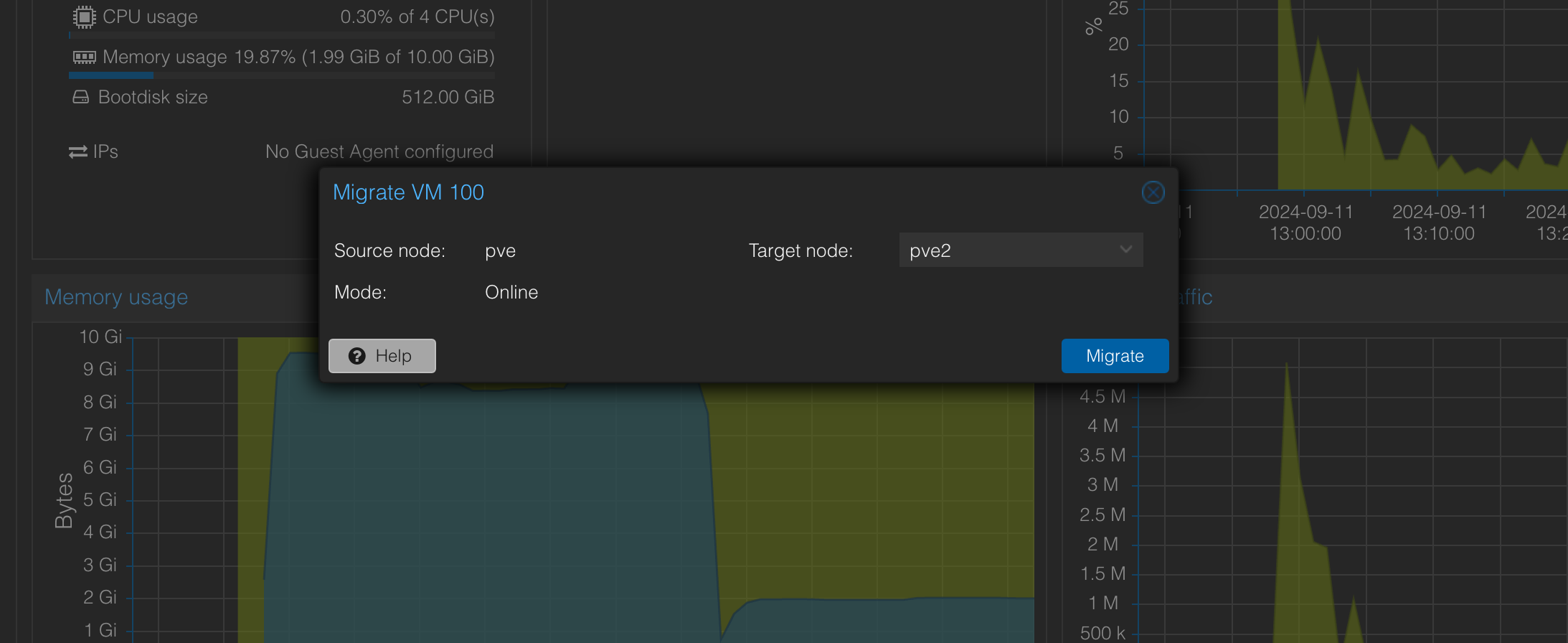
We migrate VM 100 from node pve1 to node pve2. Afterward you can see the VM’s position on the left has appeared under pve2, meaning the migration succeeded.
So far so good. For the next step, I want to use a script to auto-migrate based on conditions like CPU usage or CPU power consumption. This process will also need node 1 to power on a shut-down node 2, which uses the interesting Wake On Lan (WOL) feature; I’ll leave that for the next post.
Reference
Proxmox VE
https://ithelp.ithome.com.tw/articles/10338613
https://kawsing.gitbook.io/opensystem/andoid-shou-ji/pomoxve/jian-li-cong-ji
https://www.linuxyes.com/blog/linuxyes-3/post/proxmox-ve-replication-ha-9
https://blog.tenyi.com/2020/01/proxmox-ve-two-nodes-ha-cluster.html
https://medium.com/彼得潘的-swift-ios-app-開發教室/工控機安裝proxmox-ve-pve-94a09647d95f
Ceph
https://www.linuxtek.ca/2023/01/27/ceph-clustering-with-proxmox/
https://kawsing.gitbook.io/opensystem/andoid-shou-ji/pomoxve/ceph-object-storage
https://kawsing.gitbook.io/opensystem/andoid-shou-ji/pomoxve/ceph-object-storage/ceph-xu-yao-da-liang-ji-yi-ti
https://www.youtube.com/watch?v=7BcSnUz_2zQ
https://forum.proxmox.com/threads/ceph-mount-a-pg-pool-for-images-isos.134367/


If you find my articles helpful, please support Kevin!
 Use boba to safe Kevin!