
Deploying Prometheus and Grafana on a Proxmox VE Cluster
🌐 中文版:繁體中文
Preface
On the Proxmox VE cluster I built earlier, I needed to periodically collect GPU power-consumption info as the basis for a script’s decisions, so I needed Prometheus to collect the info.
Node background info
IP CIDR: 172.25.166.139/24
CPU(s) 4 x Intel(R) Core(TM) i3-8100 CPU @ 3.60GHz (1 Socket)
Kernel Version Linux 6.8.4-2-pve (2024-04-10T17:36Z)
Installing Prometheus
Create the Prometheus user
1 | sudo groupadd --system prometheus |
Create the directories Prometheus needs
1 | mkdir /var/lib/prometheus |
Create a temporary prometheus directory under tmp for downloading, and download the latest Prometheus
1 | mkdir -p /tmp/prometheus && cd /tmp/prometheus |
Extract the file, move the config files, and delete the temporary directory when done
1 | tar xvf prometheus*.tar.gz |
Create the systemd config file
1 | sudo tee /etc/systemd/system/prometheus.service<<EOF |
Use chown to set the owner of all the directories just created to prometheus
1 | for i in rules rules.d files_sd; do sudo chown -R prometheus:prometheus /etc/prometheus/${i}; done |
Then load the Prometheus config and start the Prometheus service plus the boot-time service
1 | sudo systemctl daemon-reload |
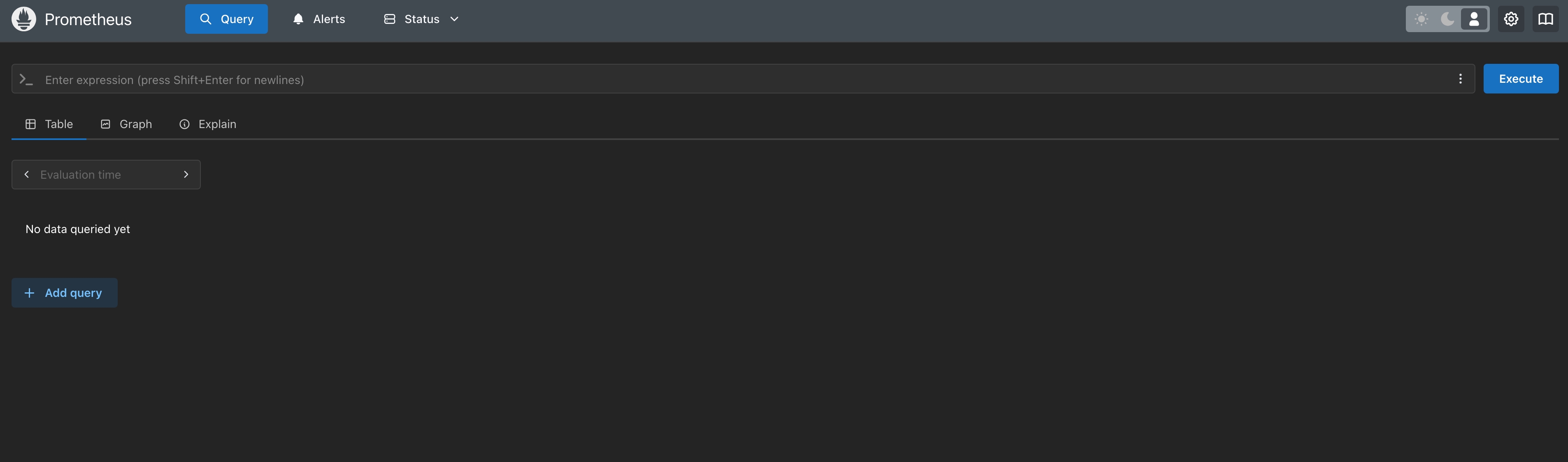
At this point, accessing the node’s port 9090 via a browser should reach the Prometheus page.
Installing the Prometheus Exporter
A Prometheus Exporter mainly runs on a node to actively export the node’s info to a specific service for Prometheus to access. So the need here is to install it on every node in the cluster.
1 | apt install python3 python3-pip |
The reason for --break-system-packages is that PVE enables PEP 668 by default, which restricts installing Python packages with pip3 in the global environment, since it means this Python environment is system-managed. This parameter bypasses that restriction.
Next create an auth file so prometheus-pve-exporter can log into PVE. The auth method here uses a Proxmox VE API Token; create one in advance if you haven’t.
1 | sudo tee /etc/prometheus/pve.yml<<EOF |
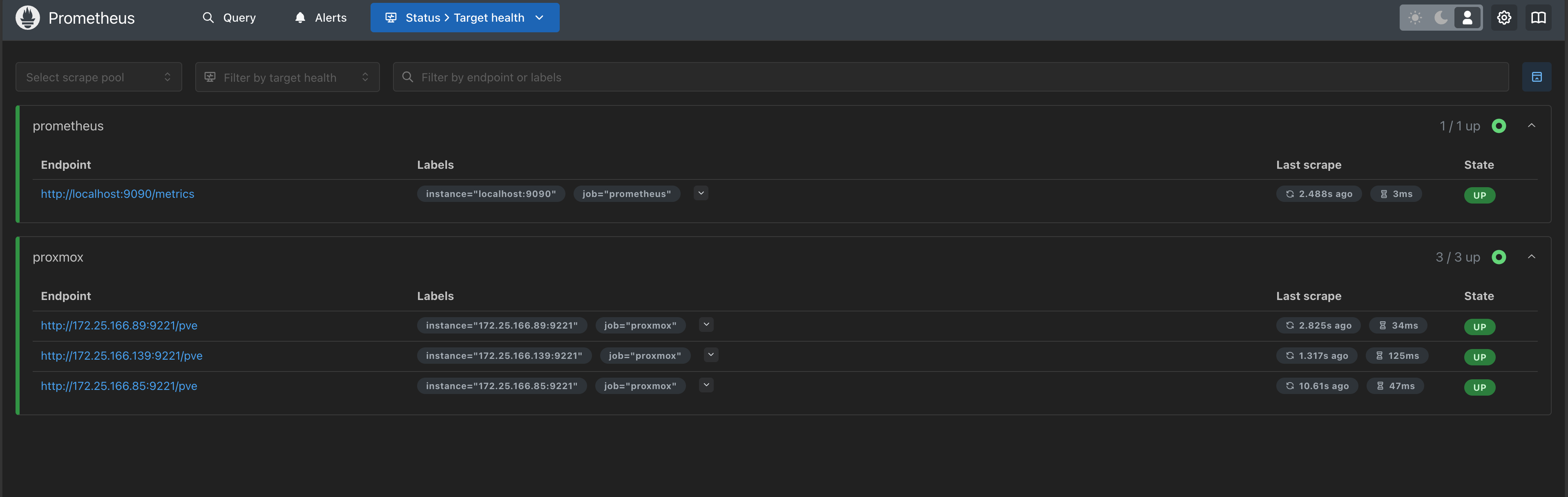
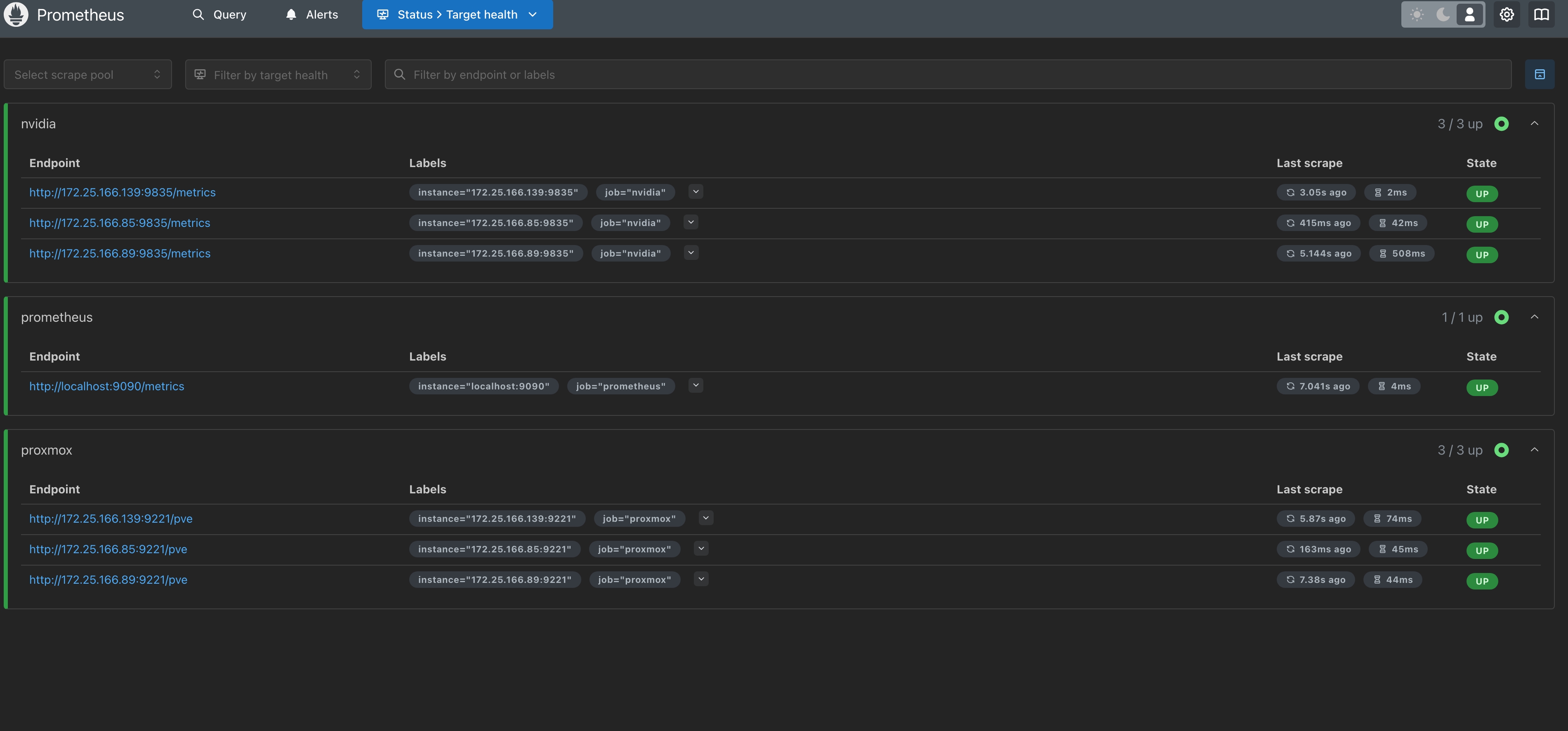
You can visit http://<Service IP>:9221/pve to confirm you can retrieve system info, and also check target health on Prometheus’s dashboard.
Creating an API Token
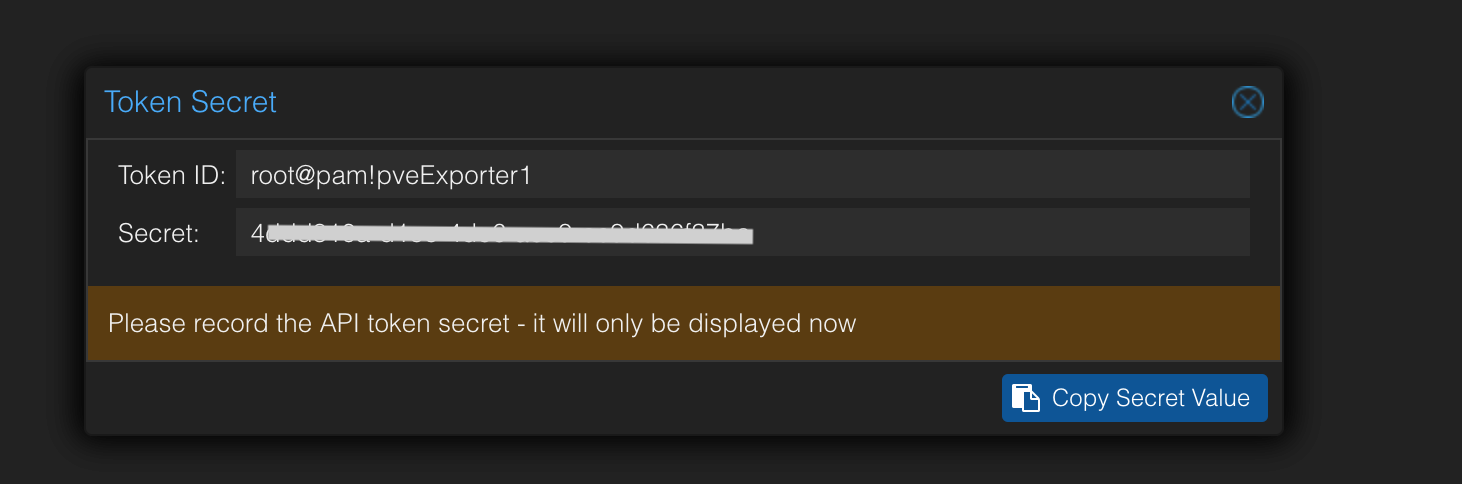
In the Proxmox web interface, create an API Token.
- Go to user management (
Datacenter→Permissions→API Token). - Create a token for a user and assign appropriate permissions (e.g. Read-Only)
- Record the
Token-IDandToken-Secret.
Then create the systemd config file for easy service management
1 | sudo tee /etc/systemd/system/prometheus-pve-exporter.service<<EOF |
Enable the prometheus-pve-exporter service
1 | systemctl daemon-reload |
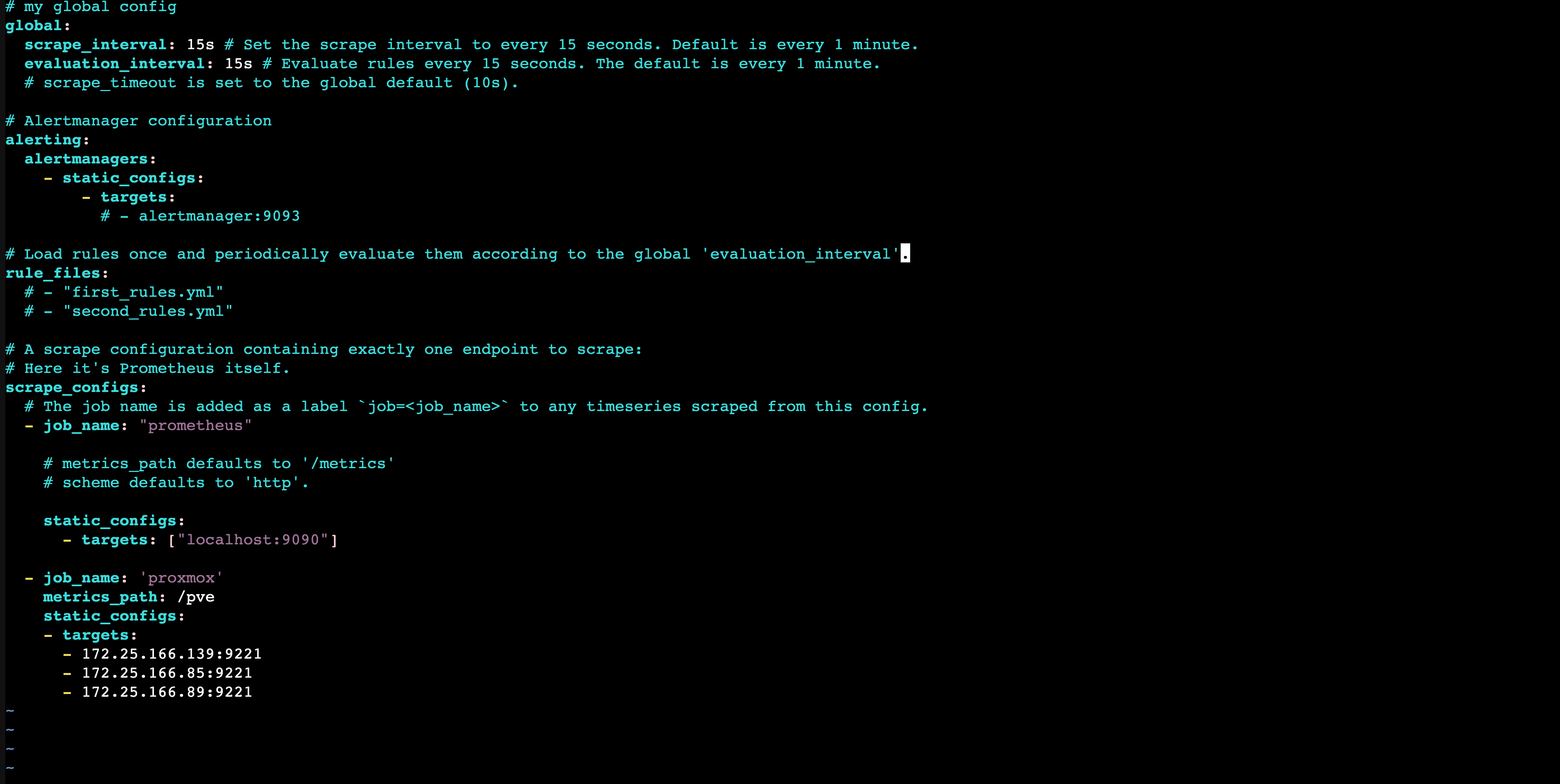
Once all the exporters in the cluster are installed, be sure to go to
/etc/prometheus/prometheus.ymlon the control node (the one with Prometheus) and add the worker nodes’ip addrto targets.
1 | ... |
Installing Grafana
Add the official repo
1 | sudo apt-get install -y software-properties-common |
Install Grafana
1 | sudo apt-get update |
Enable Grafana
1 | sudo systemctl start grafana-server |
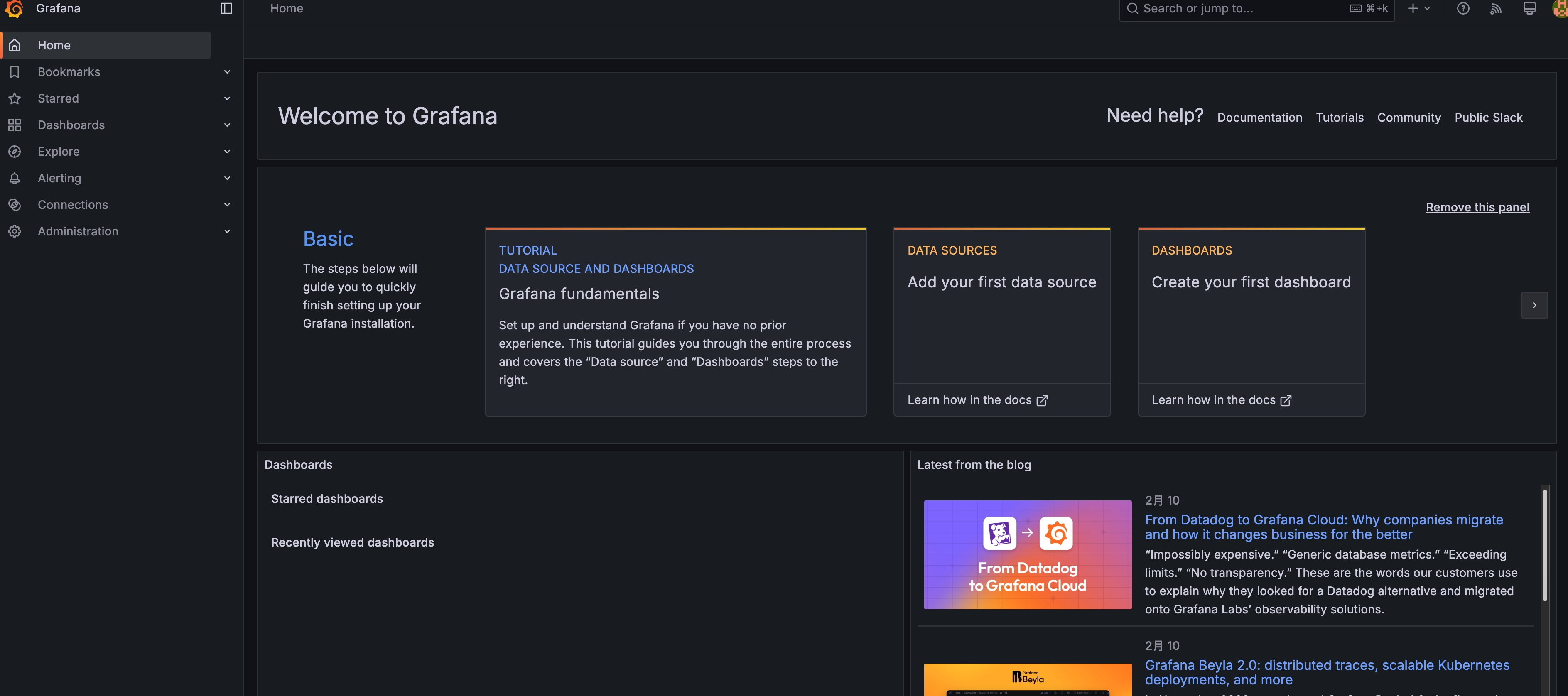
Open http://<Controller Node IP>:3000 in a browser; the credentials are admin/admin (you’ll be prompted to change them on first login).
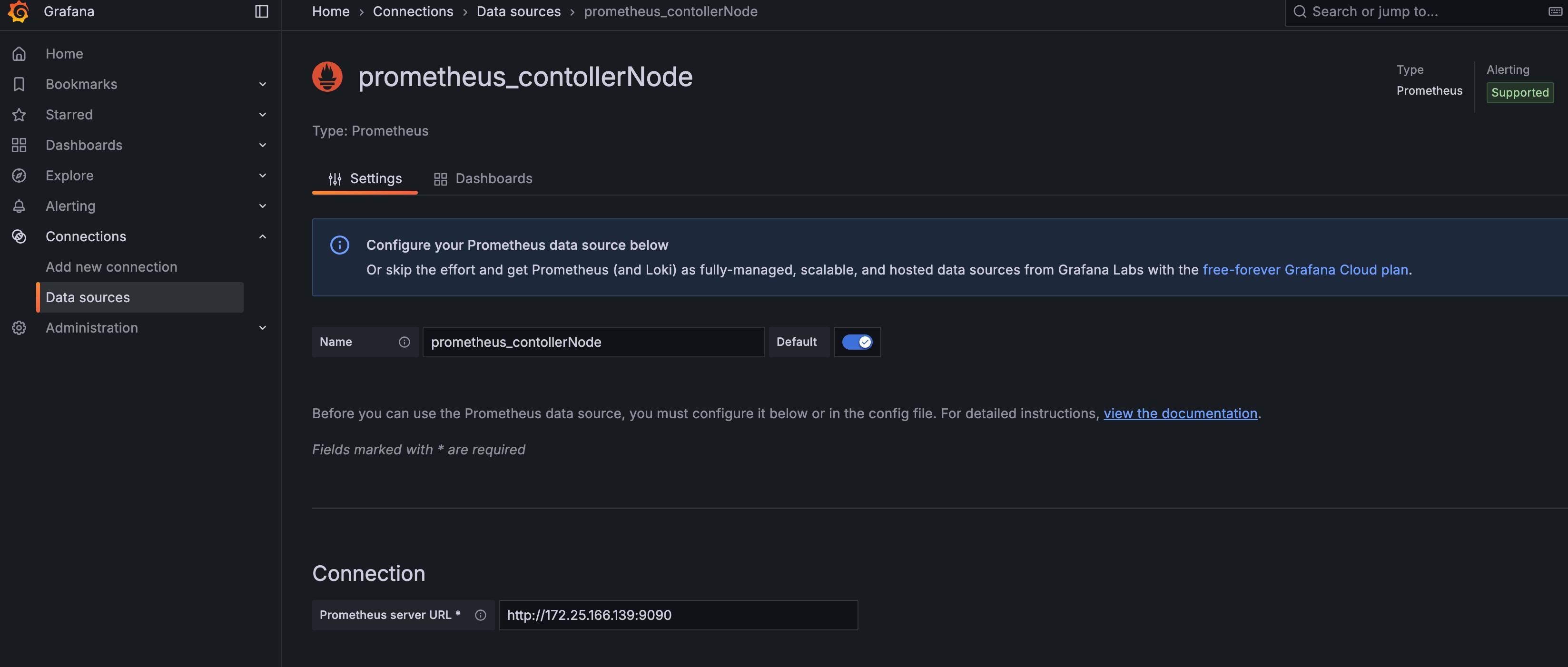
Next, to connect Grafana to Prometheus, go to /home/connections/data sources/ and choose Add Data Source, then choose Prometheus, and on the page specify the service name and Prometheus URL.
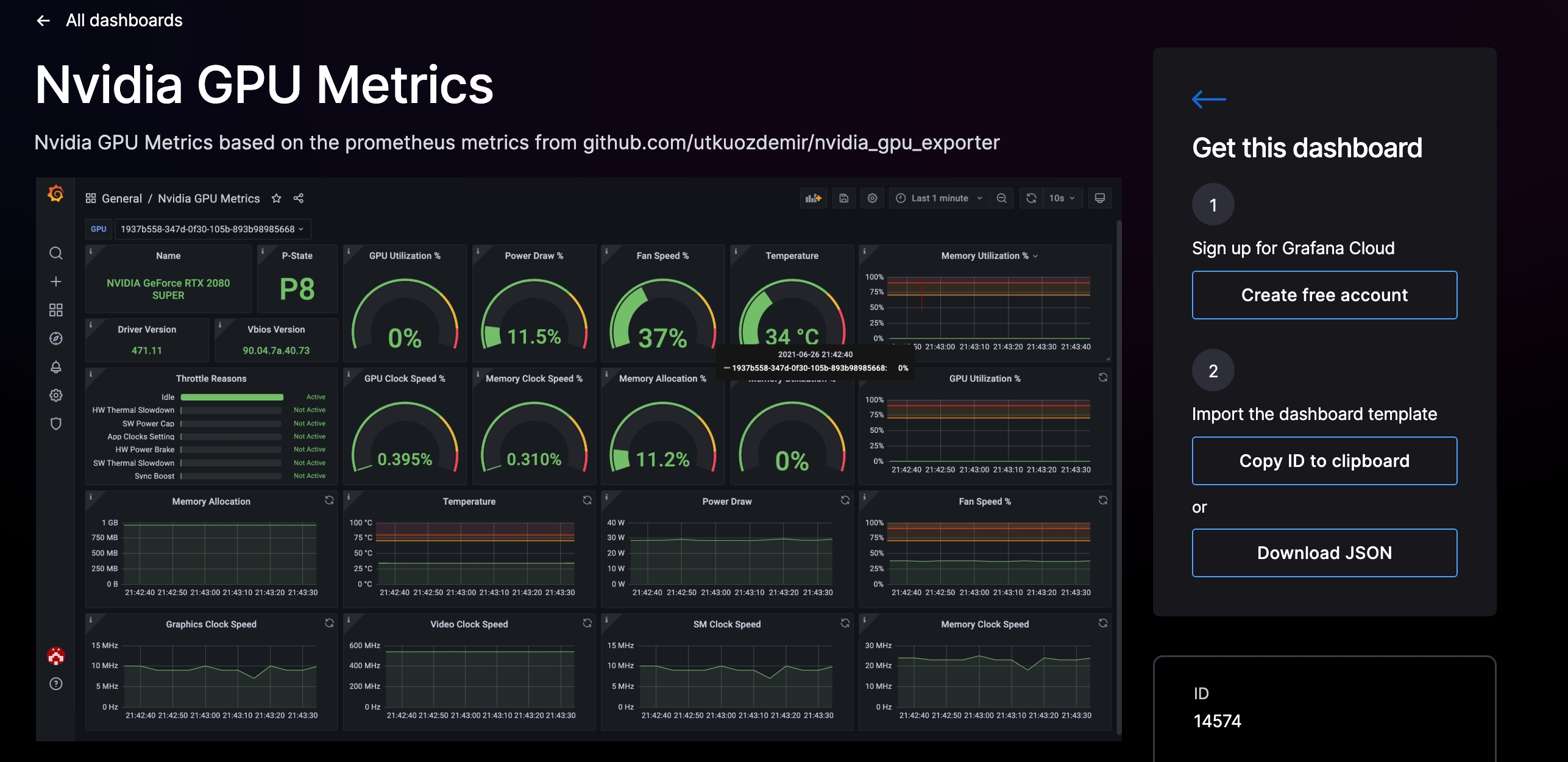
Then find a good dashboard. Based on my needs I found a few nice ones:
NVIDIA GPU: https://grafana.com/grafana/dashboards/6387-gpus/
https://www.leadergpu.com/articles/524-collecting-gpu-metrics-with-grafana
Power Monitoring: https://grafana.com/grafana/dashboards/20173-poweropen/
I chose the NVIDIA GPU Metrics dashboard and clicked Download JSON.
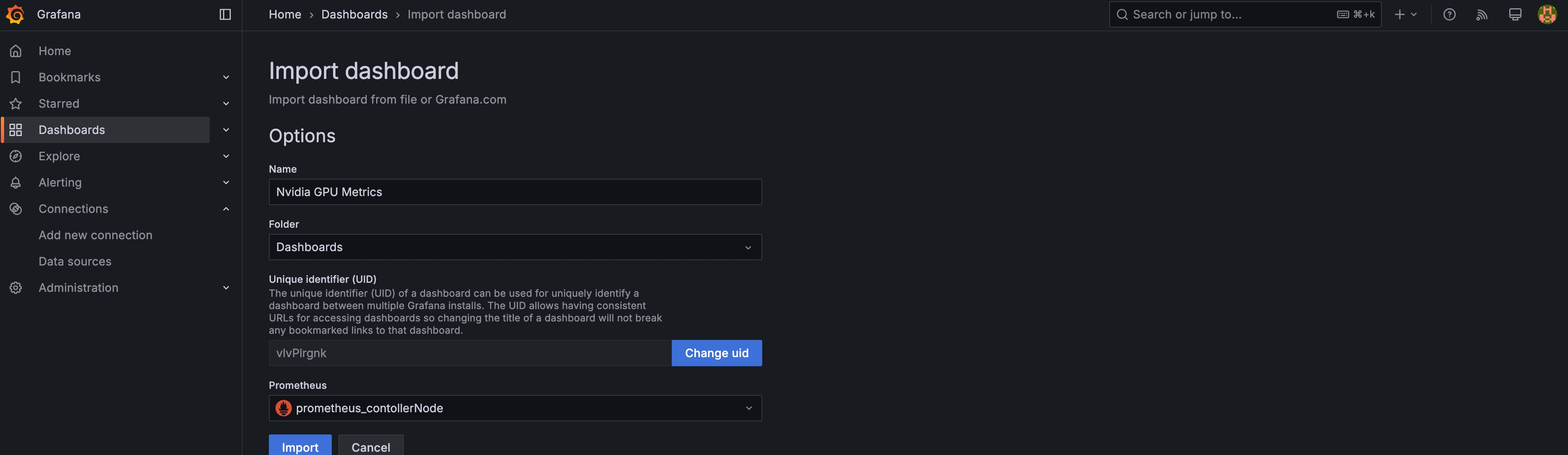
Then in Grafana’s Dashboard, choose New, then Import Dashboard, specify the source, and finally click import.
At this point the dashboard still shows No Data, because we haven’t installed an important component yet: the Nvidia GPU Exporter.
Installing the NVIDIA GPU Exporter
1 | wget https://github.com/utkuozdemir/nvidia_gpu_exporter/releases/download/v1.2.1/nvidia-gpu-exporter_1.2.1_linux_amd64.deb |
Then modify /etc/prometheus/prometheus.yml
1 | ... |
Then restart the prometheus service
1 | systemctl restart prometheus |
Checking Prometheus, you’ll find all the nodes with the NVIDIA GPU Exporter installed are now visible from Prometheus.
And you’ll find Grafana successfully pulling GPU data.
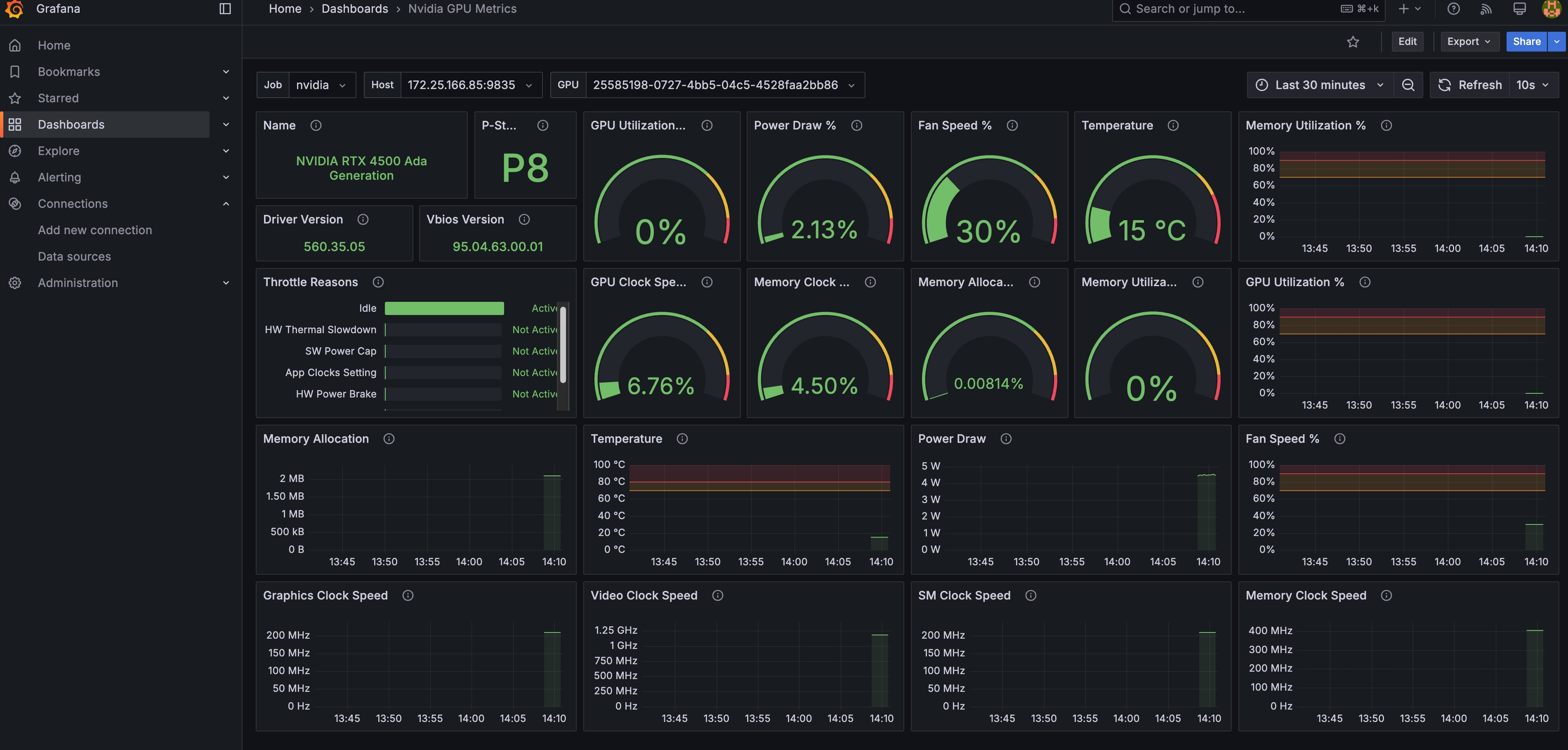
Note: each node must have the graphics-card driver installed first to correctly pull data.
The next issue to solve is GPU passthrough, letting VMs on PVE access the graphics card.
References
https://codychen.me/2021/38/proxmox-%E9%80%8F%E9%81%8E-prometheus-%E5%91%88%E7%8F%BE%E5%9C%A8-grafana/
https://samynitsche.de/3-monitoring-proxmox-with-prometheus-and-grafana

If you find my articles helpful, please support Kevin!
 Use boba to safe Kevin!