
PVE VM Live Migration Based on CPU Power Consumption | PVE Series 2
🌐 中文版:繁體中文
Preface
In the previous post we covered how to do live migration of VMs in Proxmox VE. Now we’ll add a condition to trigger migration. Since my need here is power consumption, I need to know how to get CPU power consumption info.
Getting CPU power consumption info
There are several ways to get CPU or other hardware power consumption. The simplest is powerstat to view CPU power in a Linux/Unix environment. Also, if the host has a BMC and supports IPMI, you can use ipmitool to get the host’s power-consumption info.
Aside: Proxmox VE itself actually supports an IPMI watchdog. You can uncomment it in
/etc/default/pve-ha-managerto use the IPMI watchdog, since the default is the OS-level softdog. But if the motherboard doesn’t support it, just use the default.
Here are a few commands to check whether your host supports IPMI:sudo apt-get install ipmitool
Check whether the BMC (Board Management Controller) exists and is running properly; if it returns no info or shows an error, the server may not support IPMI:sudo ipmitool mc info
Or check with dmidecode:sudo dmidecode | grep -i ipmi
If the server returns no IPMI/BMC-related info, the hardware may not support it.
Let’s try getting the info with powerstat:
1 | sudo powerstat -R |
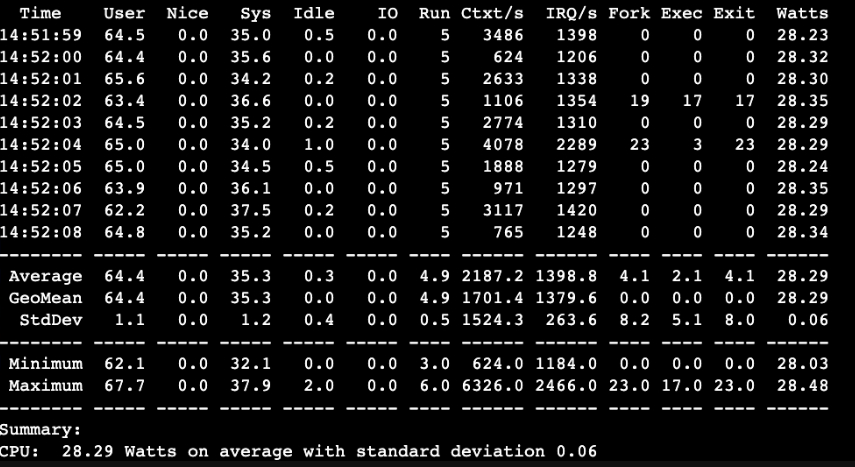
This command takes at least 60 samples, one CPU power reading per second, and finally outputs the average consumption. You can use this result in a script as a condition for migration.
Migration scenario
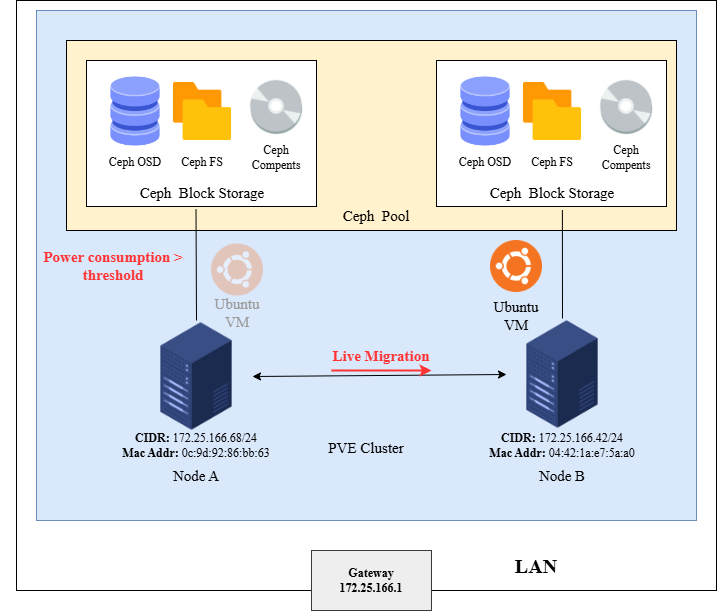
After getting CPU power simply, next let’s introduce the migration scenario. Continuing the two-node architecture from the previous post, when node A judges its power consumption exceeds a threshold, it migrates; and if the target node is powered off, it wakes it up to migrate. We can implement this with a bash script.
Before
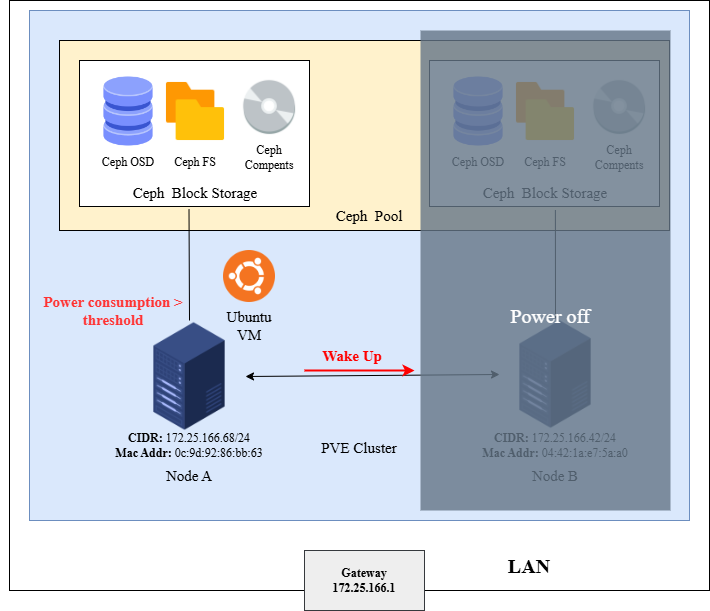
After
1 |
|
This simple bash script first sets a low threshold of 6 watts, for experimental convenience, basically ensuring the node always migrates. Here I’m actually migrating the VM on node pve2 to node pve. The POWER_CONSUMPTION=$(powerstat -R 1 60 | grep -oP 'CPU:\s+\K[0-9.]+') gets the average CPU power over 60 samples via powerstat, taking one minute (a limitation of the command). Then wakeonlan wakes the remote host, and qm performs the PVE node migration.
QM
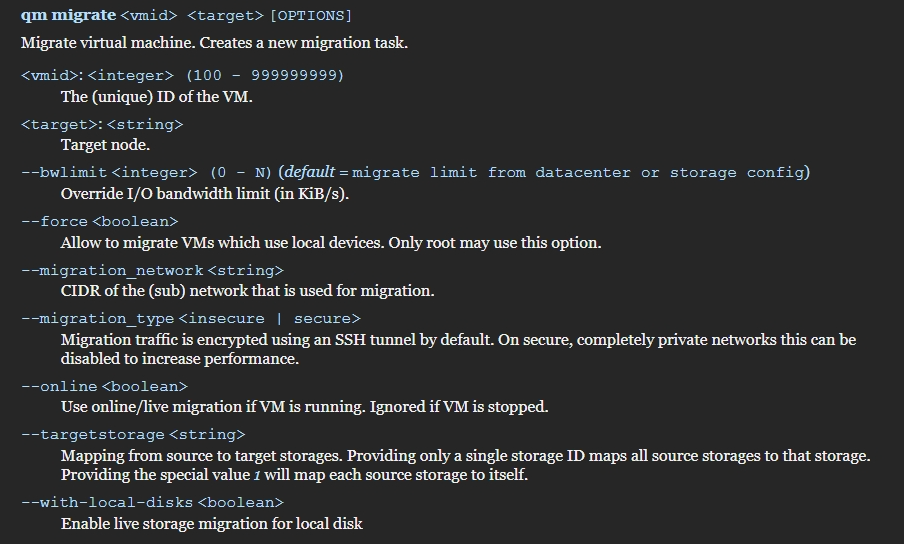
1 | qm migrate |
qm is the QEMU/KVM Virtual Machine Manager, a handy command-line tool PVE provides. Its migrate option migrates the VM with the given VM ID to another node, and if the VM is running you need to add --online for live migration. If you’re interested in the qm command, see its manual.
Wake On LAN (WOL)
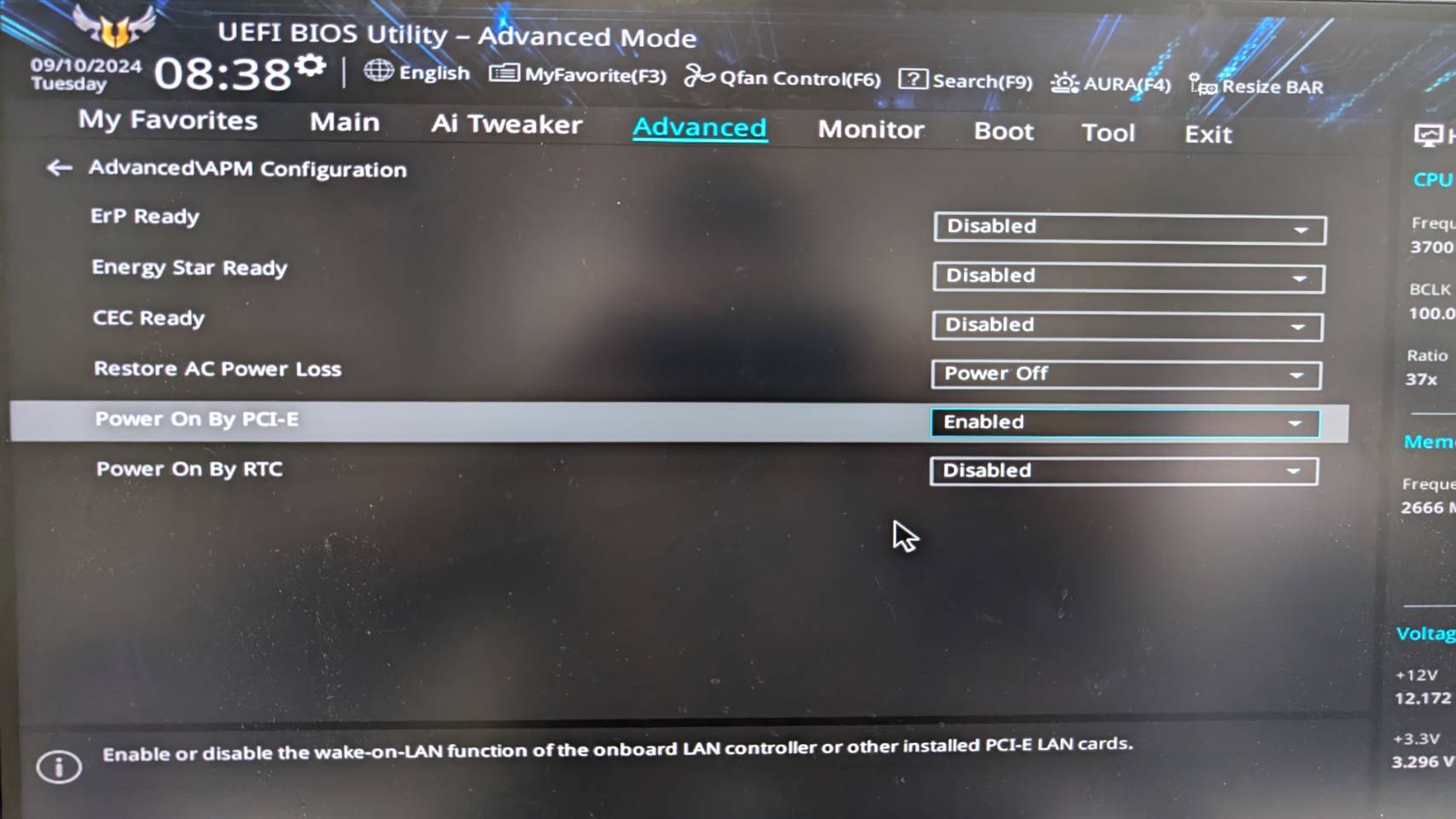
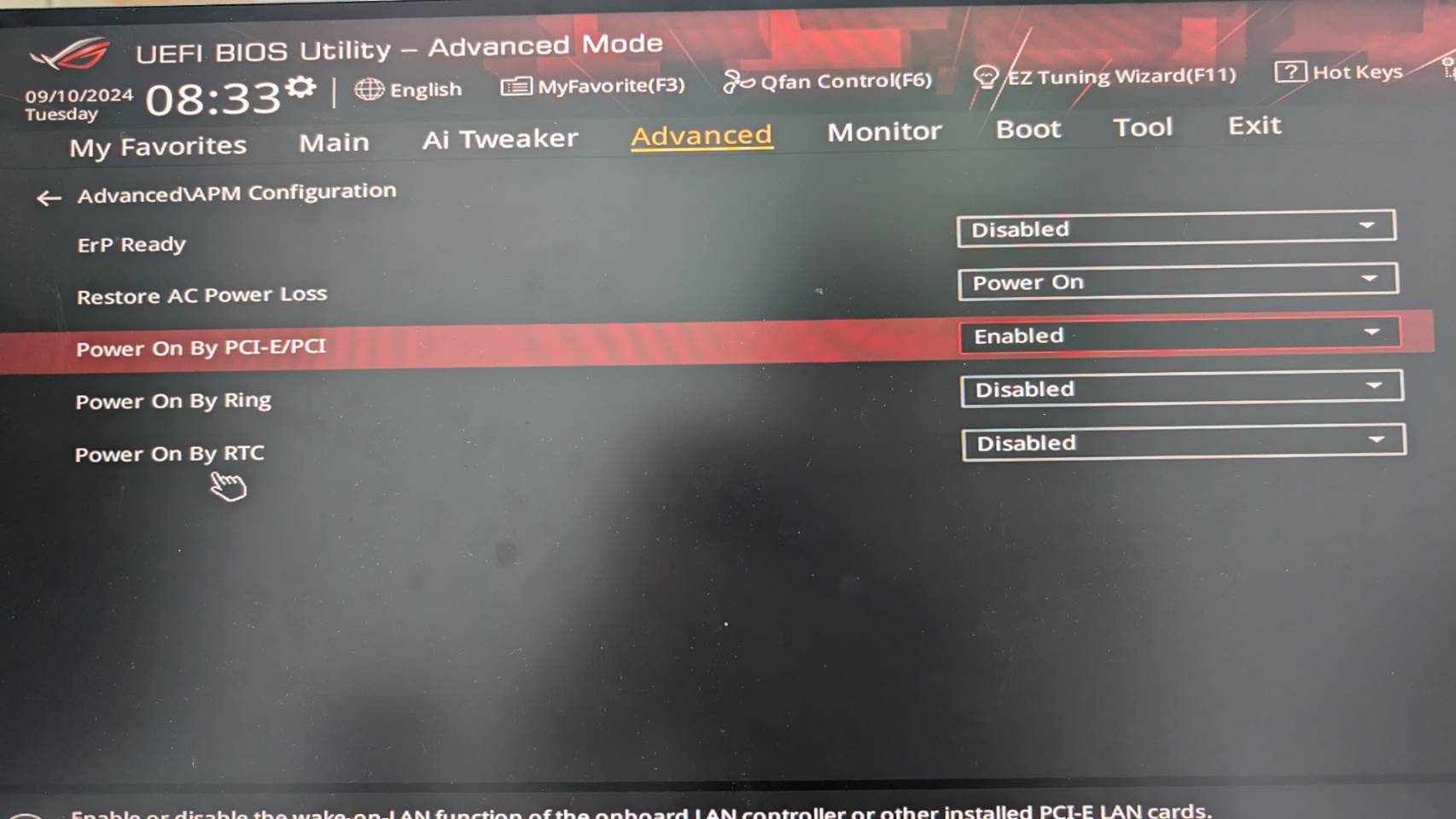
Wake On LAN (WOL), also called “network wake-up,” lets a computer on the same LAN send a command to a powered-off or sleeping host to boot it back to operation. To use this, first confirm the motherboard supports WOL; if it does, you need to enable the PCI/PCIe wake-up feature in the UEFI/BIOS.
How it works
When I first looked up WOL, I was curious how a powered-off computer can still receive a packet to wake it. The secret is that when a computer is off or sleeping, there’s still a trickle of power to give the NIC or host minimal operating capability, so it can listen to other packets on the LAN, continuously receiving and checking broadcast info from the same LAN.
The host responsible for waking a node broadcasts a Magic Packet on the LAN. This Magic Packet usually starts with 6 consecutive FFs: FF FF FF FF FF FF, followed by the MAC address, and sometimes a 4-to-6-byte password.
This Magic Packet is broadcast on the LAN, and once the sleeping/powered-off host parses the content with its minimally-operating NIC and finds the info in the Magic Packet matches the local host, it starts the boot process. That’s also why the bash script above appends the MAC address after wakeonlan.
Enabling WOL in the BIOS
Enter the BIOS on each of the two nodes to enable it, then save changes and reboot.
Command test
Here I first power off node B and try to wake it from node A.
1 | wakeonlan 04:42:1a:e7:5a:a0 |

From the history you can also see node 2 successfully booted from a powered-off state.

The experiment
But the command test showed that the boot wait time also needs to be considered, so we can change the script to the following.
1 |
|
This adds a retry mechanism: after sending the Magic Packet, it tries to ping the host to check whether it’s alive. Of course I confirmed I’m not blocking ICMP packets, so after boot it should definitely be pingable. The max retry count is 12, with a 10-second wait between retries, so it waits at most 2 minutes.
These numbers are just for experimental convenience; whether to change it to backoff retry in real operation is up to you.
Here I wanted to reverse the experiment, first powering off node 1 PVE.
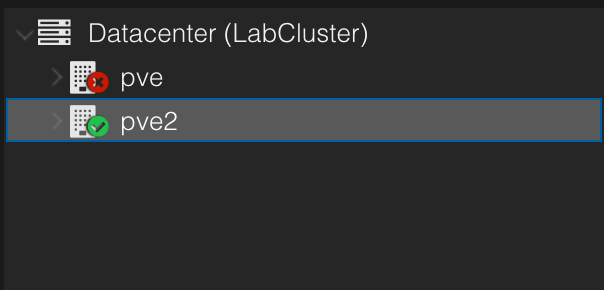
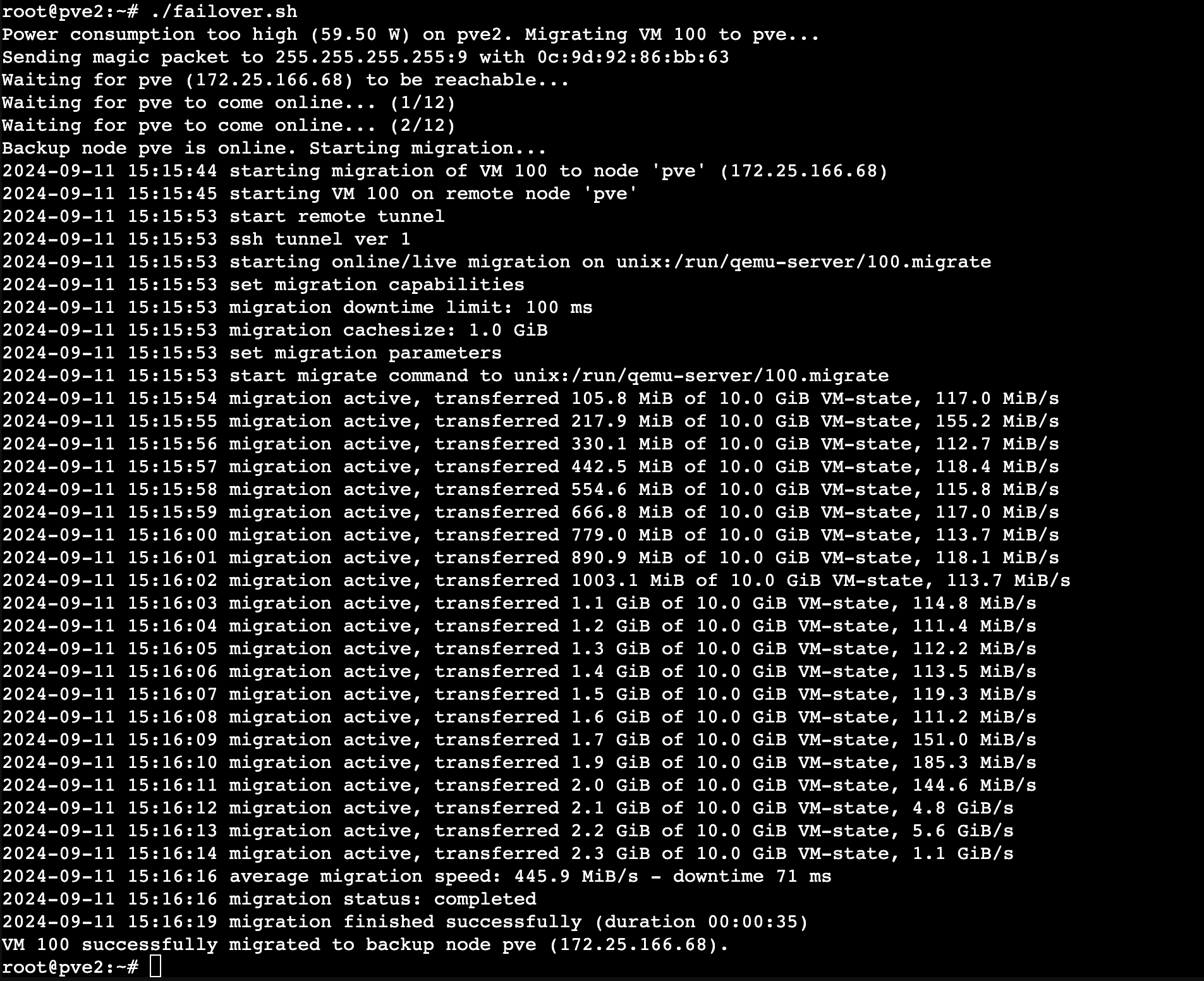
Then on node 2 PVE2 I run the script above. As expected, it first checks whether the average CPU power over one minute exceeds the threshold (6 watts), which it definitely will, so it then wakes the pve node, keeps pinging node 1, and after two retries, node pve is available and migration starts, completing successfully.
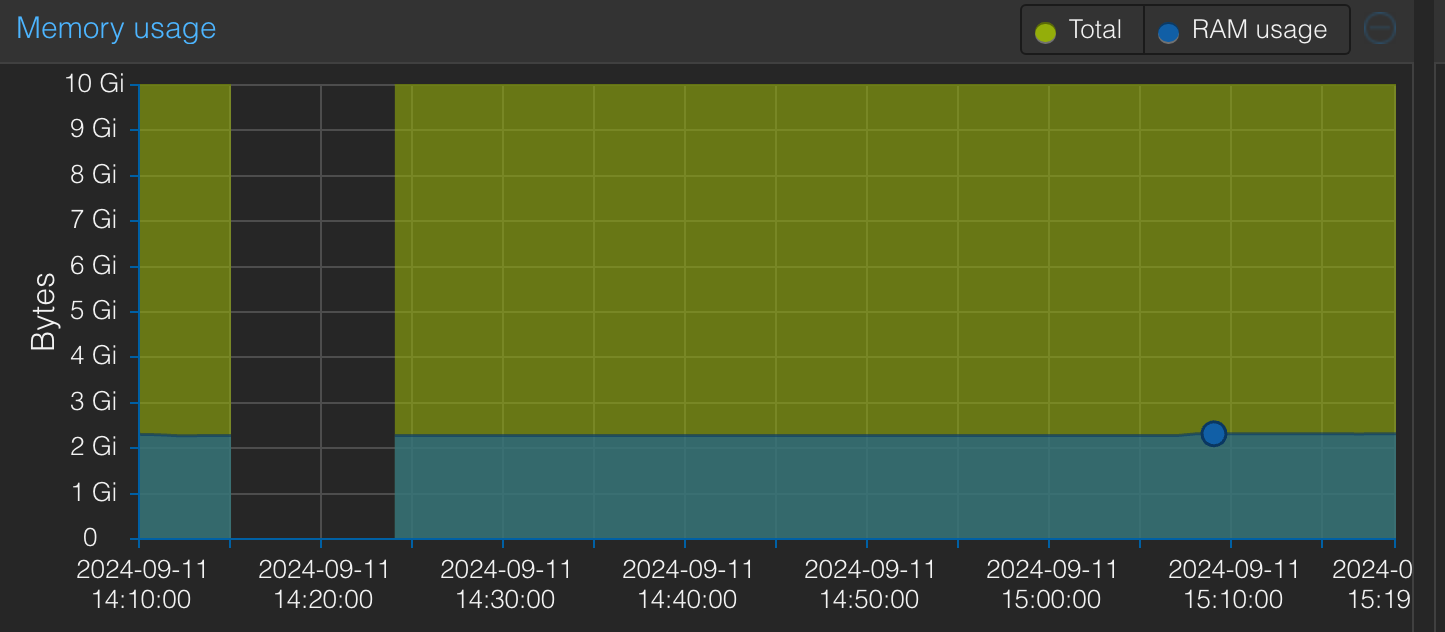
If you observe the Ubuntu VM’s memory metric, you’ll see a gap, which is the expected downtime during migration. When I handled MQ issues at AWS, I’d also see such gaps in some instances’ memory or CPU metrics during maintenance windows, which usually indicates an underlying instance replacement or restart, possibly for maintenance or a security patch.
Closing
This post did a simple little experiment: from one node in the PVE cluster, we woke another PVE node on the same LAN and did a live migration. If I later have another host available, I’ll cover using the HA (High Availability) cluster in PVE.
Reference
IPMI watchdog
https://blog.jason.tools/2019/02/pve-ipmi-watchdog.html


If you find my articles helpful, please support Kevin!
 Use boba to safe Kevin!